12. Administration
Everything in this chapter is Admin only.
12.1 Getting there
The entrance is the gear icon in the top-right of the header. Its tooltip says Settings — slightly confusingly, since one of the sections inside is also called Settings.
If you are not an administrator in the current workspace, the gear is not shown, and navigating to the admin URL returns you to the workspace. Your role is per workspace: you may be an administrator in one and a standard user in another.
The Admin area has seven sections:
| Section | Purpose |
|---|---|
| Datasources | Database connections |
| Criteria | The fields and values users segment on |
| Normalization | Making two values count as one |
| Export Columns | Which columns land in a CSV |
| Connected Systems | Eloqua, Marketo, SFTP destinations |
| Scheduled Exports | Managing recurring sends |
| Settings | Timeout, alert email, digest, AI usage |
Back to App returns you to the workspace.
12.2 Datasources
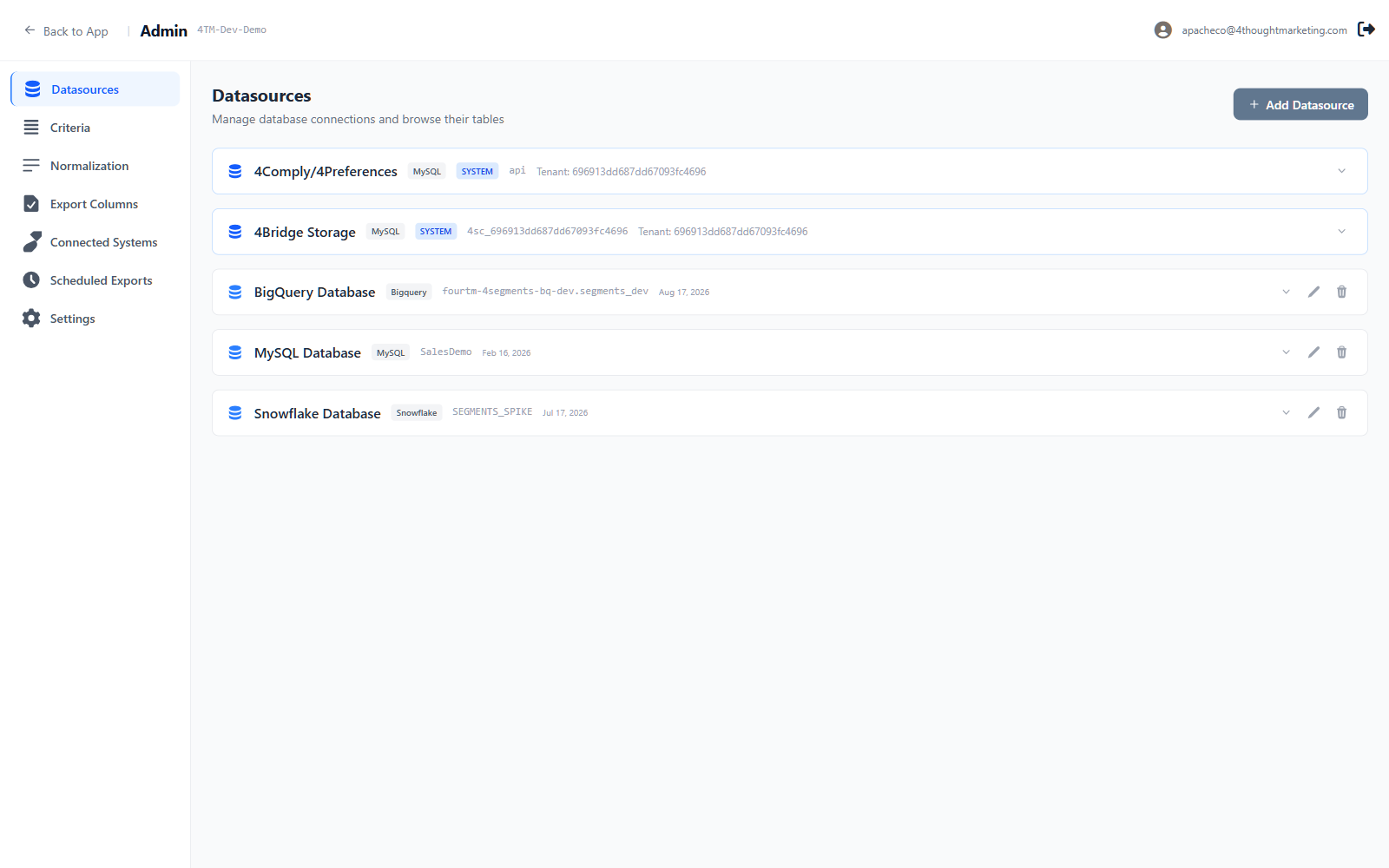
Manage database connections and browse their tables
Each card shows the name, engine badge, database, and when it was added. Click one to browse its tables → columns → distinct values.
The built-in datasources
4Comply/4Preferences carries a blue SYSTEM badge. It is your 4Comply data, configured centrally. It cannot be renamed or deleted, and it is restricted to an approved list of tables. 4Bridge Storage is a second built-in that appears when applicable.
If the system connection is not configured for your workspace, the card simply is not shown — that is not an error.
Adding one
+ Add Datasource opens a form whose fields change with the engine:
MySQL
- Connection string — e.g.
Server=host;Database=db;Uid=user;Pwd=secret. 4Segments hardens this on save: local file loading and user variables are disabled and SSL is required.
Snowflake
- Account, Warehouse, Database, Schema (optional, defaults to PUBLIC), Role (optional), Username
- Private key (PKCS#8 PEM) and an optional Private key passphrase
Snowflake is key-pair only. There is no password option, because Snowflake now enforces MFA and rejects password-based programmatic access. An older password-configured datasource will fail with a message saying exactly this.
BigQuery
- Project ID, Dataset ID, Location (optional)
- Service account key (JSON) — paste the key file's contents
Test Connection inside the dialog runs the same validation as saving, so it cannot pass something that saving would reject. It reports Connection successful! or Connection failed. Check the connection details.
For security reasons a failed test does not say why in detail — that would let an attacker probe your network. The server log has the specifics.
Editing and deleting
Only the name can be edited, inline on the card. Engine and credentials require recreating the datasource — which is deliberate, since criteria are bound to a datasource at creation.
Deleting runs a dependency check first, and lands in one of three places:
Blocked. Something depends on it:
Datasource in use — "Snowflake Database" can't be deleted yet — 4 assets still depend on it. Remove the dependency first, then delete the datasource.
with each blocker listed (Q3 Analysis — saved canvas). Nothing overrides this.
Clean. Nothing depends on it — a simple confirm.
Cascade. It owns criteria, so deleting takes them too. This requires typing the datasource name exactly:
Delete datasource — Deleting "Snowflake Database" also deletes everything built on it. This cannot be undone. 7 criteria and 63 criteria values will be permanently deleted Type Snowflake Database to confirm
The match is exact — case-sensitive, no leading or trailing spaces. The button stays disabled until it matches.
12.3 One datasource per canvas
Worth restating here: a canvas, and a saved segment, may only use criteria from one datasource. This is enforced when saving:
Canvas draws on 2 datasources (Snowflake Database, BigQuery Database). A saved selection can only use criteria from one datasource, because it runs as a single query against a single connection.
The sidebar greys out non-matching tables once a canvas has content, so it is difficult to build such a canvas by accident.
12.4 Criteria
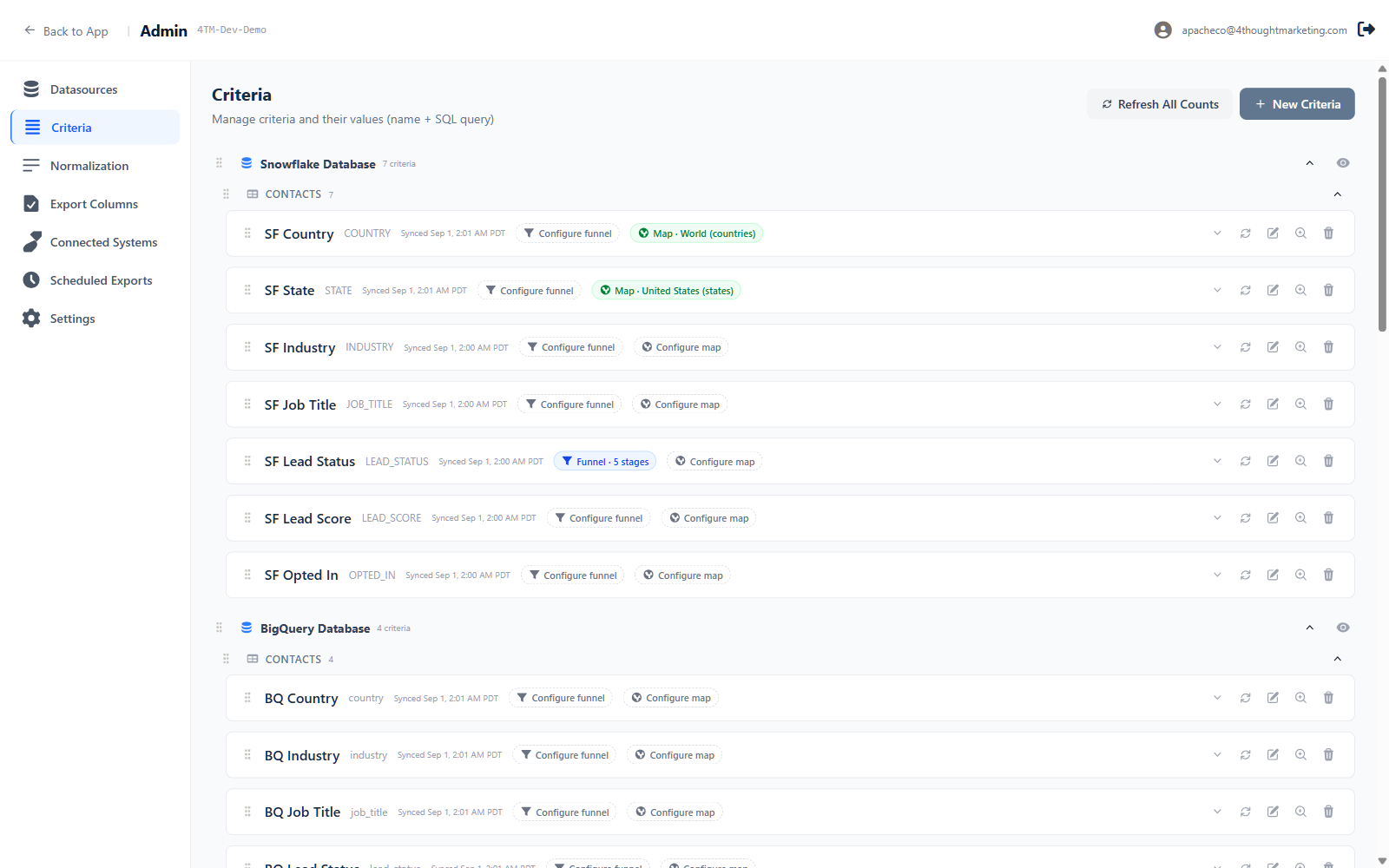
This is where you define what users can segment on. It is the section you will spend the most time in.
A four-level tree — datasource → table → criteria → values — and every level is drag-reorderable. That order is exactly what users see in the sidebar, so put the most-used criteria at the top.
Two visibility controls:
- The eye on a datasource header hides that whole datasource from the Criteria tab and from 4AI's suggestions, without deleting anything.
- The eye on an individual value hides just that value.
12.4.1 Creating a criterion
+ New Criteria walks down: Datasource → Table → Column, each enabled once the previous is chosen. Then:
- Name (optional) — auto-suggested by title-casing the column name
- Auto-populate — on by default, with a top N values count
Help text under the checkbox changes with the column's type:
- Date: Creates relative date ranges (last / within / after).
- Number: Creates value buckets or numeric ranges.
- Text: Discovers the most common values + blank/null.
A column can back only one criterion per table; already-used columns are filtered out of the picker.
With auto-populate on, values are generated in the background:
Generating values — Criteria created. Its values are being generated in the background — on large datasets this can take a minute or two. Open the criteria again shortly to see them.
Editing a criterion lets you change the name and the auto-populate settings. Datasource, table and column are locked — the source column is immutable.
12.4.2 Criteria values
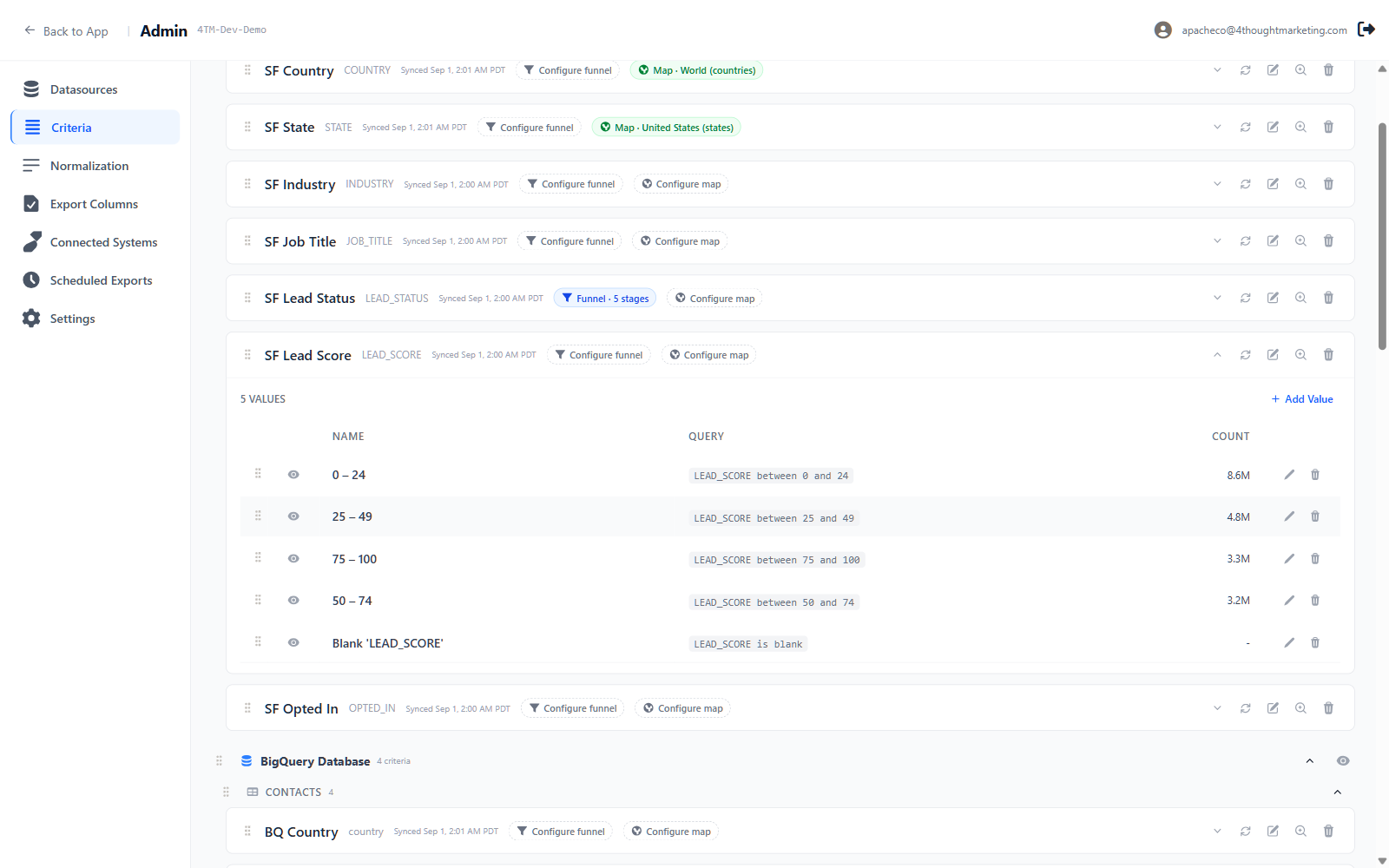
Values are generated automatically by type:
| Column type | Values created |
|---|---|
| Boolean | True, False, Blank 'COLUMN' |
| Date | Last 30 days, Last 90 days, Within 30 days, Within 90 days, Within 6 months, Within 1 year, After 1 year |
| Number | Every distinct value if there are 25 or fewer; otherwise four equal bands plus Blank |
| Text | The most common values, plus Blank 'COLUMN' |
You can also add your own with + Add Value.
Top N is a size limit, not a discovery cap. Set it between 1 and 200, or leave it empty for no limit. Values beyond N are hidden, never deleted — raise N later and they come straight back without a re-scan. Hand-made values, the Blank bucket, numeric bands, date buckets and boolean True/False are exempt and do not consume slots.
Two refresh buttons per criterion:
- Discover new values from DB (also refreshes counts) — finds values that have appeared since. Add-only; it never deletes your hand-made values.
- Update value counts — recounts what is already there.
Plus Refresh All Counts at the top of the section, which runs in the background for the whole workspace.
12.4.3 The value editor
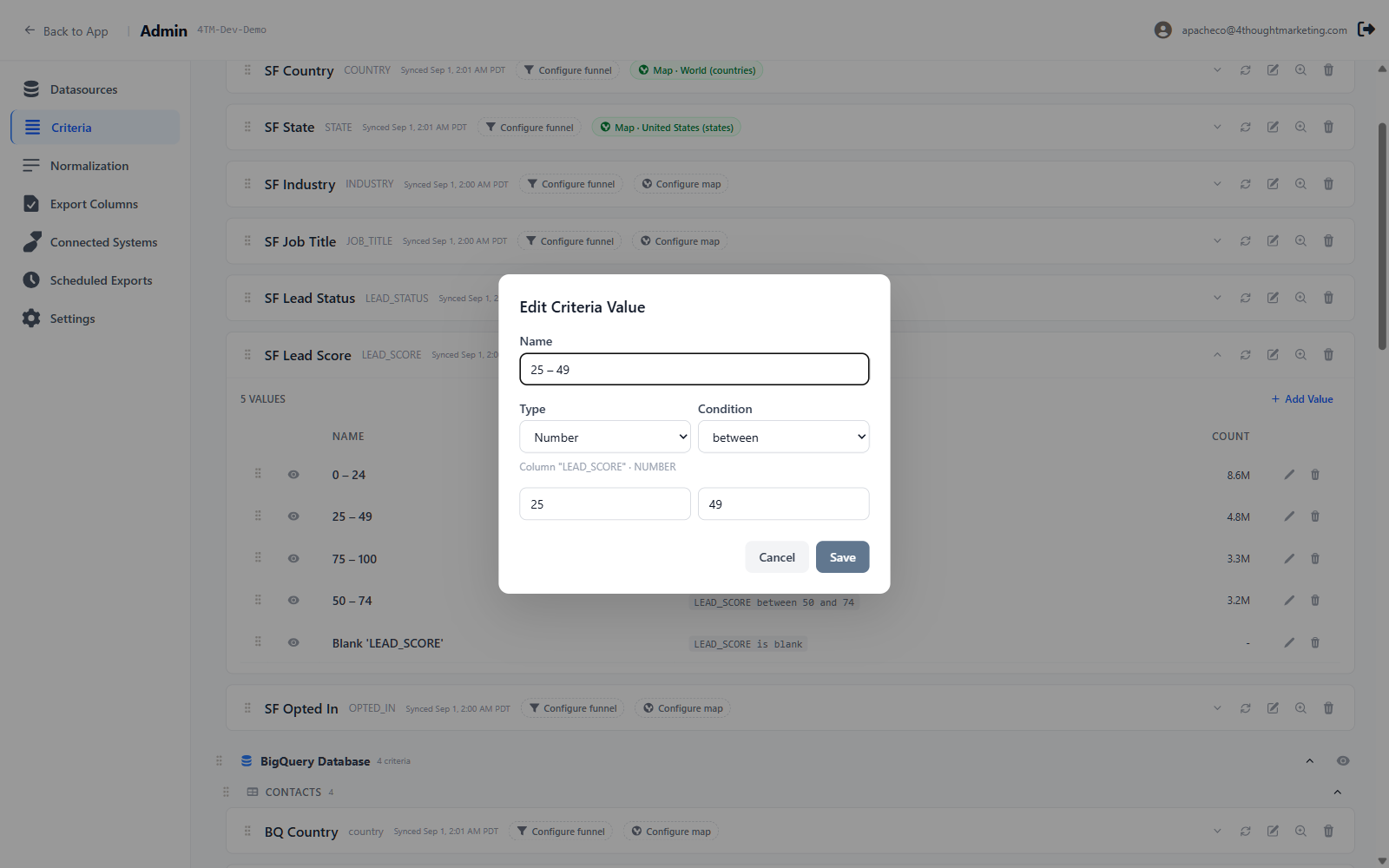
A criteria value is a name plus a condition. The condition is built from dropdowns:
- Type — Text, Number, Date or Boolean
- Condition — the operator
- Operand fields, which change to match
| Type | Available conditions |
|---|---|
| Text | equals · not equals · starts with · is any of · is blank · is not blank |
| Number | equals · not equals · greater than · greater than or equal · less than · less than or equal · between · from … up to (excluding) · is blank · is not blank |
| Date | in the last · in the next · more than (from now) · more than (ago) · on or after · on or before · between · is blank · is not blank — relative ones take a number and a unit (days / weeks / months / years) |
| Boolean | equals · not equals · is blank · is not blank |
"contains" and "ends with" are deliberately not offered. A leading-wildcard match cannot use an index and forces a full table scan. On the record volumes 4Segments works with, offering them would produce queries that never finish.
There is no raw SQL anywhere in version 2. In version 1.6, a criteria value was a
SQL WHERE fragment you typed, with a list of conventions about what you must not use
(no joins, no GROUP BY, no aggregates). Version 2 replaces that with the structured
editor above, and the old restrictions are now structural rather than advisory: one
table, one column, one parameterized comparison per value.
The Query column in the values table shows a readable rendering of the condition —
LEAD_SCORE between 25 and 49 — not editable SQL.
Note: the section subtitle still reads "Manage criteria and their values (name + SQL query)". That wording is a leftover from version 1 and does not describe how the editor works.
12.4.4 Funnel stages
Click Configure funnel on any criterion.
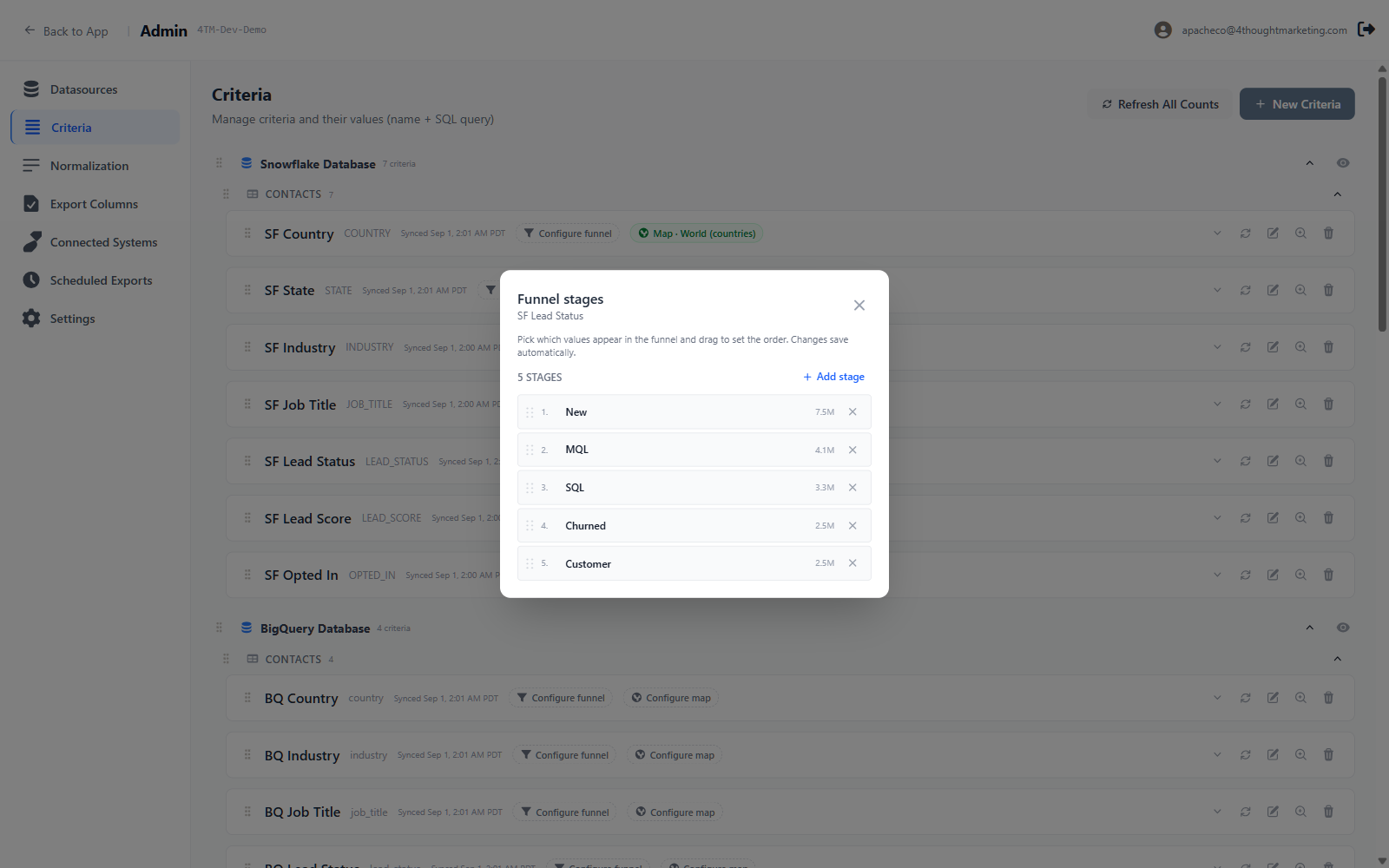
Pick which values appear in the funnel and drag to set the order. Changes save automatically.
+ Add stage offers that criterion's values. Each stage row has a drag handle (Drag to reorder), a position number, the value name, its count, and an ✕ (Remove from funnel).
Order in this list is top-to-bottom order in the funnel. Get it wrong and the funnel is drawn wrong — 4Segments has no way to infer a lifecycle order from the data.
Once configured, the chip reads Funnel · 5 stages and the criterion shows an amber funnel marker in the users' sidebar.
12.4.5 Map type
Click Configure map on any criterion.
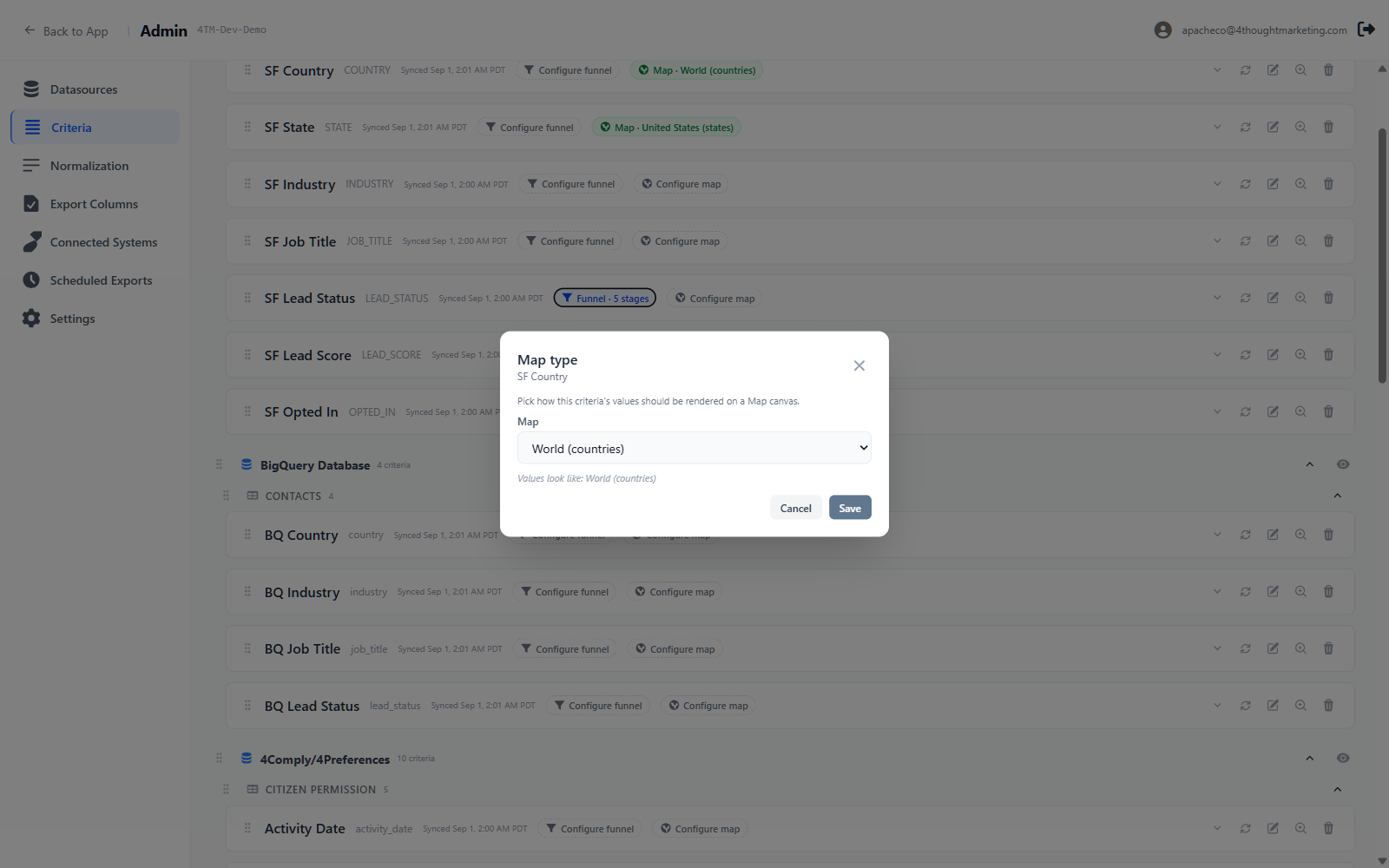
Pick how this criteria's values should be rendered on a Map canvas.
The Map dropdown offers None — not a map criteria, World (countries), United States (states), and a disabled More coming soon….
A hint underneath — Values look like: World (countries) — is 4Segments' own guess from sampling the data, so you can confirm you picked the right one.
Map and funnel configuration are mutually exclusive. Choosing a map clears any funnel stages, and the dialog warns you before it does.
12.4.6 Deleting
Criteria and values in use cannot be deleted:
Can't delete — in use — SF Industry is used by 3 saved canvas(es): Q3 Analysis, Territory Map, Office Hours Demo. Remove it from them before deleting.
12.5 Normalization
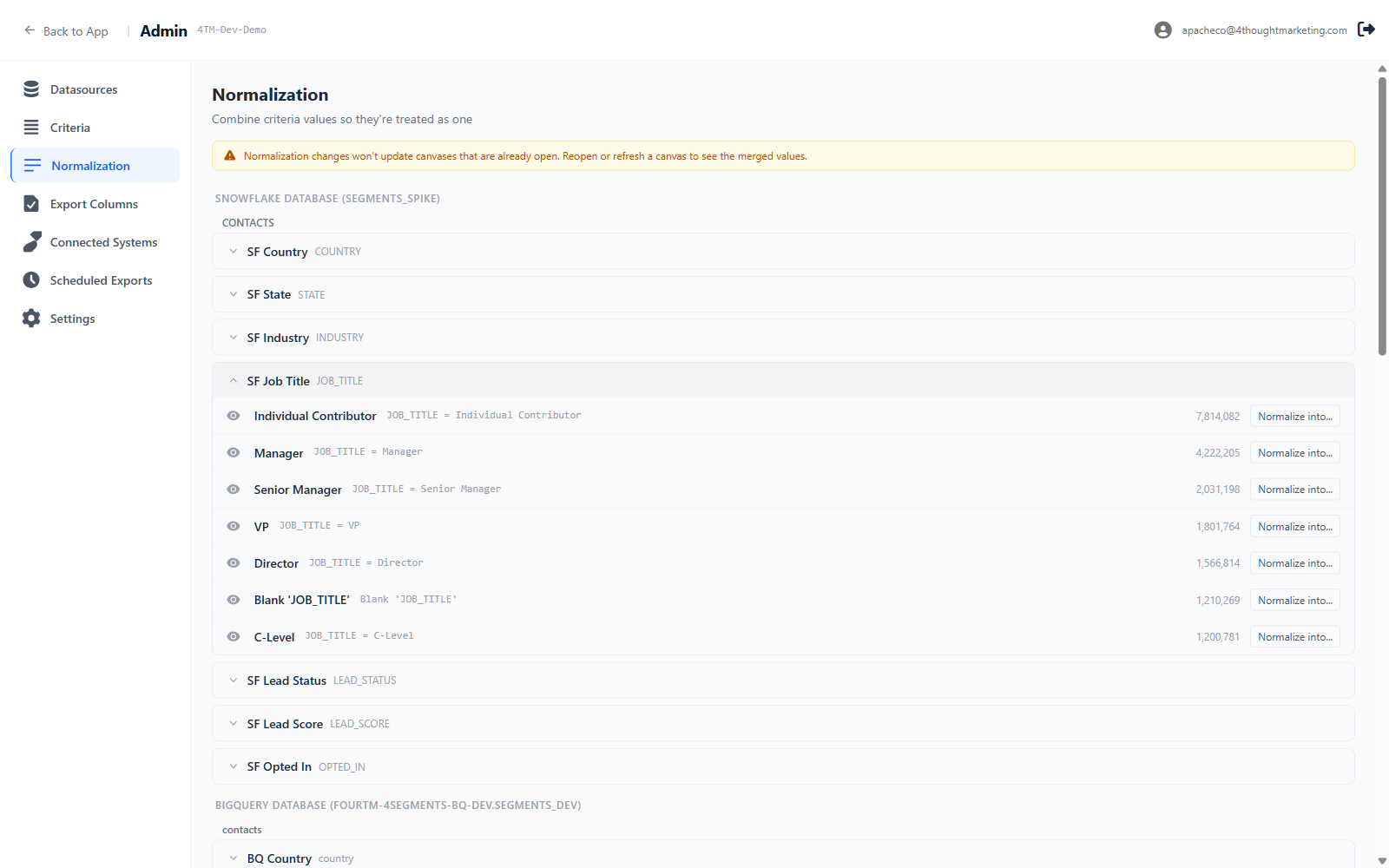
Combine criteria values so they're treated as one
This is version 2's answer to dirty data — the successor to version 1.6's "normalize dirty values" feature, working somewhat differently.
How it works: you pick a value and merge it into an existing sibling value of the same criterion. Both sets of records then count as the target.
You do not type "mgr → Manager". You open mgr, choose Manager as the target, and
Manager now means "Manager or mgr".
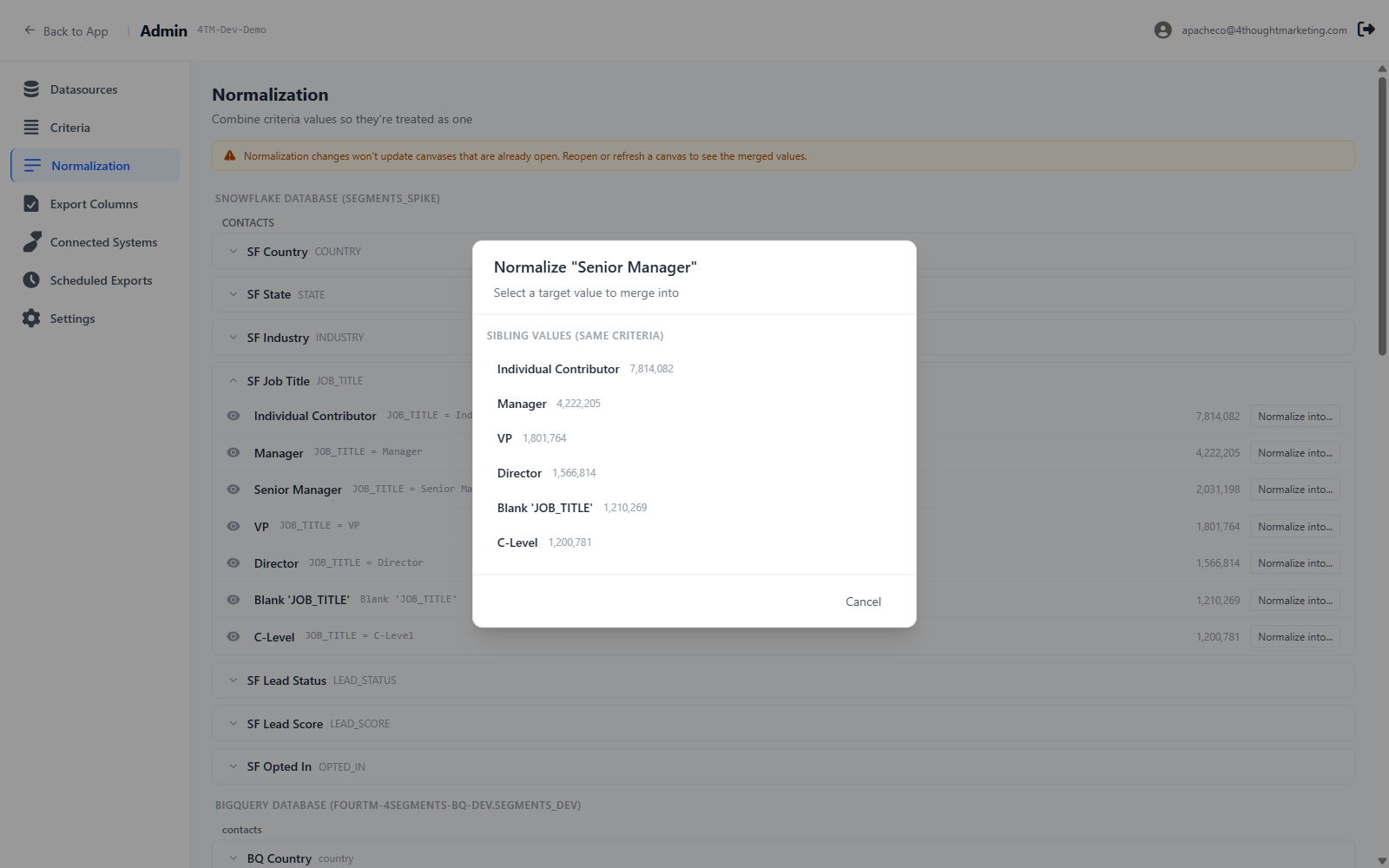
The dialog shows Source, Target, and the resulting Combined condition, plus a checkbox — checked by default — Hide "mgr" after normalization, so the dirty value disappears from the users' sidebar.
Normalized values carry a normalized badge; expand it to see what was merged in. Undo reverses it.
Restrictions: you can only merge into a value of the same criterion. There is no global find-and-replace, and no cross-criteria mapping. Normalization does not change your data — it changes how 4Segments counts it.
A standing banner reminds everyone of the one gotcha:
Normalization changes won't update canvases that are already open. Reopen or refresh a canvas to see the merged values.
Suggested workflow: sort a criterion's values alphabetically to bring spelling
variants together (Manager, manager, Mgr, Maganer all cluster), then merge each
variant into the clean one.
12.6 Export Columns
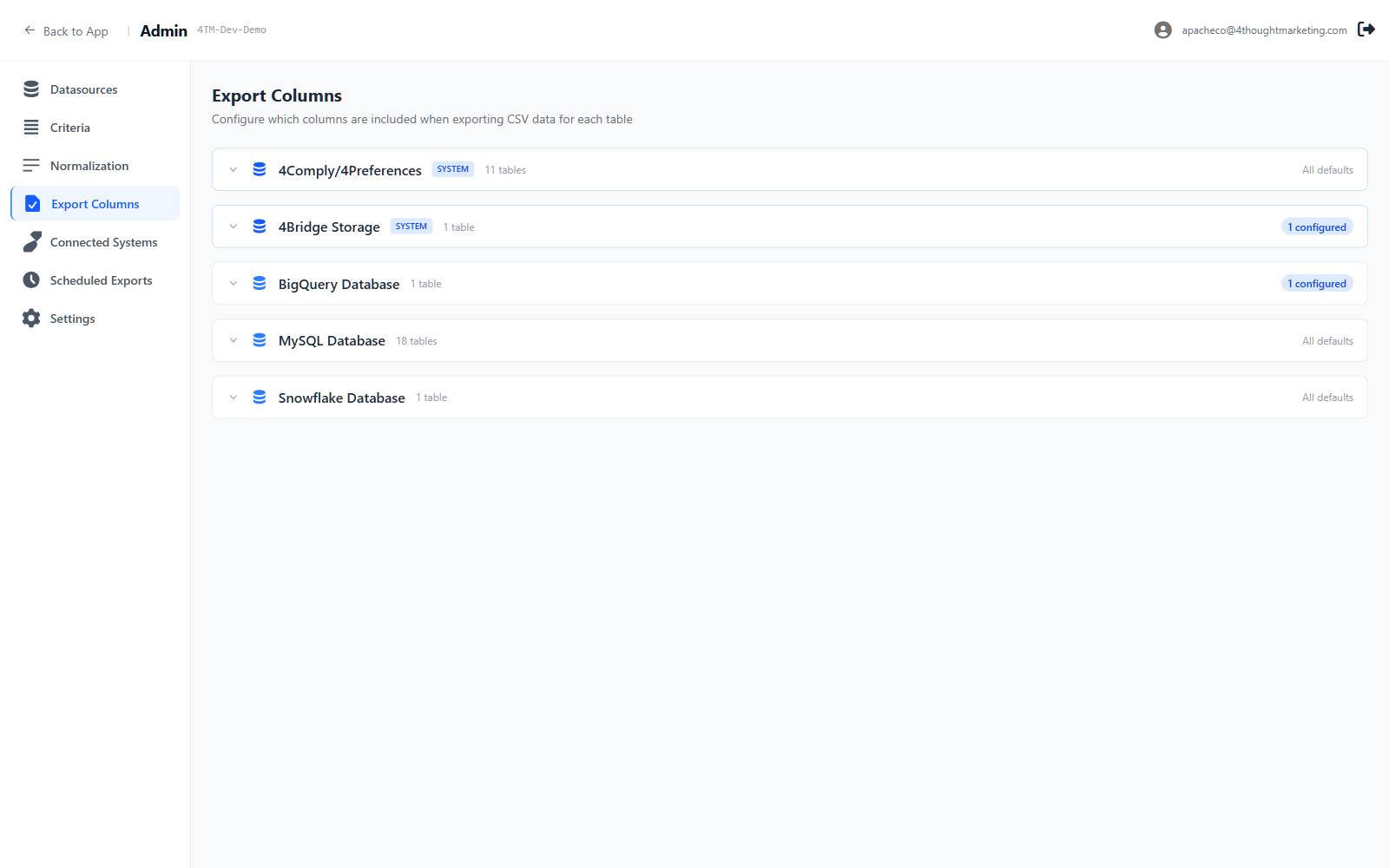
Configure which columns are included when exporting CSV data for each table
Three levels: datasource → table → columns. Each table shows a badge, either All defaults or 12 of 56 columns selected, and tables that have been configured sort to the top.
Open a table for the picker: a Select all checkbox, a live count, a Filter columns... box, and every column with its data type.
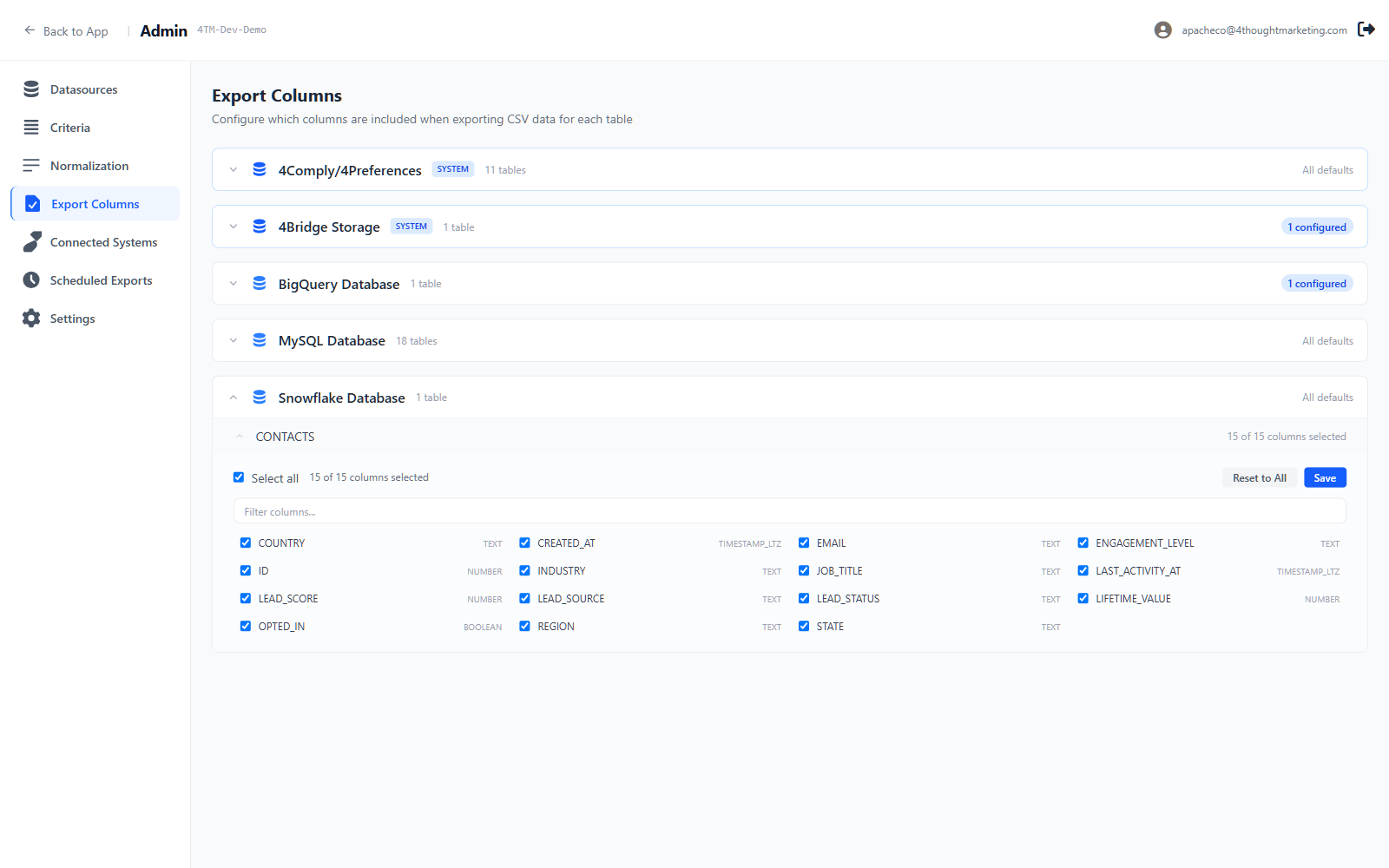
Two buttons: Reset to All and Save.
Ticking every box is the same as having no configuration at all — 4Segments stores it as "all columns" either way.
This configuration governs browser CSV downloads, browser Excel downloads, and SFTP uploads. It does not govern the Records preview on screen, which always shows every column. It also does not apply to Eloqua and Marketo, which use field mappings instead (below).
12.7 Connected Systems
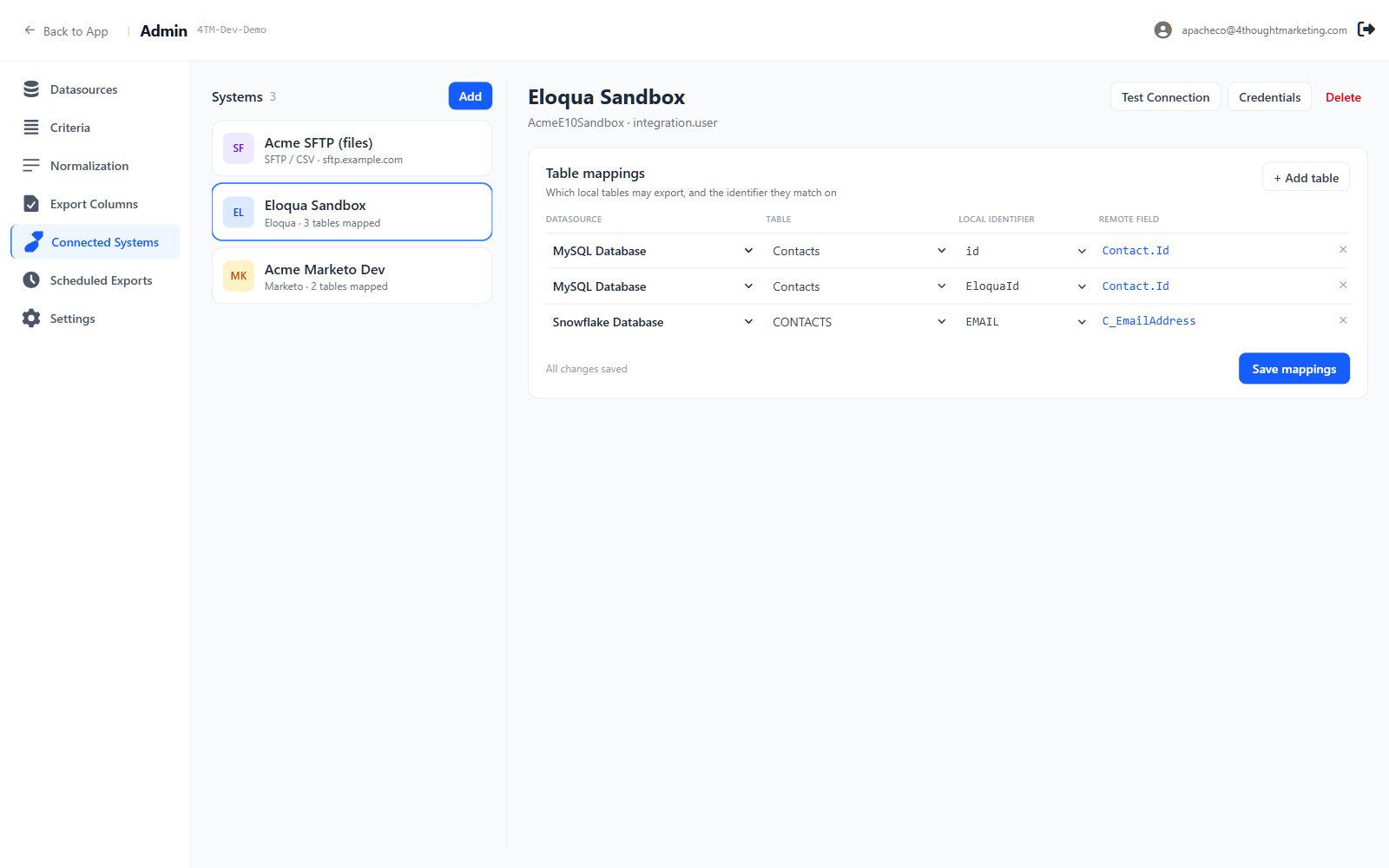
Destinations for exported lists. Add creates one; the System Type dropdown offers Eloqua, Marketo, SFTP (CSV upload), and a disabled Salesforce (coming soon).
Credentials
| Eloqua | Marketo | |
|---|---|---|
| 1 | Company Name — e.g., MyCompanyE10Sandbox | REST Endpoint URL — https://123-ABC-456.mktorest.com |
| 2 | Username | Client ID |
| 3 | Password | Client Secret |
SFTP instead takes Host, Username, Port (22), an Authentication choice of password or private key, the matching secret, Remote path, and a Pinned host-key fingerprint.
When editing, leaving a secret field blank keeps the existing value.
Test Connection cycles Testing... → Connected or Failed. For SFTP, the server's fingerprint appears in the button's tooltip so you can copy it into the pin field — do this once per SFTP system, because uploads are refused until a fingerprint is pinned.
Table mappings
For Eloqua and Marketo, the Table mappings card decides which local tables may export, and the identifier they match on.
Each row is Datasource → Table → Local identifier → Remote field. The local identifier is a column in your data (usually an email address); the remote field is what the destination matches it against. Marketo offers a dropdown of its real lead fields; Eloqua's is free text.
A table with no mapping cannot export to that system, and it will not appear in the Segment menu on a canvas built from that table. If a user asks why an export destination is missing, this is the first place to look.
Unsaved mappings are guarded — navigating away warns you.
SFTP has no field mappings. Its card says so and points at Export Columns.
One gap to be aware of: deleting a connected system does not check whether scheduled exports depend on it. Those schedules will start failing. Check Scheduled Exports before deleting a system.
12.8 Scheduled Exports
Covered in full in Chapter 9. Note that this section only manages schedules — new ones are created from the Export dialog on a canvas.
12.9 Settings
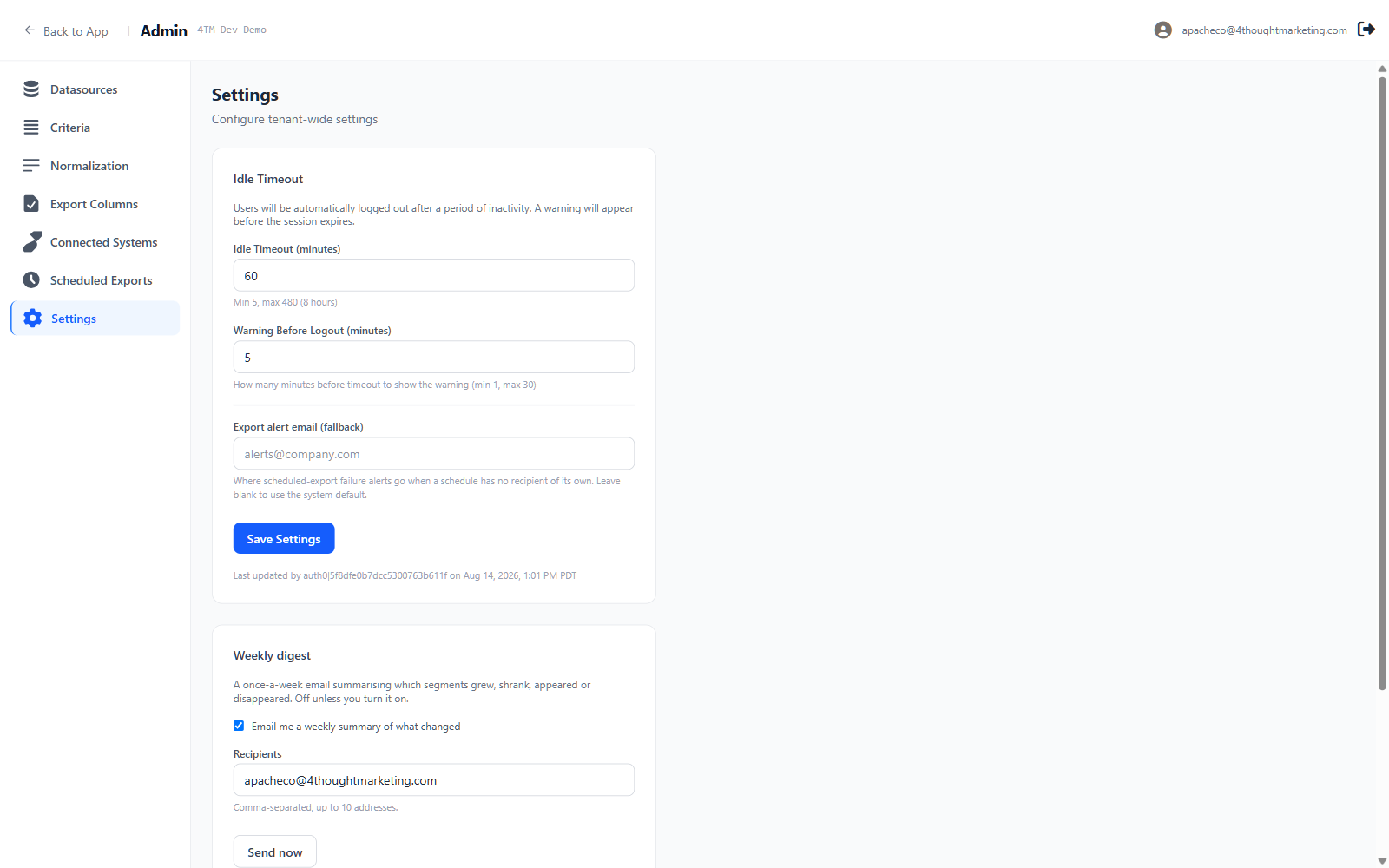
Configure tenant-wide settings
Idle Timeout
| Field | Range | Default |
|---|---|---|
| Idle Timeout (minutes) | 5 – 480 | 30 |
| Warning Before Logout (minutes) | 1 – 30 | 5 |
| Export alert email (fallback) | any address | blank |
The alert address is where scheduled-export failures go when a schedule has no address of its own.
Out-of-range values block the save rather than being silently clamped. If the warning is longer than the timeout, 4Segments shortens it and tells you: Warning shortened to 4 minute(s) so it arrives before the 5-minute timeout.
The card records Last updated by … on ….
Weekly digest — see Chapter 11.
AI usage — read-only:
Tokens 4AI has used for this workspace. Read-only — the allowance is set by 4thought Marketing. Resets on the 1st (UTC).
Green under 70%, amber over 70%, red over 95%. To raise the allowance, contact your service representative.
There are no other workspace settings — no theming, no branding, no data-retention control, no workspace rename.
12.10 Users and roles
4Segments has no user administration screen.
Accounts, passwords, workspace assignment and the administrator role all live in your identity provider. To add a user, remove one, reset a password, or grant someone administrator rights, work there — or contact your service representative.
There are exactly two access levels:
- Standard user — can build, save, export and use 4AI
- Administrator — everything above, plus the Admin area and the ability to create scheduled exports
Access is all-or-nothing at the workspace level. Everyone in a workspace sees the same records. There is no per-user row filtering in version 2 — if you used version 1.6's Record Constraints, see Appendix A.