6. Reviewing your segment
You have clicked some regions. Before you send those records anywhere, check two things: the count, and a sample of the rows.
6.1 The count box
The Segment button in the toolbar doubles as the count box.
With nothing selected it reads just Segment and is disabled. With a selection it shows two lines:
405,264 records 1 segment selected
"Segments" here means regions you clicked — two selected matrix cells read
2 segments selected. The record number is the de-duplicated total across all of them.
A dimmed, italic number with a ~ prefix (~35,410 records) means the count is
provisional and a precise one is on its way. This only happens on multi-cell matrix
selections. See 4.8.
The Segment menu
Click the count box to open it.
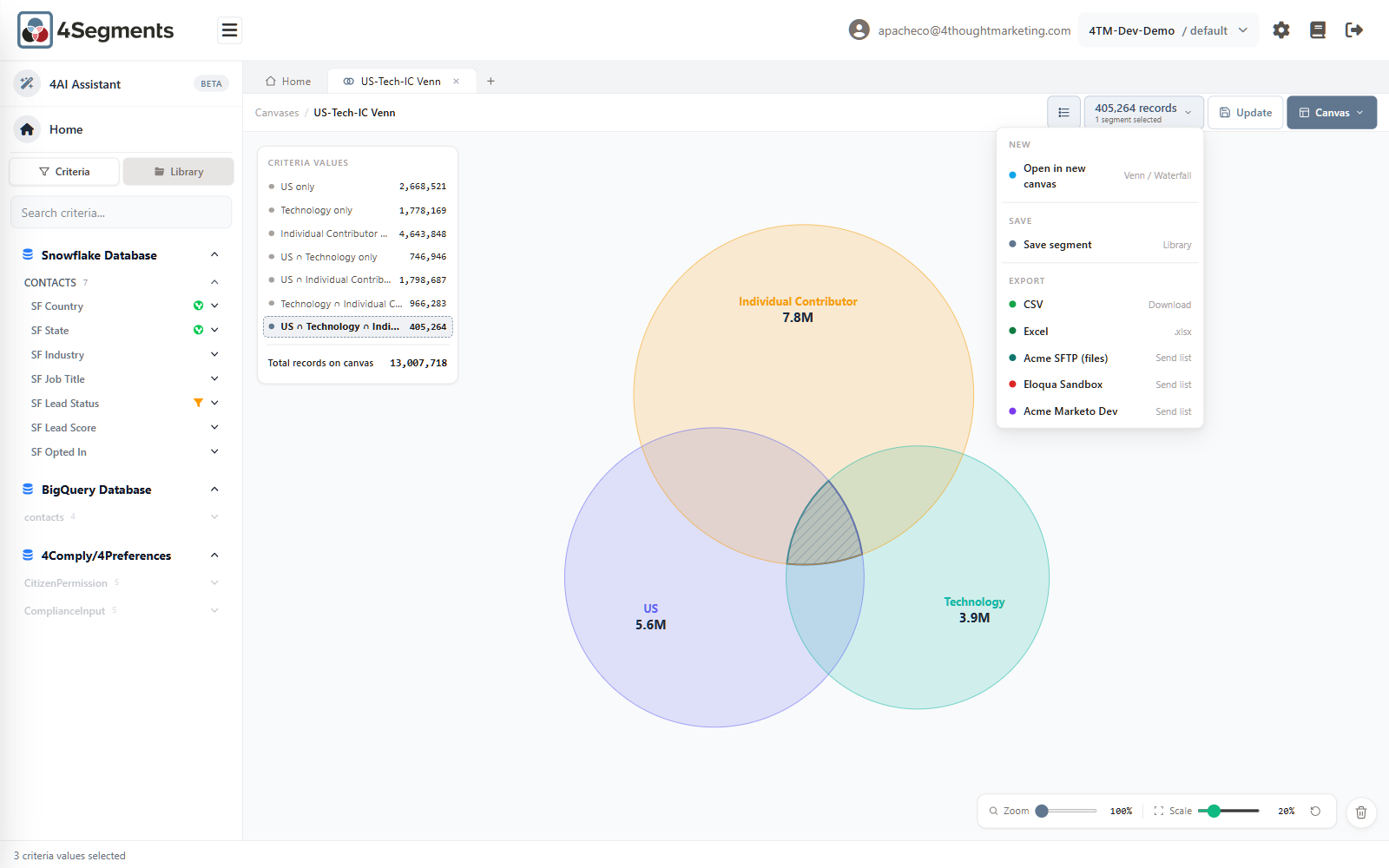
| Section | Item | What it does |
|---|---|---|
| New | Open in new canvas — Venn / Waterfall | Saves this selection as a named segment and opens it on a fresh canvas |
| Save | Save segment — Library | Names and saves it without opening anything |
| Export | CSV — Download | Downloads a CSV |
| Excel — .xlsx | Downloads a spreadsheet | |
| (one row per connected system) — Send list | Sends the list to that system |
The connected-system rows are whatever your administrator configured — Eloqua, Marketo, SFTP — and only appear if that system has a mapping for the table this canvas uses. See Chapter 8.
6.2 The Records list
The icon to the left of the count box is View list of matching records. It opens a preview of the actual rows.
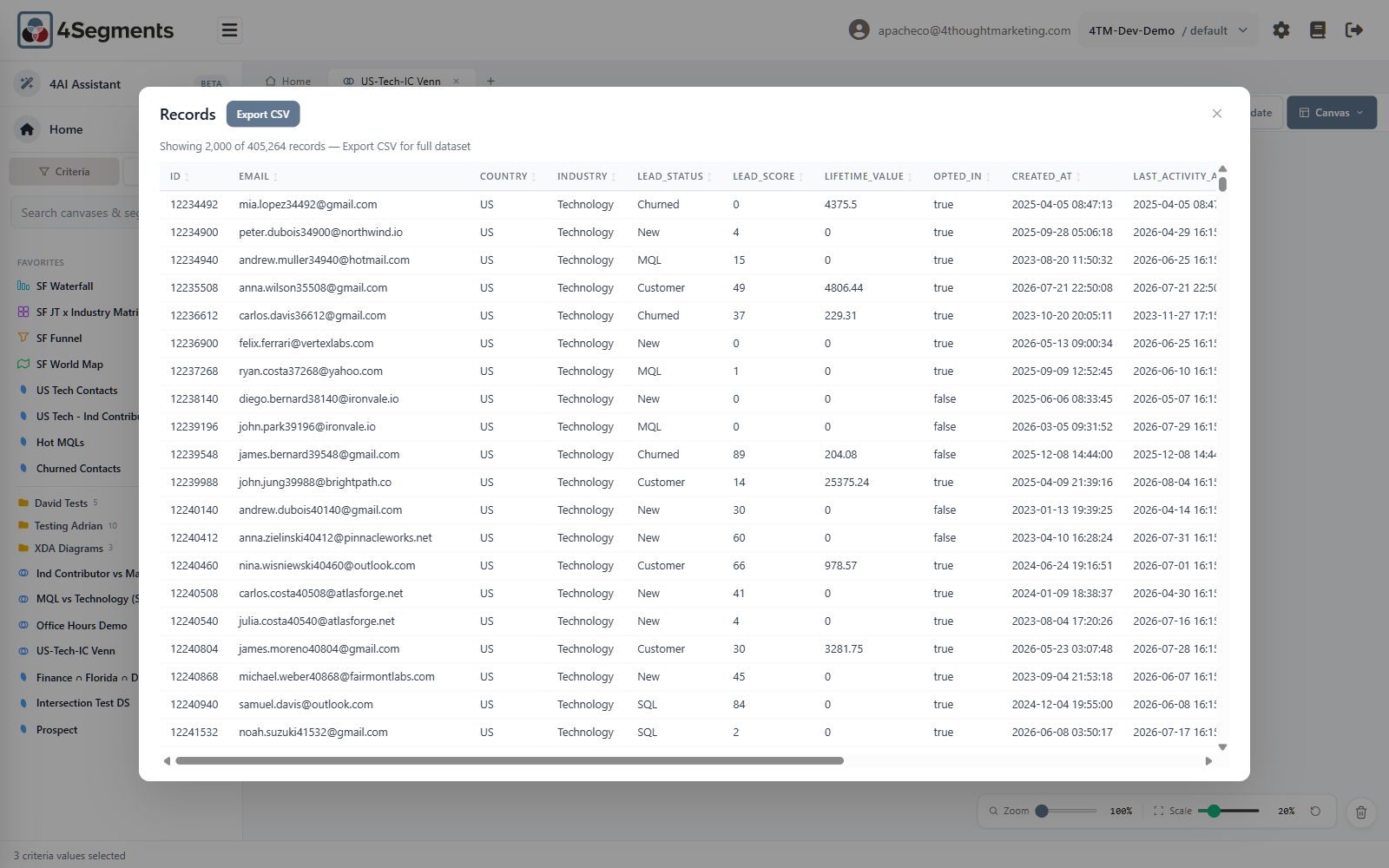
The header reads:
Showing 2,000 of 405,264 records — Export CSV for full dataset
What it does:
- Shows up to 2,000 rows. This is a preview, not a browser — there is no paging and no page-size control.
- Every column is sortable. Click a heading to sort ascending; click again for descending. Sorting re-queries the server, so it sorts the whole segment and shows you the top 2,000 of that ordering — not just a re-shuffle of the rows on screen.
- Scrolls horizontally for wide tables; column headings stay fixed as you scroll down.
- Export CSV in the header downloads the full segment, not just the preview.
What it does not do:
- No column picker. The preview shows every column in the table.
- No editing. This is a read-only view.
The preview columns and the exported columns can differ. The on-screen preview shows all columns. A CSV or Excel download applies your administrator's Export Columns configuration, which may be a narrower set. That is intentional — the preview is for verification, the export is for delivery. See Chapter 12.
6.3 What to look for
A quick checklist before exporting:
- Does the count look plausible? An unexpectedly round number, or a number suspiciously close to your whole database, usually means a criterion did not apply.
- Is the count zero? On a Funnel or Map, check the Filter: strip. Filters across different criteria are AND'ed, and it is easy to build a combination no record satisfies.
- Do the rows look right? Open the Records list and scan the columns your criteria
were built on. If you selected
Industry = Technologyand the INDUSTRY column shows something else, the criterion is not doing what its name suggests. - Is the identifier populated? If you are sending to Eloqua or Marketo, the column they match on — usually an email address — needs to actually contain values. A list of 400,000 records with 380,000 blank emails will match badly and 4Segments cannot warn you in advance.
- Did you leave the Scale slider moved? If you nudged Scale on a Venn, the circle sizes no longer reflect record counts. The numbers are still correct; the picture is not.