10. The 4AI Assistant
4AI Assistant is marked Beta. It is available to every signed-in user.
10.1 Opening it
The 4AI Assistant button sits at the top of the sidebar. It opens a panel that slides in from the left.
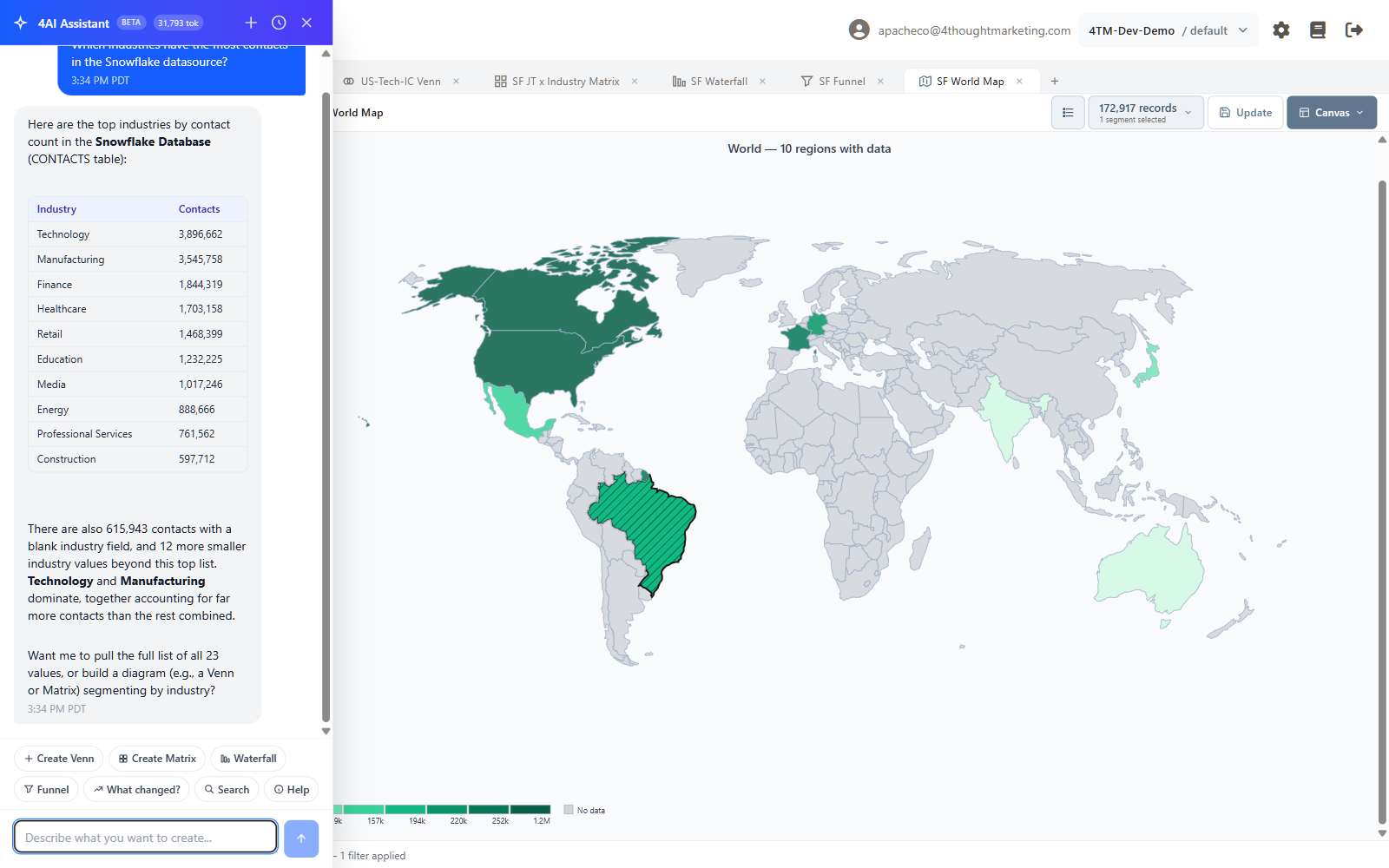
Type into Describe what you want to create... and press Enter. Shift+Enter starts a new line.
Seven quick-action chips sit above the input: Create Venn, Create Matrix, Waterfall, Funnel, What changed?, Search, Help.
Three header buttons: New conversation, Conversation history, Close.
Your conversations are private to you and are kept until you delete them.
10.2 What it is good at
Answering questions about your data's shape. "Which industries have the most contacts in the Snowflake datasource?" — it queries, counts, and answers with a real table. It is markedly faster than expanding the tree and reading numbers off the sidebar.
Finding things. "Which criteria mention lead score?" — it searches criteria, criteria values and canvases.
Explaining a canvas. From the canvas toolbar, Canvas ▾ → Explain this canvas (Ask 4AI) runs live counts on the saved canvas and describes what it shows. The canvas must be saved first.
Building a diagram. "Build me a Venn of Technology, US and Individual Contributor" — it creates the canvas and opens it in your workspace. It can create Venn, Matrix, Waterfall and Funnel canvases. It cannot create Map canvases.
Reporting change. "What changed?" compares the nightly snapshots and tells you which segments and values moved. Lookback is 2 to 30 days, default 7. See Chapter 11.
Creating criteria — administrators only, and always with a confirmation step.
10.3 What it will not do
- It cannot modify or delete anything. Every write action it has is a create. There is no rename, no update, no delete.
- It cannot export, or send email. If you ask it to send the weekly digest it will tell you where the Send now button is instead.
- It cannot see other workspaces. It runs under exactly your permissions, in exactly your current workspace. A non-administrator cannot use 4AI to reach administrator functions.
- It does not invent numbers. Every figure it reports comes from a query it ran. If it cannot get a number it says so rather than estimating.
- It cannot do "contains" or "ends with" searches. Those force a full table scan. This is a deliberate performance guard, not an oversight.
10.4 Confirmations
Anything that creates something shows an amber confirmation card first, with Confirm and Cancel. Once you answer, the card resolves to ✓ Confirmed or ✕ Cancelled so the conversation stays readable.
Only one action can be pending at a time, and a pending confirmation expires after 15 minutes.
10.5 Limits
Rate: 20 messages a minute per user. Exceed it and you get You're sending messages faster than 4AI can answer — try again in about a minute.
Monthly allowance: each workspace has a token budget, visible read-only in Admin → Settings → AI usage, resetting on the 1st (UTC). At the limit:
This workspace has reached its monthly AI usage limit. It resets at the start of next month — talk to your administrator if you need more.
The allowance is set by 4thought Marketing, not by your administrator. Contact your service representative to change it.
10.6 Getting good answers
- Name things the way 4Segments names them. "SF Industry" beats "the industry field".
- Say which datasource if you have more than one. Counts differ between them.
- Ask for the shape, then the segment. "What are the biggest job titles?" then "Build a Venn of the top two and US" works better than one long request.
- Verify before you export. 4AI is a fast way to find a segment. The canvas, the count box and the Records list are how you confirm one.