2. Getting started
2.1 Signing in
4Segments uses your organization's single sign-on. There is no username and password form inside the product — the Log In button hands you to your identity provider, and you come back authenticated.
Consequences worth knowing:
- There is no "forgot password" link in 4Segments. Password resets happen in your identity provider, not here.
- You cannot create users from inside 4Segments. See Chapter 12.
- If your account has no workspace assigned, you will see a screen headed No Workspaces telling you to contact your administrator. That is an account provisioning issue, not an error.
2.2 The Home page
After sign-in you land on Home, a permanent first tab that cannot be closed.
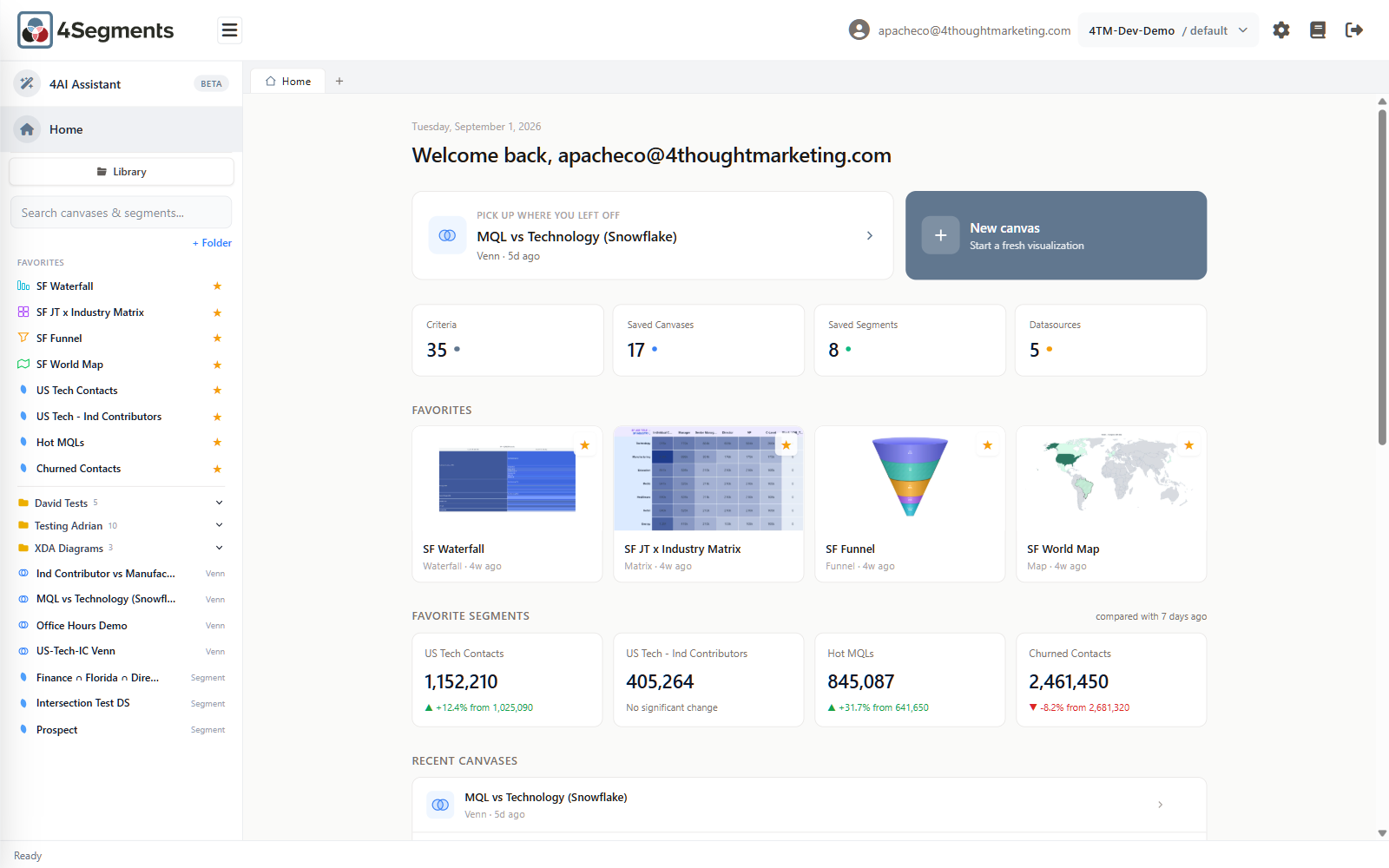
Home is a starting point, not a dashboard you assemble. Its sections are fixed, and each one hides itself when it has nothing to show:
Pick up where you left off — the canvas you most recently touched, one click away. Beside it, New canvas starts a fresh one.
Four counters — how many Criteria, Saved Canvases, Saved Segments and Datasources this workspace has. (Datasources shows a dash for non-administrators, who cannot read that list.)
Favorites — canvases you starred, shown as thumbnail cards. Each card has a preview button (opens the thumbnail full-screen) and a star to un-favorite it. You can drag the cards to reorder them.
Favorite segments — starred segments, shown as a name, a current size, and a change note. See Chapter 11 for what that change note means and when it appears.
Recent canvases — the last five you opened, each with a star toggle.
Recent activity — the last ten things that happened in this workspace, such as
Created venn "Office Hours Demo". This is a log, not a set of links.
Note: the Favorite segments cards on Home are display-only in this release — clicking one does not open anything. Open the segment from the sidebar Library instead.
2.3 The parts of the screen
Once you open a canvas, the screen has five regions.
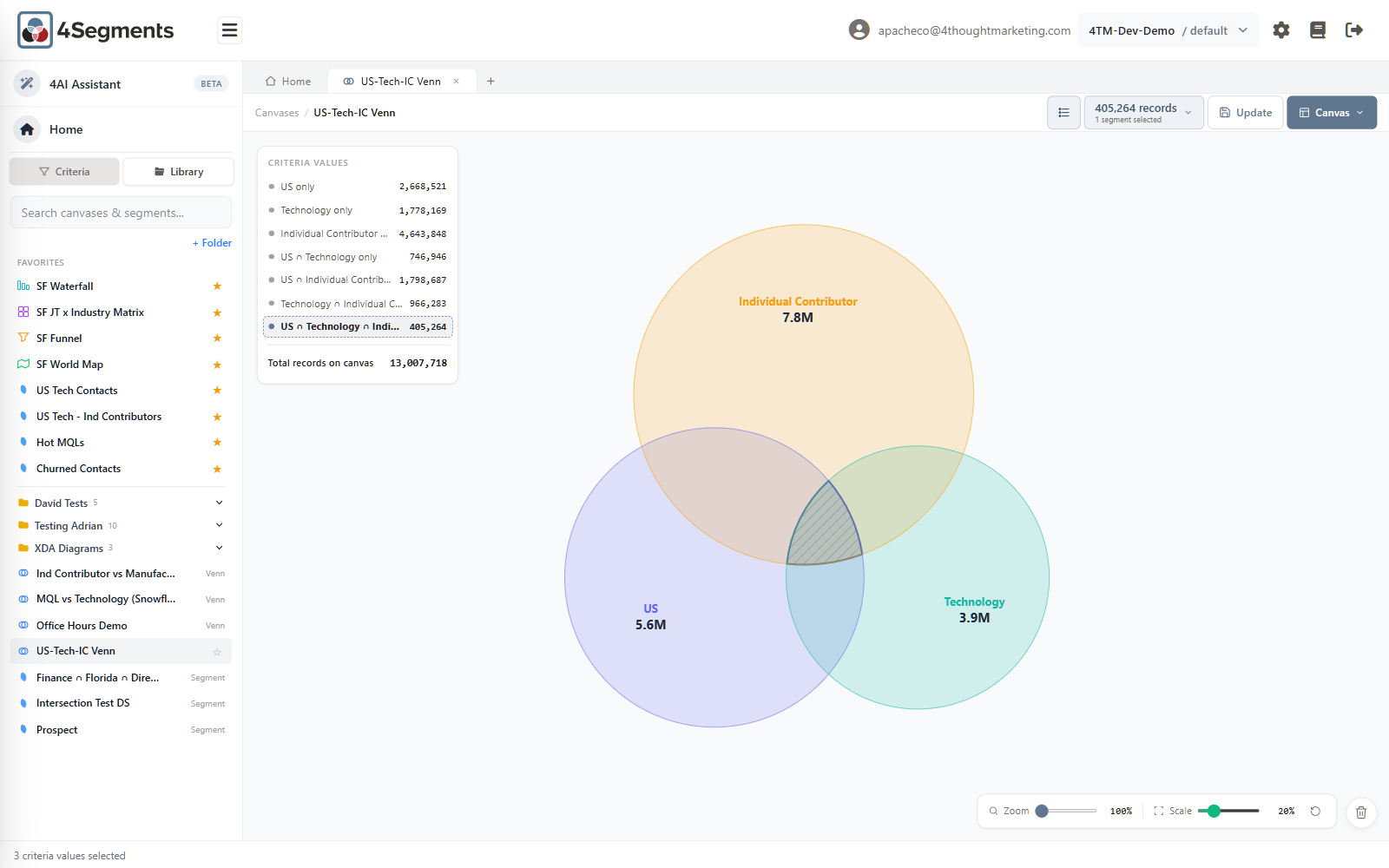
1. Header (top). From left to right: the 4Segments logo; the sidebar toggle (Toggle sidebar); your email address; the workspace switcher; a gear icon (Settings — administrators only, this is the entrance to the Admin area); a book icon (Documentation); and Logout.
2. Sidebar (left, 280 px). Holds the 4AI Assistant button, a Home button, and then either the Criteria tree or the Library of saved items. Collapsible.
3. Tab strip. Home plus up to six canvas tabs, and a + button.
4. Canvas toolbar. Breadcrumb on the left; on the right, the records-list button, the Segment button (which is also the count box), Save/Update, and the Canvas menu.
5. Canvas area, with a status bar underneath that tells you what to do next —
for example Drag criteria from the sidebar onto the canvas or
Waterfall: 2 levels — double-click to drill down.
2.4 Switching workspaces
If your account belongs to more than one workspace (tenant), the workspace name in the header becomes a dropdown; if you belong to exactly one, it is just a label.
Switching is instant — no page reload — but it is a hard reset:
- Every open canvas tab closes. You are returned to a single Home tab.
- All cached counts, criteria and thumbnails are discarded and re-fetched.
- Your role is re-evaluated. You may be an administrator in one workspace and a standard user in another; the gear icon appears or disappears accordingly.
Save your work before switching. Unsaved canvases are discarded without a confirmation prompt.
Your choice is remembered for next time, and is shared with the other 4-suite applications in the same browser.
2.5 Session timeout
4Segments logs you out after a period of inactivity. The default is 30 minutes, but your administrator can set anything from 5 minutes to 8 hours (Chapter 12).
Before it happens, a toast appears in the bottom-right corner:
Session Expiring You'll be logged out in 4:32 due to inactivity. Stay Logged In · Log Out Now
Any activity at all — including moving the mouse — dismisses the warning and resets the clock. If you do time out, unsaved canvases are lost. Save early.
The timer runs per browser tab.
2.6 Dark mode
4Segments follows your operating system's light/dark setting automatically. There is no theme switch inside the product; change it in your OS or browser and 4Segments follows on the next page load.
Note that exported chart images are always light, regardless of what you are looking at, so they drop cleanly into documents and slides.
Next: 3. The workspace →