8. Exporting
8.1 Where exports start
Every export begins with a selection on a canvas. There are three ways to launch one:
- The Segment menu — click the count box, pick a destination.
- The floating export rail — start dragging a selection and a small Export panel appears at the bottom of the canvas with a button per destination. Drop the selection on one.
- The Records list — its Export CSV button downloads the whole segment.
8.2 Destinations
| Destination | What you get |
|---|---|
| CSV | A .csv file downloaded to your browser |
| Excel | An .xlsx file downloaded to your browser |
| Eloqua | A shared contact list created in Eloqua |
| Marketo | A static list created in Marketo |
| SFTP | A .csv or .xlsx file uploaded to a server |
Salesforce appears as Salesforce (coming soon) and is disabled. Any other system type reports Export to X is coming soon.
CSV and Excel are always available. The rest appear only if an administrator has configured that connected system and mapped it to the table your canvas uses (Chapter 12).
8.3 Downloading CSV or Excel
Pick CSV or Excel from the Segment menu. A toast reads Preparing CSV export…
then CSV downloaded. The file is named <canvas-name>-2026-09-01.csv.
Row limits:
| Format | Limit |
|---|---|
| CSV | 1,000,000 rows |
| Excel (.xlsx) | 100,000 rows |
Excel's lower limit is a memory constraint of the spreadsheet format, not an arbitrary choice. If you need more than 100,000 rows, use CSV.
If your segment exceeds the limit, 4Segments tells you rather than silently truncating:
Export capped at 1,000,000 rows — the file does not contain the full dataset
Which columns you get is set by your administrator in Admin → Export Columns, per table. With no configuration you get every column.
Only two interactive exports can run at once across the whole application. A third waits, and if it waits too long you see:
Another export is running — try again shortly.
That is a "come back in a minute", not a failure.
8.4 Sending a list to Eloqua, Marketo or SFTP
Pick the system from the Segment menu.
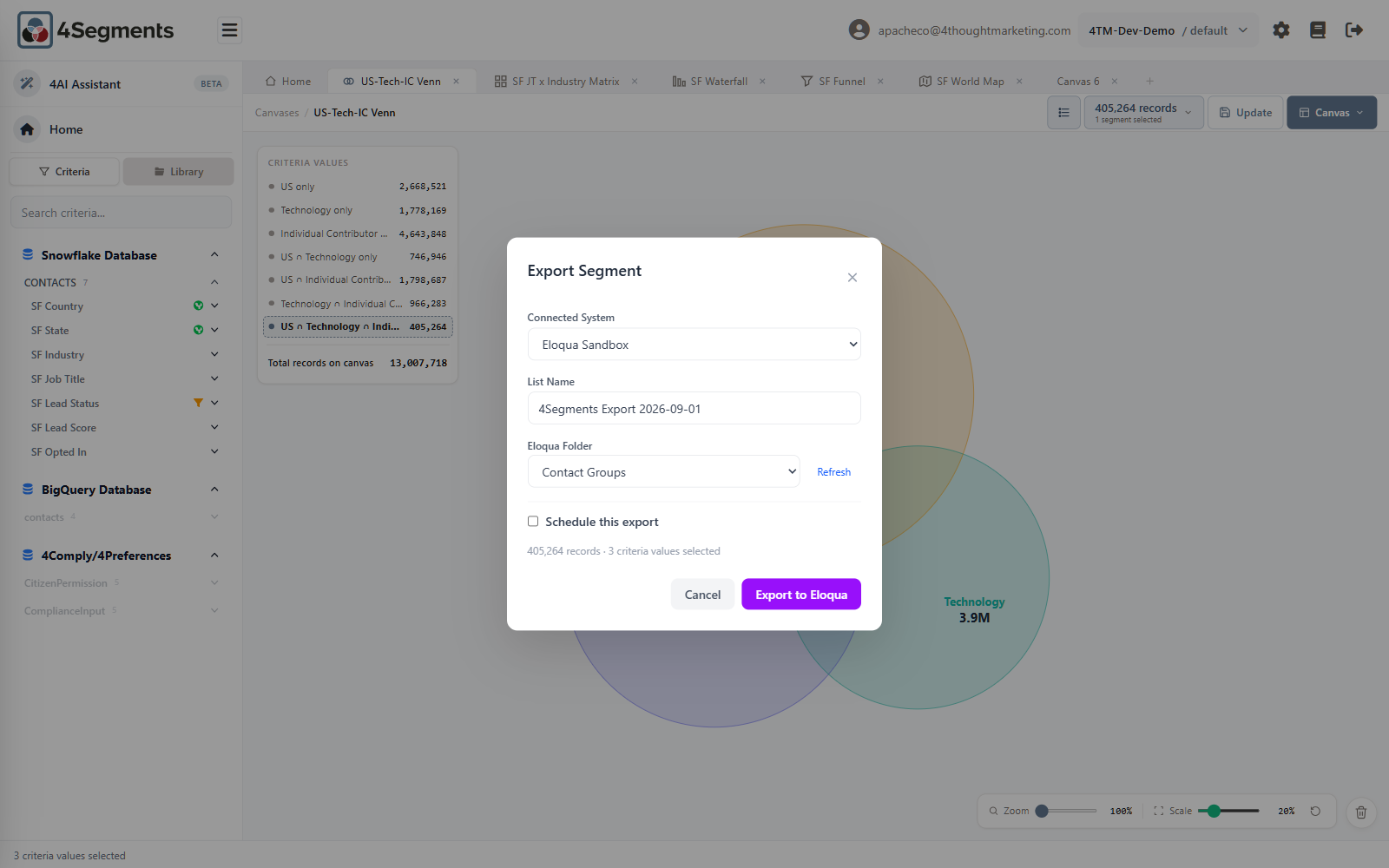
| Field | Applies to | Notes |
|---|---|---|
| Connected System | all | Which destination |
| List Name / File name | all | Up to 50 characters. Pre-filled 4Segments Export 2026-09-01. SFTP calls it File name and notes ".csv" is appended automatically. |
| File format | SFTP only | CSV (.csv) or Excel (.xlsx) |
| Eloqua Folder | Eloqua only | Where the list is filed. A Refresh link re-fetches the folder list |
| Schedule this export | all | See Chapter 9 |
Below the fields, a summary confirms what is about to be sent:
405,264 records · 3 criteria values selected.
The submit button names the action: Export to Eloqua, Export to Marketo, Upload CSV to SFTP.
After you click
An export starting is not the same as an export succeeding.
4Segments hands the job to a background worker and immediately reports:
Export started! The list will be created in the background.
The dialog then closes. There is no in-app status for a one-off export. Verify in the destination system — open Eloqua or Marketo and confirm the list exists and has the size you expected.
This matters most for Eloqua and Marketo, where records are matched on an identifier. If that identifier does not match, records are silently dropped on their side. Marketo at least records the outcome:
No leads added to list 1234: all 5,000 values were unmatched. Verify the mapping's remote field matches a Marketo lead field, e.g. 'email' or 'id'.
Scheduled exports do record their outcome — see Chapter 9. If you need an auditable trail, prefer a schedule over a one-off send.
SFTP specifics
The row limit is 100,000 for both formats.
Columns come from Admin → Export Columns. SFTP has no per-field mapping.
SFTP will refuse to run if the server's host key has not been pinned:
SFTP export blocked: no expected host-key fingerprint is configured for this connection. Run a test connection on the connected system to obtain the server's fingerprint, save it, then retry.
That is a one-time setup step for an administrator, and it is a security feature — it is what stops your file being uploaded to an impostor server.
8.5 A note on very large exports
Some datasource engines stream results and some do not. On a non-streaming engine (BigQuery), a download above 100,000 rows is refused outright rather than risking the service:
This datasource cannot export more than 100,000 rows to CSV (the selection matches 340,000). Narrow the selection, or use a scheduled export to a file destination.
The advice in that message is the right advice: for genuinely large audiences, a scheduled SFTP export is the appropriate tool.
Next: 9. Scheduled exports →