3. The workspace
3.1 The two sidebar tabs
The sidebar shows one of two trees, chosen with the Criteria / Library buttons.
The Criteria tab only appears when a canvas tab is active — there is nothing to drag onto Home. The first time you open a canvas, 4Segments switches you to Criteria automatically; after that it remembers whichever tab you last chose.
The Criteria tab
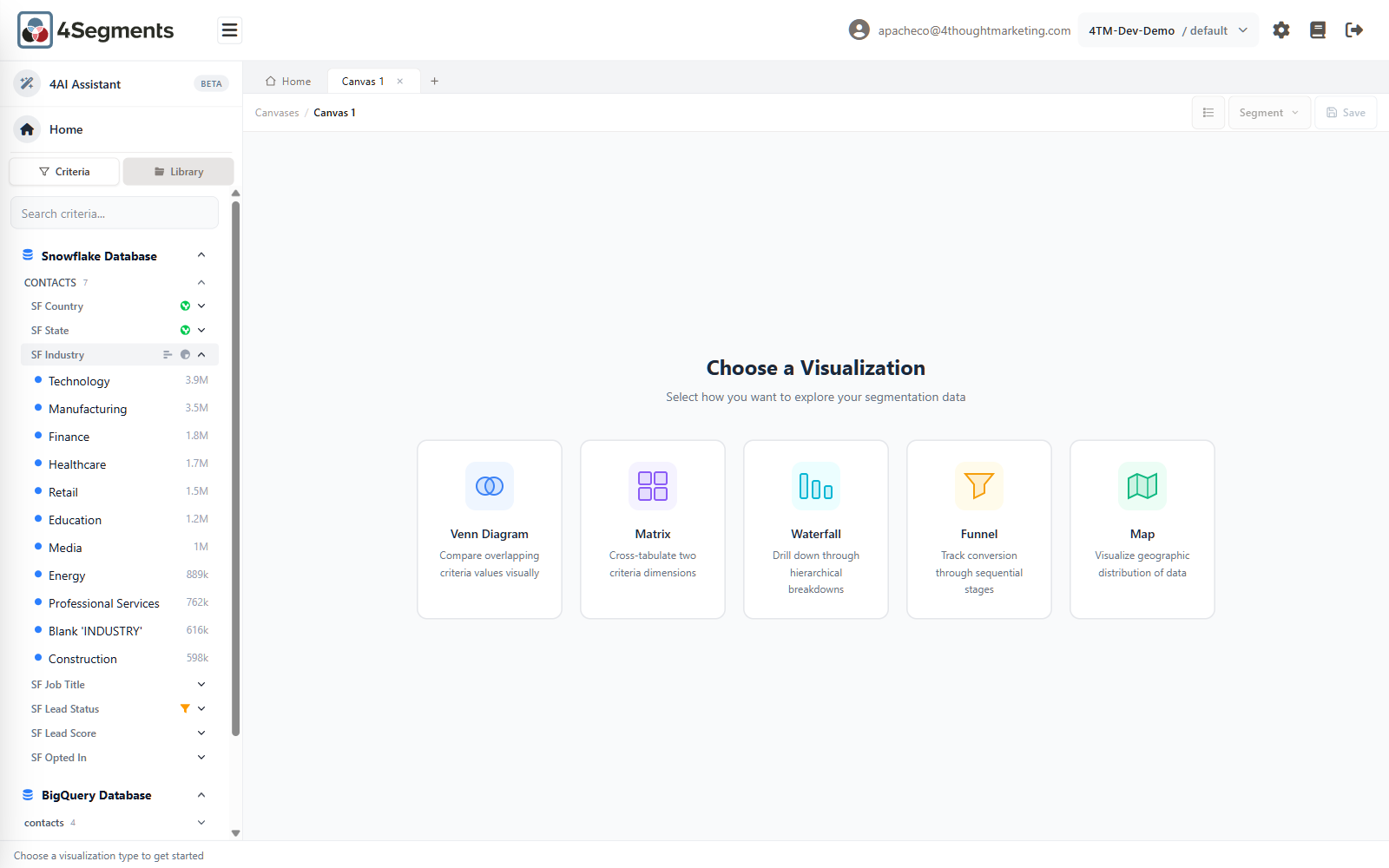
A four-level tree: datasource → table → criterion → criteria value.
- Datasource headers show a database icon and start expanded.
- Table headers show a name and an item count, and start collapsed — except the first table, which opens for you.
- Criterion rows reveal two chart buttons on hover (see below), plus capability markers.
- Criteria value rows show a coloured dot, the value name, and its record count in
compact form (
3.9M,889k).
The order is not alphabetical — it is whatever order an administrator arranged in Admin → Criteria. That is deliberate: the most-used criteria can be put at the top.
Two small markers can appear on a criterion row:
- A green globe — This criteria is geographic — drag onto a Map canvas
- An amber funnel — This criteria is configured as a funnel — drag onto a Funnel canvas
These are indicators, not buttons. They tell you which criteria will work on a Map or Funnel canvas.
A blue N badge on a criteria value means Normalized value — that value has had other values merged into it. See Chapter 12.
Pie and bar previews
Every criterion row has two hover buttons, Bar chart and Pie chart. Either one opens a small popover showing that criterion's top six values.
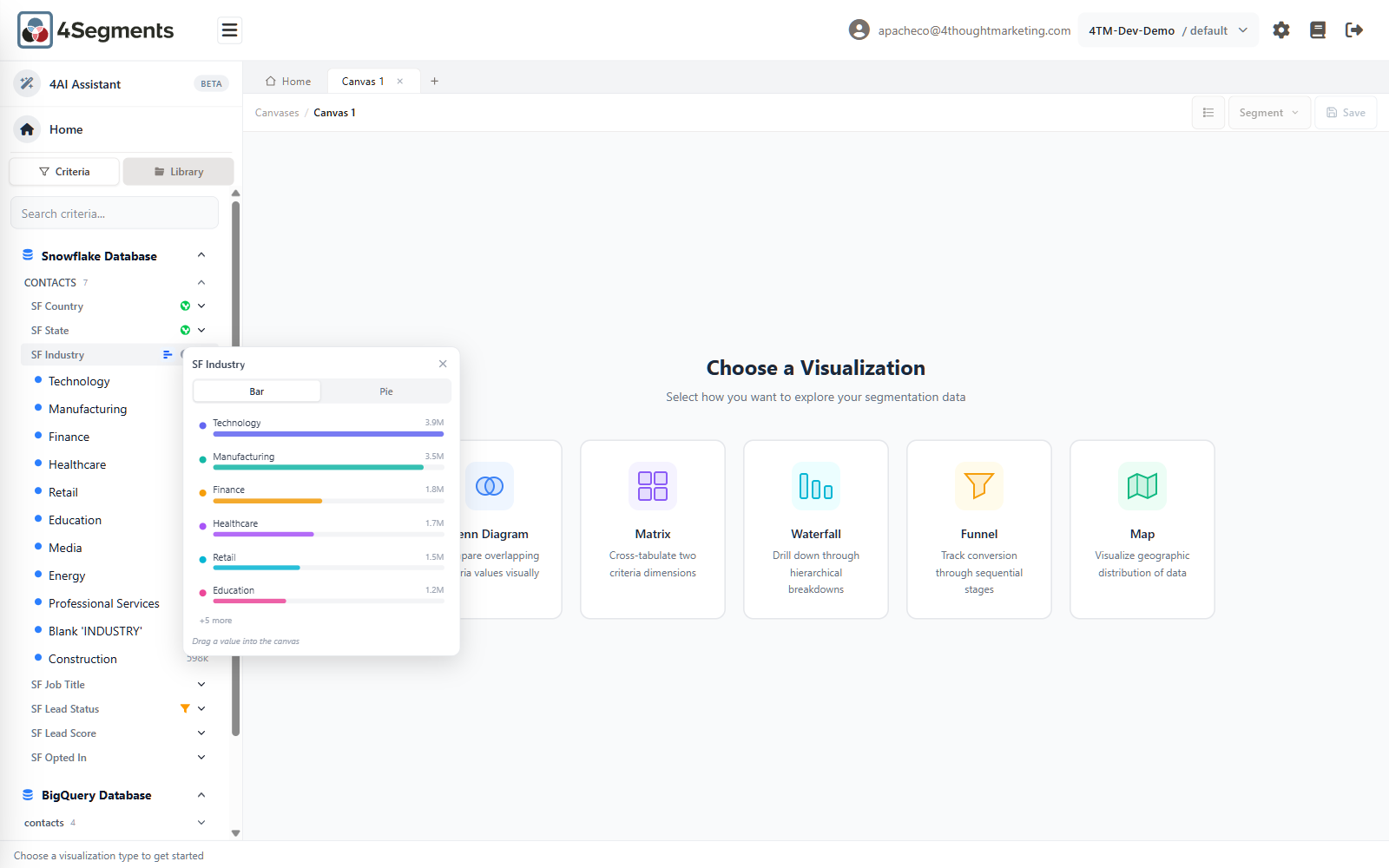
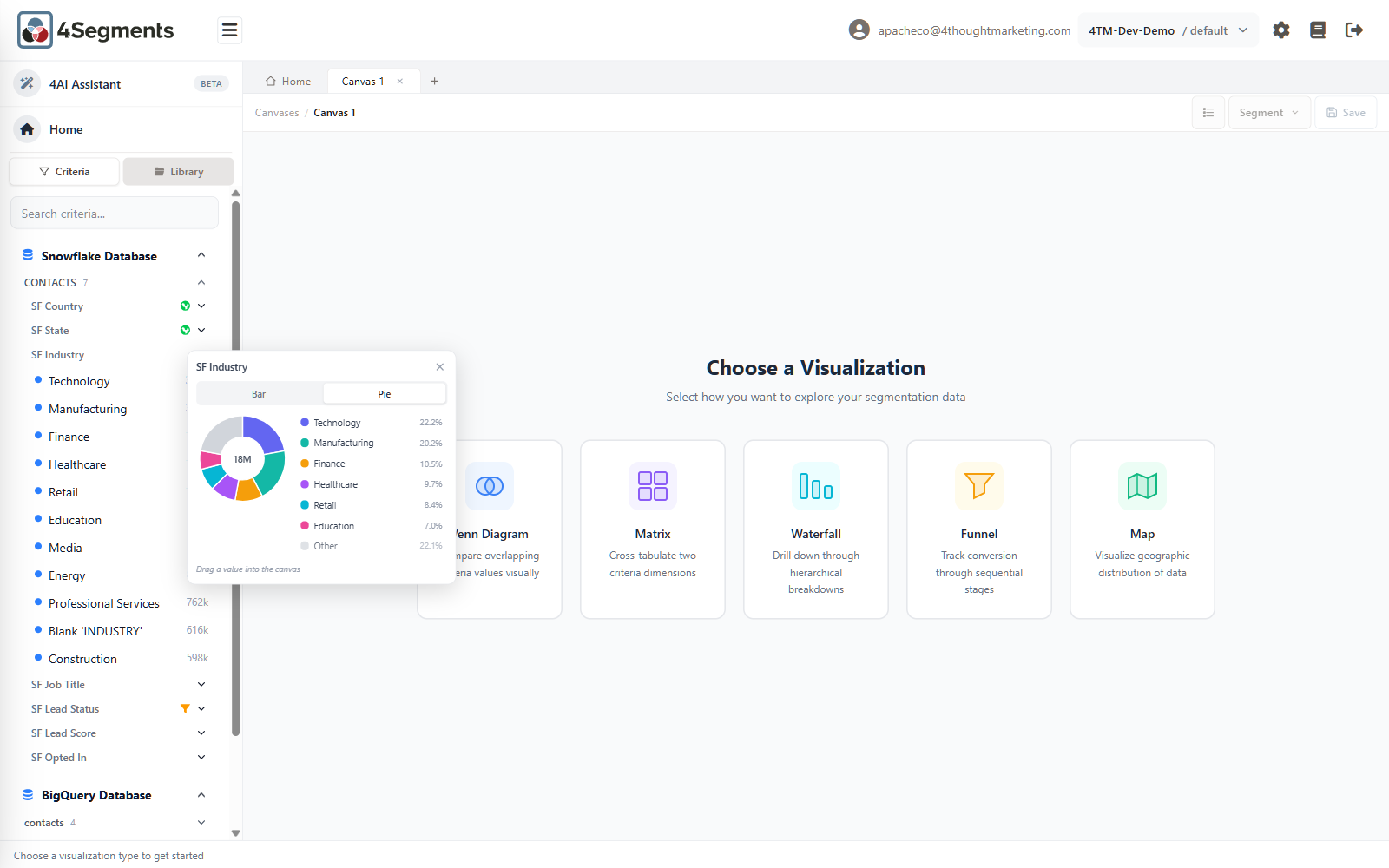
The popover has Bar and Pie tabs, so you can switch without reopening it. The
bar view lists values with counts and a +5 more note; the pie view shows percentages,
groups the tail into Other, and puts the criterion's total in the centre.
The footer says Drag a value into the canvas — and that is the point of the popover. The bar rows and the pie's legend rows are drag handles. Drag one onto the canvas to add it as a circle. (The pie slices themselves are not draggable, and the Other group can never be dragged, because it isn't a real value.)
This is the fastest way to answer "what are the big values here?" without expanding the tree.
The Library tab
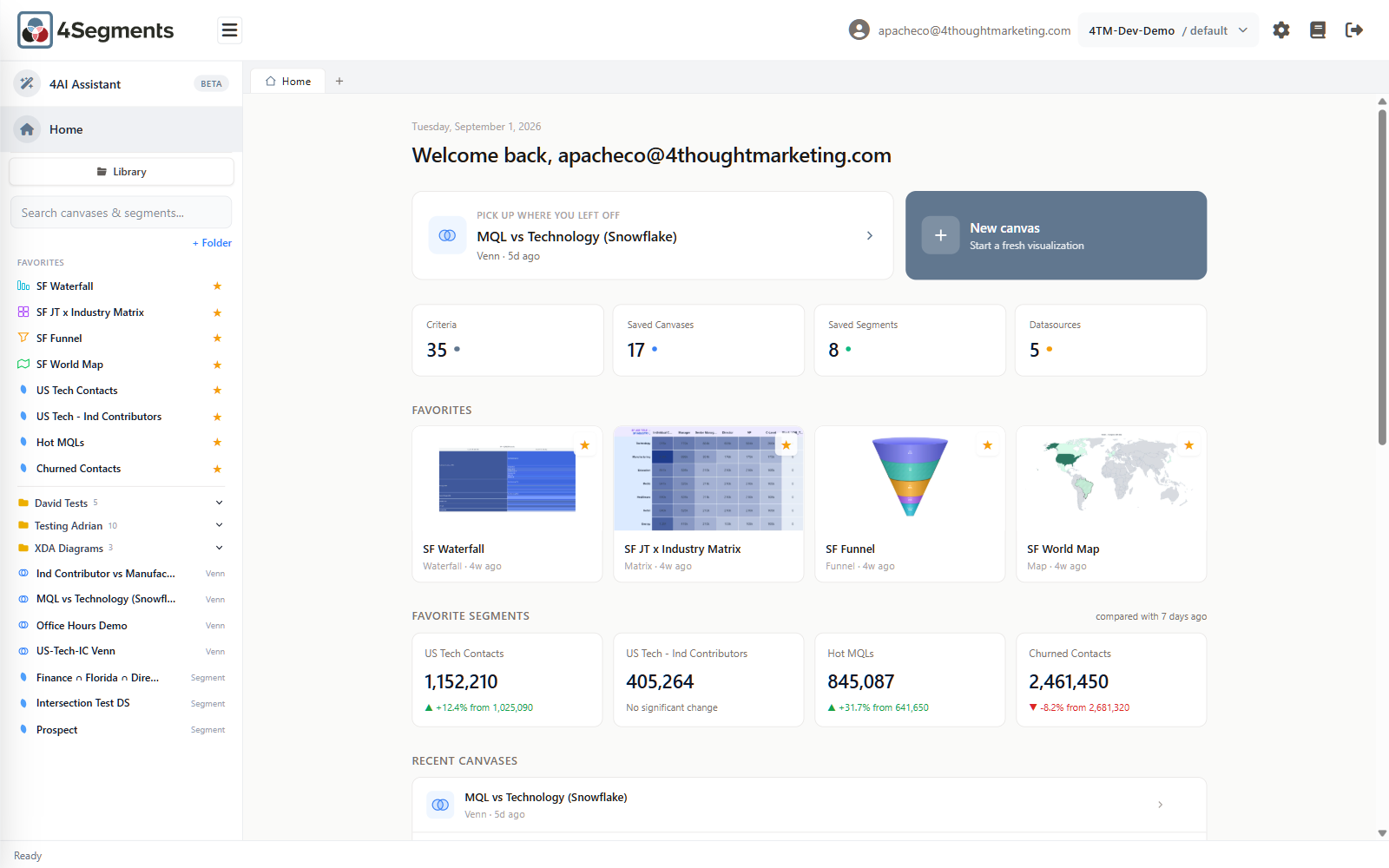
The Library holds your saved canvases and saved segments, organized into folders you create.
Top to bottom:
- A search box, Search canvases & segments...
- A + Folder button
- A Favorites group, if you have any
- Your folders, nested as deeply as you like, each showing a recursive item count
- Unfiled items last
Within any group, canvases are listed first (A→Z), then segments (A→Z). Each row carries a type label on the right — Venn, Matrix, Waterfall, Map, Funnel or Segment — with a matching icon.
An amber ⚠ on a canvas means Broken — references deleted criteria. That canvas cannot be opened; the criteria it was built from no longer exist. Delete it and rebuild.
3.2 Opening things
Double-click opens. This is consistent across the whole product: double-click a Library item to open it, double-click a criteria value to add it to the canvas, double-click a waterfall bar to drill in, double-click a canvas tab's name to rename it.
Single click does nothing on Library and criteria rows. That is intentional — it keeps a mis-click from launching a query against millions of rows.
3.3 Folders
Create a folder with + Folder. Hover any folder row for three buttons: New Subfolder, Rename, Delete.
Deleting a folder never deletes what is inside it:
Delete this folder? Subfolders will move to root and items will become unfiled.
Move an item into a folder by dragging it, or by right-clicking it and choosing Move to Folder.
3.4 Right-click menu
Right-click any saved canvas or segment for:
- Add to Favorites / Remove from Favorites
- Rename
- Move to Folder (only shown when you have folders)
- Delete
3.5 Favorites
A favorite is a starred canvas or segment. Star one in any of four places: the hover star on a Library row; the right-click menu; the star on a Home card; or the Add to Favorites checkbox in the Save dialog.
Favorites appear in a group at the top of the sidebar and in their folder — the same item in two places, on purpose. They also drive the two Home grids.
You can drag Home's favorite cards to reorder them, and the sidebar group follows that order. Canvases and segments are two independent lists; you cannot interleave them.
3.6 Searching
There is no global search or command palette. Instead there are two independent filter boxes, one per sidebar tab:
| Tab | Box | Searches |
|---|---|---|
| Library | Search canvases & segments... | Saved canvas and segment names. Folders containing a hit are revealed and expanded; folder names themselves are not matched. |
| Criteria | Search criteria... | Criterion names and criteria value names. A value-only match expands that criterion and shows just the matching values. |
Both have a Clear search ✕, and both remember your query if the sidebar re-renders.
There is no search over records. To find specific rows, build a segment that describes them and open the Records list.
3.7 Canvas tabs
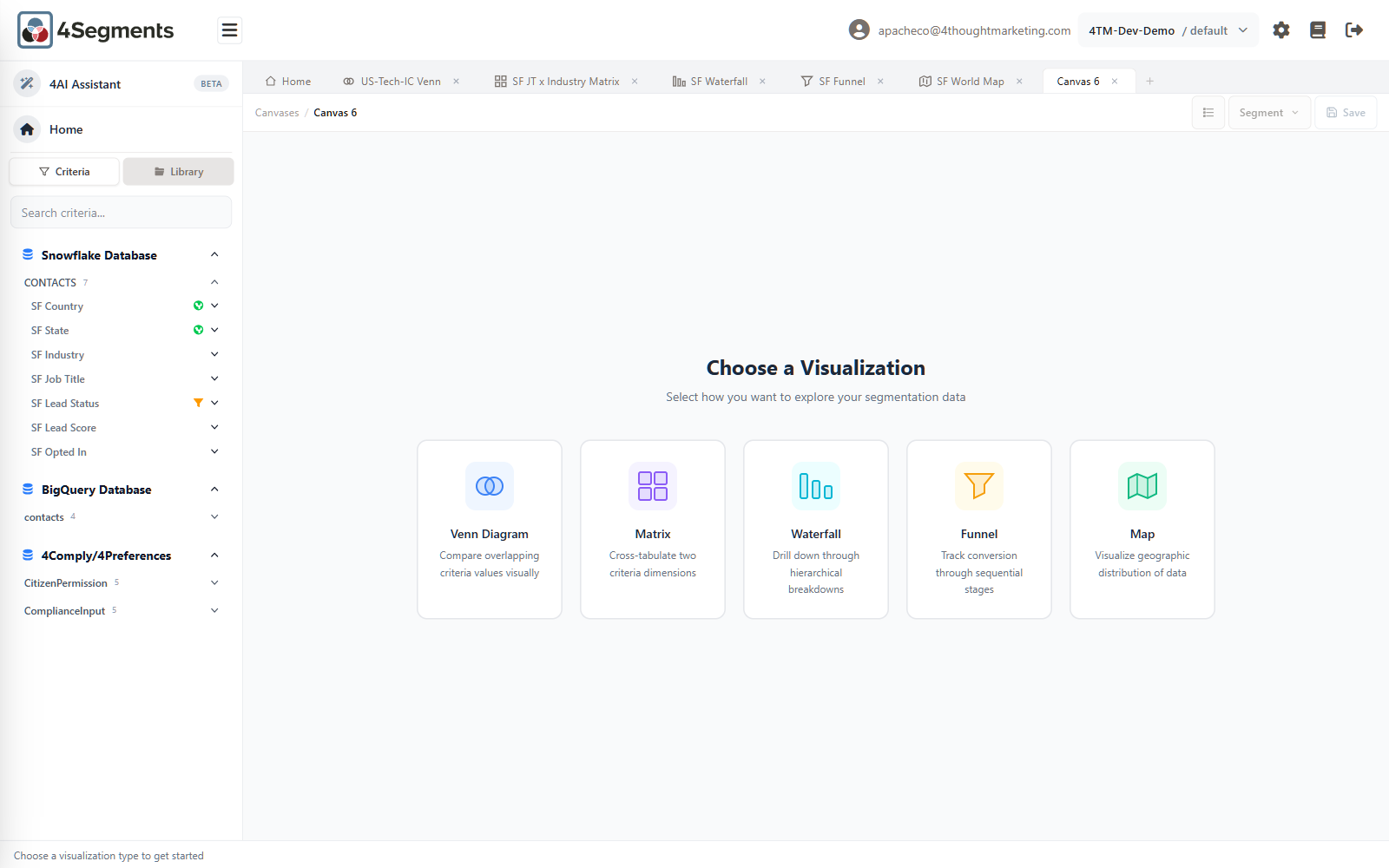
You may have six canvases open at once, plus the permanent Home tab. Attempting a seventh gives:
Tab limit reached — close a canvas to open another (max 6).
The + button stays clickable at the limit, so it can tell you why nothing happened.
- Rename a tab: double-click its name. Names are capped at 50 characters. Enter commits, Escape reverts.
- Close a tab: the ✕. If the tab has content you are asked
Close "Name"? Any work in this tab will be lost. - Reorder tabs: not supported. Tabs can be dragged, but only onto the Library — see below.
Canvas tabs do not show an unsaved-changes marker. If you are unsure whether a canvas has been saved, look at the toolbar button: it reads Save on an unsaved canvas and Update on a saved one.
3.8 Drag-and-drop reference
Almost everything in 4Segments can be dragged somewhere useful. This table is the complete map.
From the Criteria tab
| You drag | Onto | What happens |
|---|---|---|
| A criteria value | An empty canvas | The canvas becomes a Venn and the value becomes a circle |
| A criteria value | A Venn | Added as another circle (up to three) |
| A criteria value | A Funnel or Map | Becomes a filter chip |
| A criteria value | A Waterfall with no root | Becomes the root |
| A criteria value | A Matrix | Nothing — matrices take criteria, not values |
| A criterion (the header row) | An empty canvas | Becomes a Funnel or Map if it is configured as one; otherwise nothing |
| A criterion | A Matrix | Sets the row axis, then the column axis |
| A criterion | A Waterfall that has a root | Adds a drill-down level |
| A criterion | A Venn | Nothing — Venn circles are values, not whole columns |
From the Library
| You drag | Onto | What happens |
|---|---|---|
| A saved segment | A Venn or empty canvas | Becomes a circle |
| A saved segment | A Funnel or Map | Becomes a segment filter (max one) |
| A saved segment | A Waterfall with no root | Becomes the root |
| A saved segment | A Matrix | Refused |
| A saved canvas | Any canvas or the + | Loads that canvas |
| Any item | A folder | Moves it there |
From a canvas
| You drag | Onto | What happens |
|---|---|---|
| A selection | The + tab | Opens the "new canvas from segment" dialog |
| A selection | The Library (or a folder) | Opens the Save segment dialog |
| A selection | The floating Export rail | Runs that export |
| A Venn circle's name label | Another circle | Opens the Merge circles dialog |
| A Venn circle's name label | The trash can | Removes that circle |
| A canvas tab | The Library | Saves it there, or moves it if already saved |
A selection is required before you can drag out. Hovering a region is not enough — you must click it first. This is deliberate: it means a stray drag can never fire an export.
3.9 Keyboard
4Segments has no application-wide keyboard shortcuts. There is no ⌘K / Ctrl+K command palette. What exists is contextual:
| Where | Key | Effect |
|---|---|---|
| Any dialog | Escape | Cancel |
| Text prompts | Enter | Confirm |
| Tab rename | Enter / Escape | Commit / revert |
| 4AI input | Enter / Shift+Enter | Send / new line |
| A Venn, Map or Waterfall | Mouse wheel | Zoom |