9. Scheduled exports
A scheduled export runs a saved canvas on a recurring basis and sends the result to Eloqua, Marketo or SFTP.
Admin only. Standard users see the Schedule this export checkbox greyed out with the hint Scheduling an export is an administrator action.
9.1 Creating one
Schedules are created from the canvas, not from the Admin area.
- Save the canvas. (Until you do, the checkbox is disabled with the hint Save the canvas first to schedule this export.)
- Select the region you want.
- Segment ▾ → your destination.
- Tick Schedule this export.
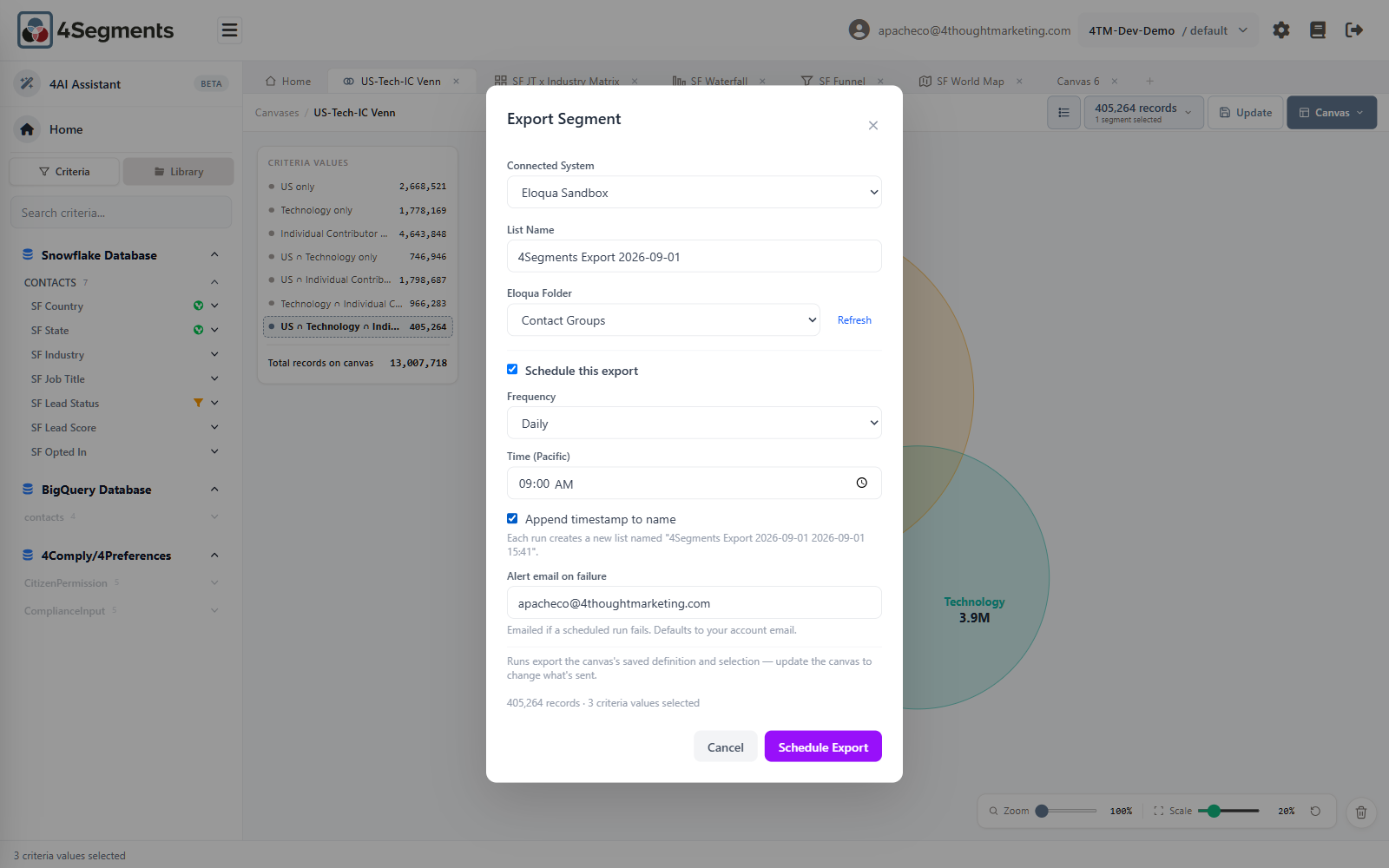
| Field | Options |
|---|---|
| Frequency | Daily · Weekly · Monthly |
| Time (Pacific) | A time picker. Default 09:00 |
| Day of week | Weekly only. Default Monday |
| Day of month | Monthly only, 1–31. Days 29–31 run on the last day of shorter months. |
| Append timestamp to name | On by default |
| Alert email on failure | Emailed if a scheduled run fails. Defaults to your account email. |
Times are always US Pacific, never your browser's timezone. The label says so.
Append timestamp changes what each run produces, and the dialog shows a live example:
- Eloqua, on: Each run creates a new list named "Q1 Segment 2026-09-01 09:00".
- Eloqua, off: Each run updates the same Eloqua list.
- SFTP, on: Each run uploads a new file "….csv".
- SFTP, off: Each run overwrites "….csv".
That single checkbox is the difference between accumulating a dated archive and maintaining one current file. Choose deliberately.
The footer restates the most important thing about schedules:
Runs export the canvas's saved definition and selection — update the canvas to change what's sent.
The first run happens immediately
Creating a schedule fires it once, straight away, so you find out now rather than at 6 a.m. tomorrow whether the destination accepts it. The dialog confirms:
Export started — next run Monday, Sep 8, 2026, 9:00 AM PDT.
9.2 The schedule follows the canvas
This is the concept to internalize. A schedule does not store a copy of your segment. Every run re-derives the audience from the bound canvas, live.
Practical consequences:
- Editing the canvas changes every future run. 4Segments warns you when you save: This canvas drives 2 scheduled exports. Updating changes what those exports send. Update anyway?
- Deleting the canvas is blocked while a schedule points at it.
- The audience refreshes itself. A schedule built on "MQLs created in the last 30 days" sends a different set of people every week, without anyone touching it. That is usually exactly what you want.
9.3 Managing schedules
Admin → Scheduled Exports lists them all.
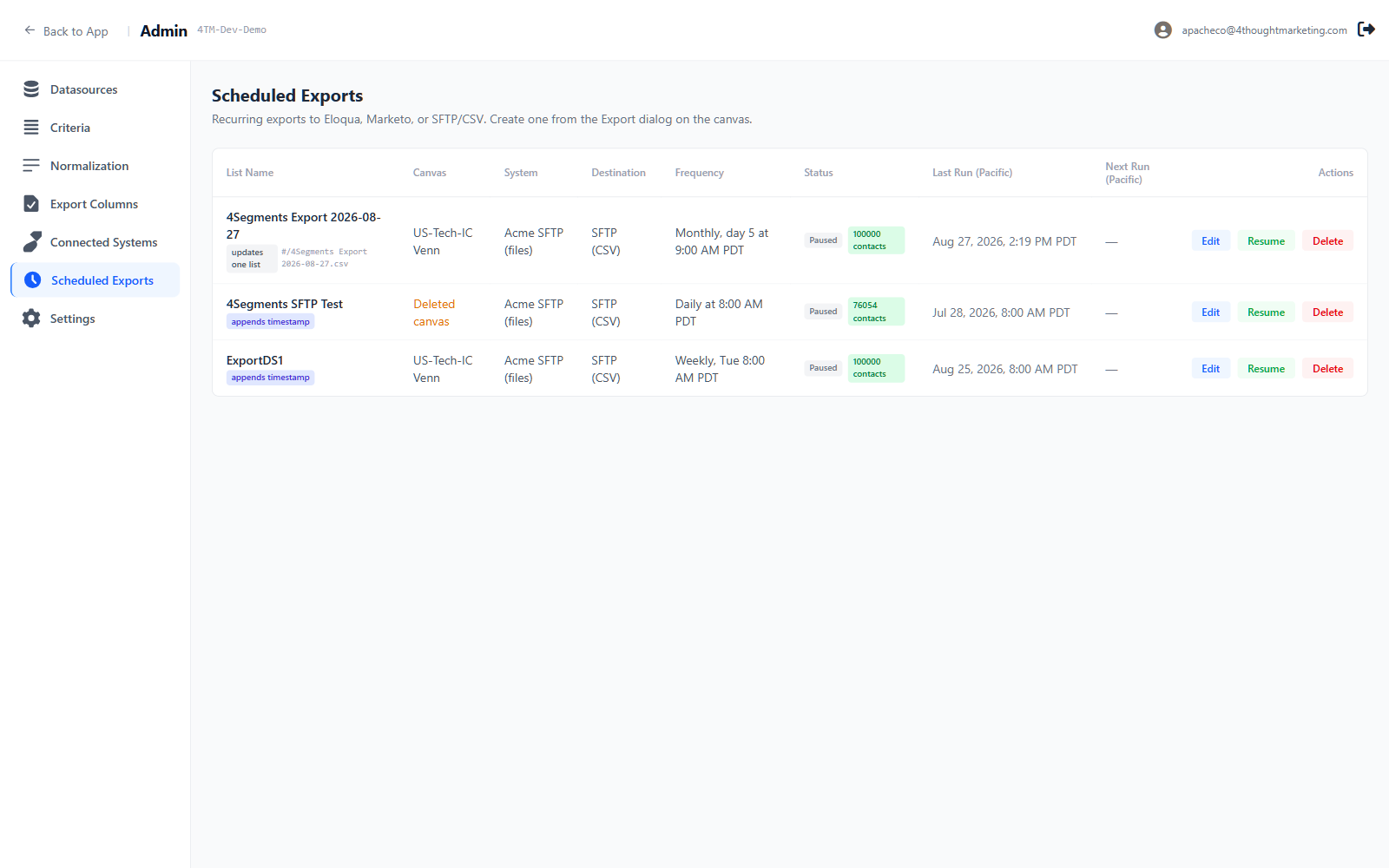
Recurring exports to Eloqua, Marketo, or SFTP/CSV. Create one from the Export dialog on the canvas.
Columns: List Name, Canvas, System, Destination, Frequency, Status, Last Run (Pacific), Next Run (Pacific), Actions.
Badges under the list name tell you the naming mode — appends timestamp or
updates one list. A green badge beside the status shows the last run's outcome —
100000 contacts, or a red error whose tooltip carries the message, or a blue
running.
"Deleted canvas"
An amber Deleted canvas label in the Canvas column means the bound canvas is gone:
The bound canvas was deleted — runs will error until this schedule is removed.
Deleting a canvas is normally blocked while a schedule uses it, so this state usually comes from an older schedule. Delete the schedule, or rebuild the canvas and create a new one.
Actions
Edit opens the same fields, plus a read-only header showing the connected system and canvas — neither can be changed. To send a different audience, edit the canvas; to send to a different system, create a new schedule.
The edit dialog notes:
Saving does not run the export — changes apply from the next scheduled run.
Pause / Resume stops and restarts future runs without losing the definition.
Delete confirms:
Delete this scheduled export? Future runs will stop. Lists already created in Eloqua are not deleted.
9.4 Failure alerts
When a run fails, an email goes out. The address is the first of these that is set:
- The alert address on that specific schedule
- The workspace's Export alert email (fallback) in Admin → Settings
- A system default
Subject line: [4Segments PROD] Scheduled export failed: Weekly Tech List. The body
names the list, destination, canvas, workspace, time and the underlying error.
Note what you are not emailed about by default: a run that succeeded but added zero records, or one that hit the row cap. Those are recorded in the Scheduled Exports list but do not raise an alert unless your service representative enables it. Check the list periodically.
9.5 What happens if a run fails
A failed run is not retried. The schedule waits for its next slot — tomorrow for a daily export, next month for a monthly one. The failure is recorded as a red error badge in the list (hover it for the message) and an alert email goes out.
For a daily export a single failure is rarely serious. For a monthly one it means a whole cycle missed, so check the Last Run column occasionally rather than assuming silence means success.
Next: 10. The 4AI Assistant →