7. Saving and reusing your work
7.1 Canvas or segment?
Two different things get saved, for two different reasons.
| Saved canvas | Saved segment | |
|---|---|---|
| What it stores | The whole diagram — type, criteria, axes, filters, merges, and your current selection | One named audience |
| Reopen it and you get | The same diagram back, with fresh counts | A reusable building block |
| Where it appears | Library, Home, canvas tabs | Library, and as a droppable item on any canvas |
| Can drive a scheduled export | Yes | No — schedules bind to canvases |
| Typical use | "My quarterly territory analysis" | "Hot MQLs", used in five different diagrams |
Neither stores a list of record IDs. Both store a definition, and both recalculate against live data when used. A segment named "Churned Contacts" means whoever is churned today.
7.2 Saving a canvas
The toolbar button reads Save on a new canvas and Update on one you have saved before.
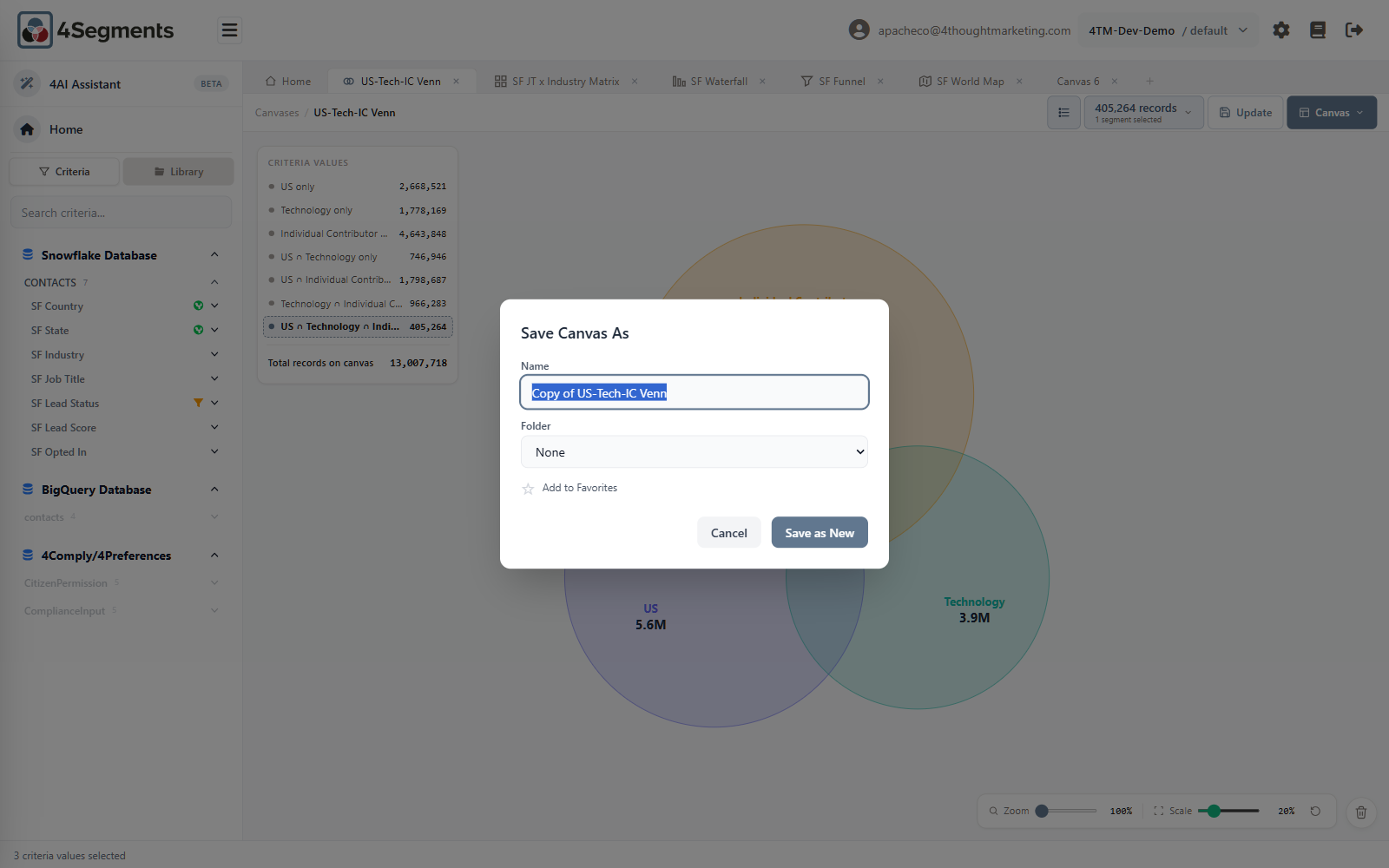
Fields:
- Name — up to 50 characters. Pre-filled with the tab name.
- Folder — a dropdown of your Library folders; None leaves it unfiled.
- Add to Favorites — a star toggle.
4Segments checks for duplicates as you type:
A canvas named "Q3 Territory" already exists in folder "Sales". Pick a different name or move it to another folder.
Updating
On an already-saved canvas, Update saves in place with no dialog — you get a toast saying Updating canvas… then Canvas updated.
If that canvas drives scheduled exports, you are warned first, because updating it changes what those exports send:
This canvas drives 2 scheduled exports: «Weekly Tech List», «SFTP Nightly». Updating changes what those exports send. Update anyway?
Save As
Canvas ▾ → Save As… makes a copy, pre-named Copy of <name>. Use it to branch —
keep the original intact while you experiment.
Saving by dragging
You can also drag a canvas tab onto the Library, or onto a specific folder. An
unsaved tab opens the Save dialog with that folder pre-selected; an already-saved
canvas is simply moved there, with a toast reading Moved to Sales.
7.3 Saving a segment
With a selection on the canvas, choose Segment ▾ → Save segment, or drag the selection onto the Library.
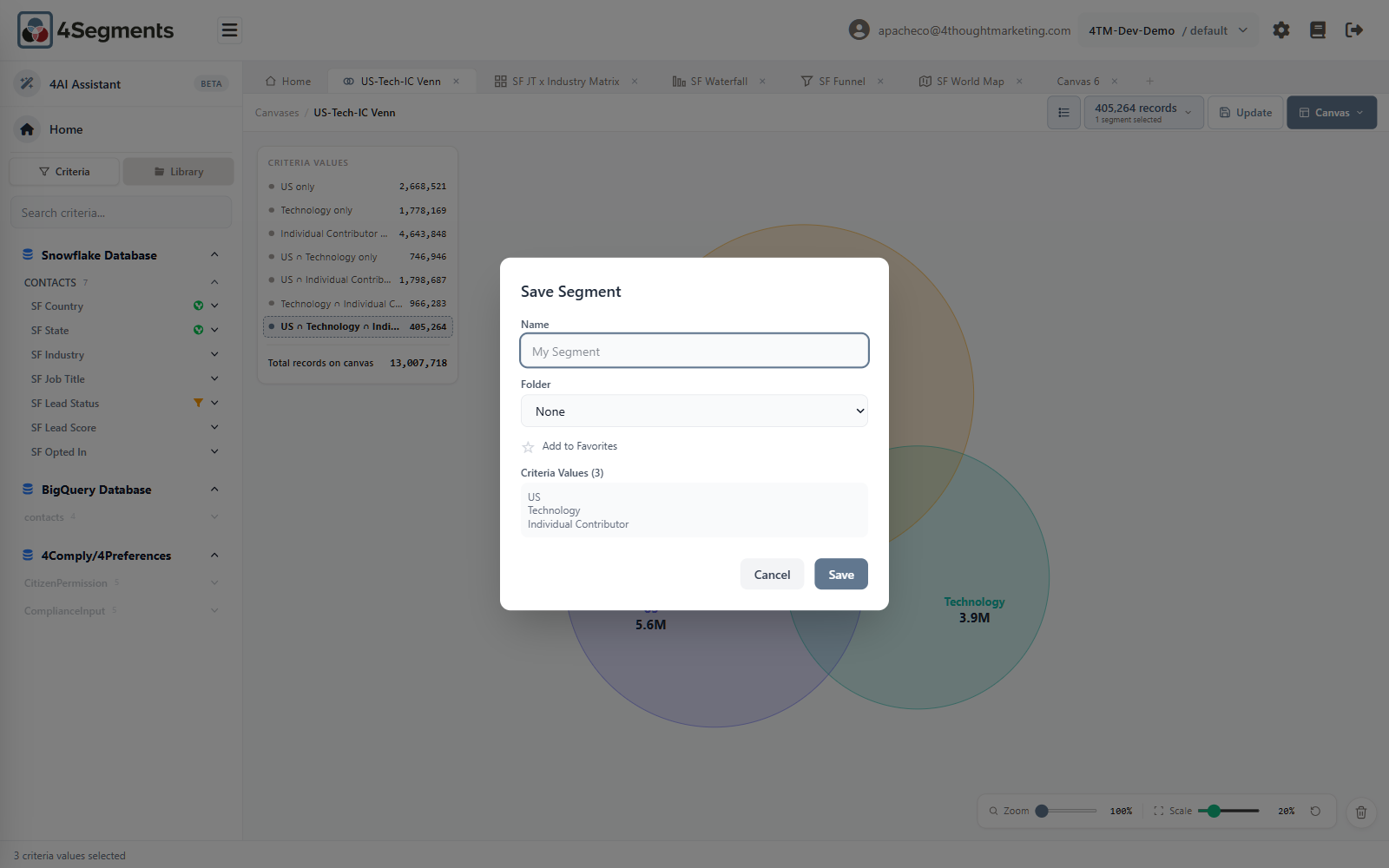
Fields: Name (50 characters), Folder, Add to Favorites, and a read-only list headed Criteria Values (3) showing exactly what you are about to save. Check that list — it is your last chance to notice you selected the wrong region.
Using a saved segment
Drop it, or double-click it:
| Onto | Becomes |
|---|---|
| An empty canvas or a Venn | A circle |
| A Funnel or Map | A filter that scopes every stage or region |
| A Waterfall with no root | The root |
| A Matrix | Refused |
A saved segment used as a Venn circle counts against the three-circle limit.
The use case that makes this worth it: a month ago you saved "Partners in Chicago". Today you build a canvas of trade-show attendees. Drop the saved segment on it and the overlap tells you which partners attended — without rebuilding either definition.
7.4 Reopening
Four ways to open a saved canvas:
- Double-click it in the Library
- Click it on Home, under Favorites or Recent canvases
- Drag it onto the canvas area or onto the + tab
- Open a link someone emailed you
A canvas reopened after a long gap recalculates its counts. If the criteria it was built on have since been deleted, it cannot open at all:
This canvas references 2 deleted criteria items and can't be opened. Delete it and rebuild from the current criteria.
Such canvases carry an amber ⚠ in the Library.
7.5 Emailing a canvas
Canvas ▾ → Email canvas (Send link) sends a colleague a picture and a link.
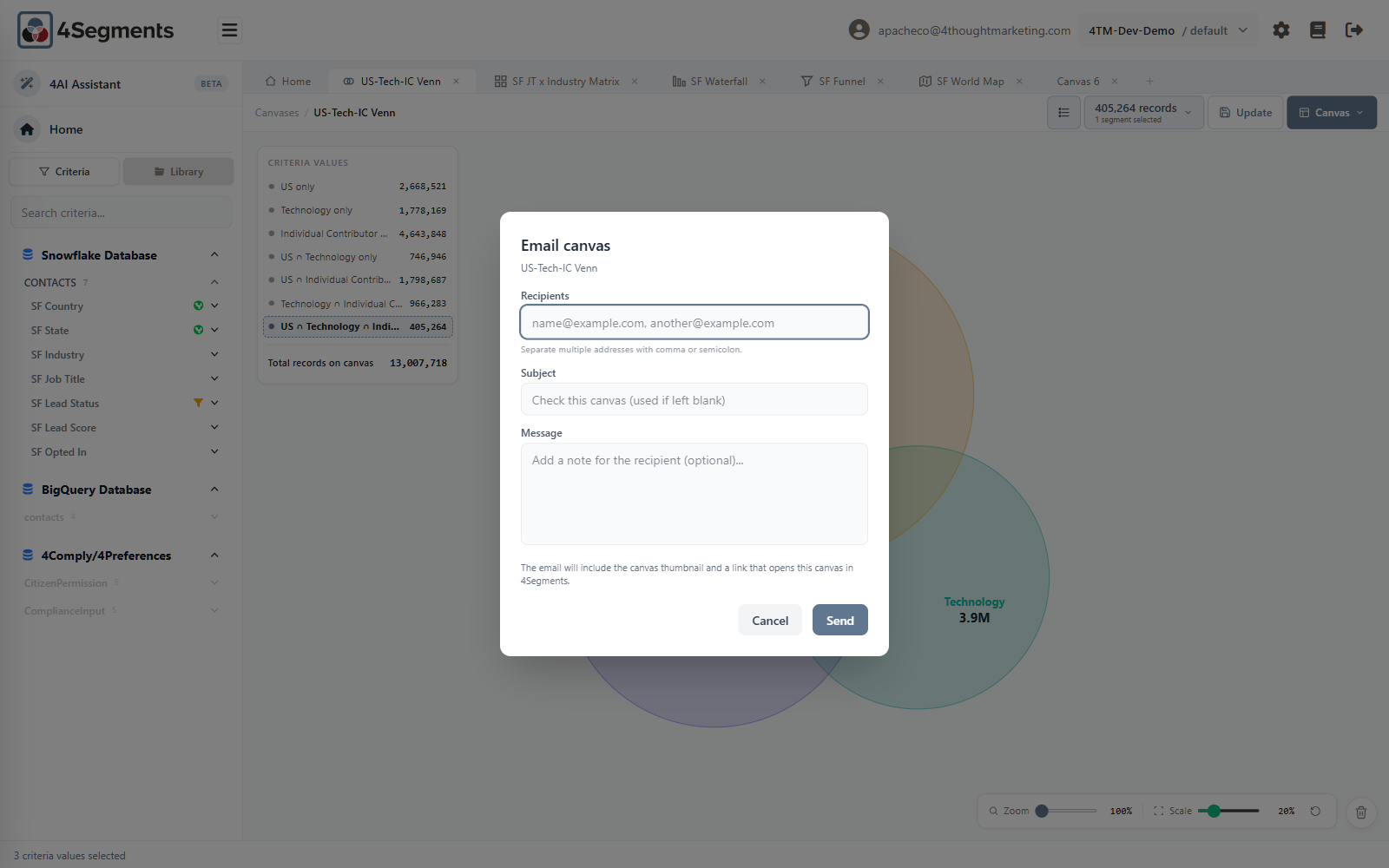
- Recipients — Separate multiple addresses with comma or semicolon. Up to ten per send.
- Subject — defaults to
Check this canvasif left blank. - Message — an optional note.
The email will include the canvas thumbnail and a link that opens this canvas in 4Segments.
Recipients who have a 4Segments account and access to this workspace can click through to the live canvas. Recipients who do not still see the thumbnail.
The canvas must be saved first. Until it is, the menu item is greyed with the tooltip Save the canvas first. There is a limit of ten sends per hour per user.
7.6 Exporting the picture
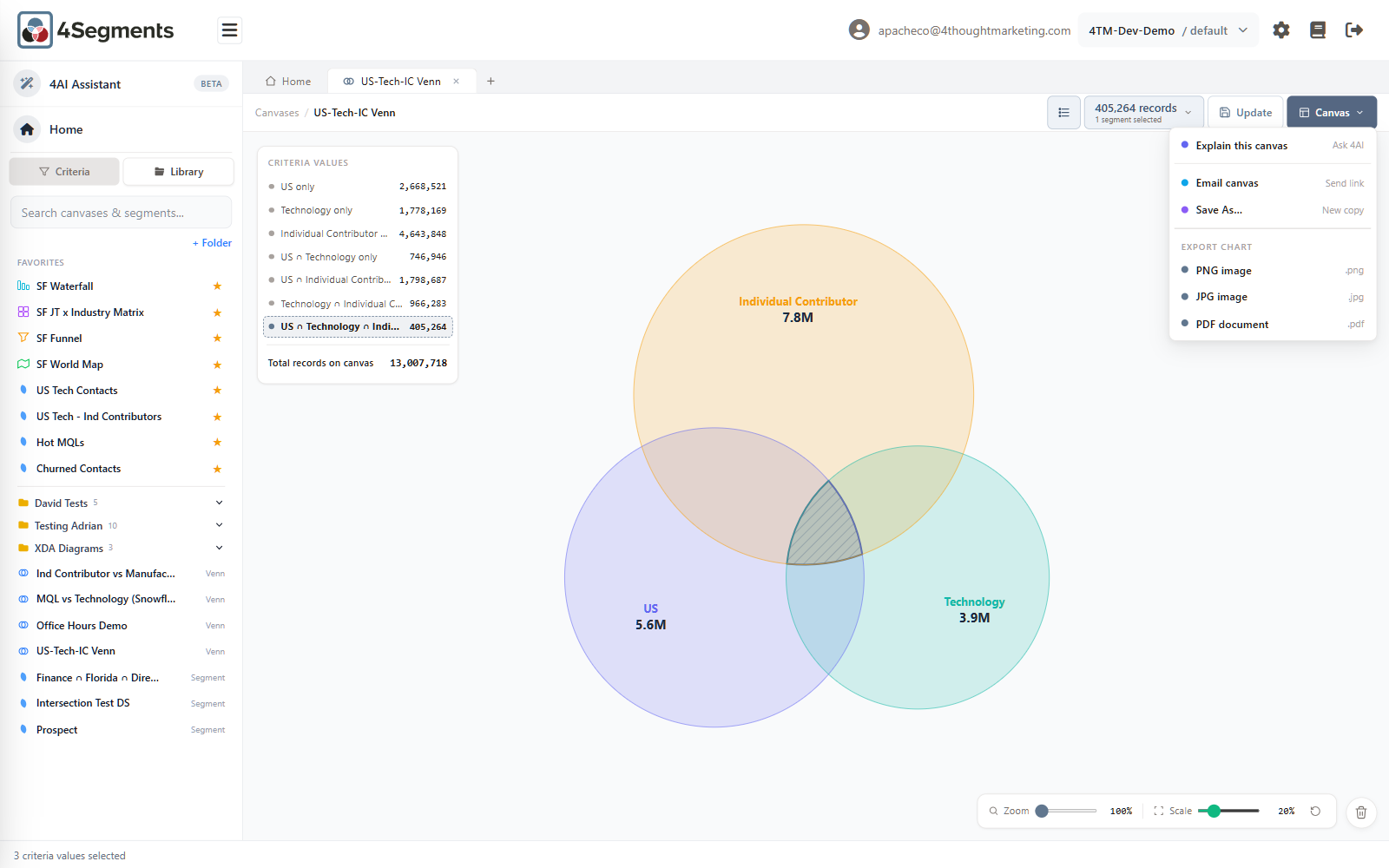
Canvas ▾ → Export chart offers three formats:
- PNG image —
.png - JPG image —
.jpg - PDF document —
.pdf
Works on all five canvas types. Files are named
venn-my-canvas-2026-09-01.png and land in your downloads folder.
Two things to expect:
- The image is always light, even if you are working in dark mode. This is so it drops cleanly into documents.
- On a Venn, the legend panel is not included — it is drawn outside the chart. The Map's legend and title are included. If you need a Venn's numbers alongside the picture, screenshot the window instead.
7.7 Deleting
Right-click → Delete. What happens next depends on whether anything depends on it.
Canvases are blocked if a scheduled export uses them:
Cannot Delete Canvas — Canvas is used by scheduled export(s): «Weekly Tech List». Delete those schedules first.
Segments are not blocked, but you are told what will break:
"Hot MQLs" is used by:
• Canvas "Q3 Analysis" (circle) • Scheduled export "Weekly Send"
Deleting it will leave those canvases unfiltered or broken and shrink those exports. Delete anyway?
Folders never take their contents with them — items become unfiled, subfolders move to the root.
There is no undo and no recycle bin. Deleting is permanent.
Next: 8. Exporting →