11. Keeping up with change
Your data moves. 4Segments has three features that tell you how.
11.1 The nightly refresh
Once every night, 4Segments recounts:
- Every criteria value's record count
- Every saved segment's size
- Then it writes a snapshot — a record of both, as of that night
Snapshots are kept for about 120 days.
This is why the numbers in the sidebar are instant: they are last night's counts, not live queries. Canvas counts are always live; sidebar counts are from the refresh.
What this means in practice:
- A criteria value's count in the sidebar can be up to a day old. The count you get when you drop it on a canvas is current.
- A newly saved segment shows a dash on Home until the next night's run. It has no size recorded yet.
- An administrator can force a refresh from Admin → Criteria — either Refresh All Counts for everything, or Update value counts on one criterion. There is no way for a user to force a recount of one segment.
The refresh time is set by 4thought Marketing, not configurable per workspace. It runs in the small hours, Pacific time.
11.2 Segment movement on Home
The Favorite segments section on Home shows each starred segment's current size and how it has moved.
The header on the right is the legend — it names the window every card on the row was measured against: compared with 7 days ago, compared with yesterday, or awaiting comparison data when no window exists yet. Hover it for the full rule.
Each card shows one of:
| Note | Meaning |
|---|---|
▲ +12.4% from 1,032,110 |
Grew, since the comparison date |
▼ -3.1% from 1,032,110 |
Shrank |
No significant change |
Compared, and it held steady. The segment was in both snapshots; the movement did not clear the reporting threshold |
No comparison yet |
Nothing to compare against. No snapshot history for this segment yet |
⚠ Last refresh failed |
The recount failed; the size shown is the last good one |
— |
Size not yet known |
The distinction between the middle two matters. No significant change means the
comparison ran and found nothing worth reporting — good news about a stable audience.
No comparison yet means 4Segments genuinely has no baseline for that segment, which is
what you see for a segment created since the last snapshot, or in a workspace whose
nightly history has not built up yet.
4Segments only reports a change that cleared both thresholds: at least 25
records and at least 10%. A segment that drifted by 2% therefore reads as
No significant change, not as a noisy small percentage. Hover the note to see the
baseline it was measured against.
This is a two-point comparison, not a chart. There is no trend line, sparkline or history graph in this release. You get today's number and one earlier number.
Only favorited segments appear here. Star the ones you actually watch.
11.3 The weekly digest
An email summarizing what moved. Off by default; an administrator turns it on in Admin → Settings.
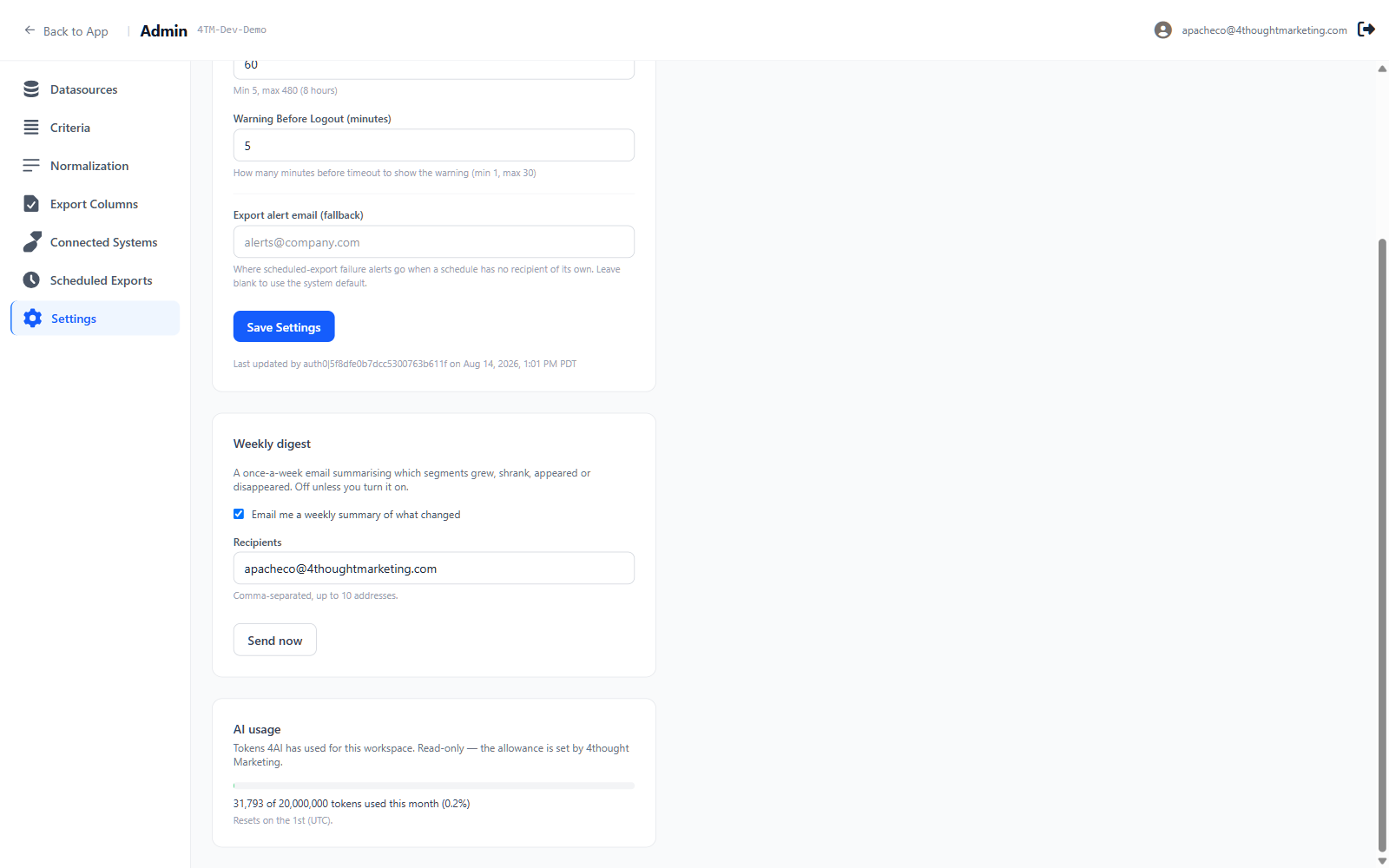
A once-a-week email summarising which segments grew, shrank, appeared or disappeared. Off unless you turn it on.
- Tick Email me a weekly summary of what changed
- Fill in Recipients — Comma-separated, up to 10 addresses.
- Save
Send now sends one immediately, so you can see what your team will receive before committing. It reports back honestly:
- Digest sent to alice@example.com.
- Nothing notable to report since Aug 25 — no digest sent.
- Not enough snapshot history yet — counts are captured once a night.
What the email contains
Subject: [4Segments PROD] Weekly data digest — Acme Corp (Sep 1)
Then, in order:
- The period covered, e.g.
Aug 25 → Sep 1 (7 days) - A short written headline and narrative
- The numbers — up to three tables:
- Biggest changes — criteria values that moved, with was / now / change
- Appeared and No longer present — values that came and went
- Saved segments — with favorites marked ★
- An Open 4Segments button
Two design decisions worth knowing:
Every number is computed by 4Segments, not written by the AI. The assistant writes the prose; the figures come from the snapshots. It is not able to get an arithmetic detail wrong.
Items that no longer exist are marked · since removed, so a deleted criterion in
last week's data does not read as corrupt reporting.
Cadence
The digest goes out once a week, on Monday morning, US Pacific time. There is no control over the day or the time — it is a fixed weekly send.
The digest compares the most recent snapshot against one roughly a week older, and reports the actual number of days elapsed rather than assuming seven.
Nothing to say means nothing is sent. If no segment or value cleared the 25-record and 10% thresholds, no email goes out at all. A quiet week is silent, not a message saying "nothing happened".
11.4 Asking 4AI directly
The What changed? chip in the 4AI panel does the same comparison on demand, for a window you choose between 2 and 30 days. It returns tables of the biggest movers and the segments that changed size.
Use this when you want to check mid-week, or over a window the digest does not cover — "what changed in the last 30 days?" before a quarterly review, for instance.
All three surfaces — Home, the digest, and 4AI — use the same underlying comparison, so they can never disagree with each other.
Next: 12. Administration →