The 4Segments bridge
4Segments builds audiences by querying a database. 4Bridge is how contact data from your other systems gets into a database it can query.
The path is short. 4Bridge writes rows into a private MySQL schema that the platform provisions for your tenant, and 4Segments reads that schema as one of its datasources. You do not configure the database, the credentials or the connection between the two: switching 4Segments on does all of it.
This page is the cross-product route. If you are in 4Segments and wondering where a table came from, or you are in 4Bridge and wondering where the data ends up, this is the join.
What gets created for you
When 4Segments is activated on your tenant, the platform provisions three things.
| What | Detail |
|---|---|
| A private MySQL schema | one per tenant, holding only your tables |
| A database user | granted access to that schema and nothing else |
| A connection in 4Bridge | named 4Segments Storage, of connector type 4Segments |
The connection appears in the 4Bridge Connections list with a padlock and cannot be edited or deleted. Its own description says why: the credentials and the infrastructure are managed by the system. See System-managed connections.
On the 4Segments side the same schema shows up as a built-in datasource, listed there as 4Bridge Storage. See Datasources in the 4Segments manual, which is also where you find the rule that a canvas can only draw on one datasource at a time.
If 4Segments is later deactivated, the schema, the user and the connection are scheduled for deletion rather than dropped straight away. The connection carries the date that will happen, and the grace period is a platform setting rather than something you control.
TODO(review): confirm the default grace period and whether a customer is told about it anywhere in the product. Losing a schema of audience data on a subscription lapse is worth a warning.
Writing into it
Any 4Bridge task can use 4Segments Storage as its destination. Create an integration pairing your source system with it, then add a task. See Integrations and Tasks and execution.
Step 3 of the task wizard changes shape when the destination is 4Segments, because the table you are writing to may not exist yet.
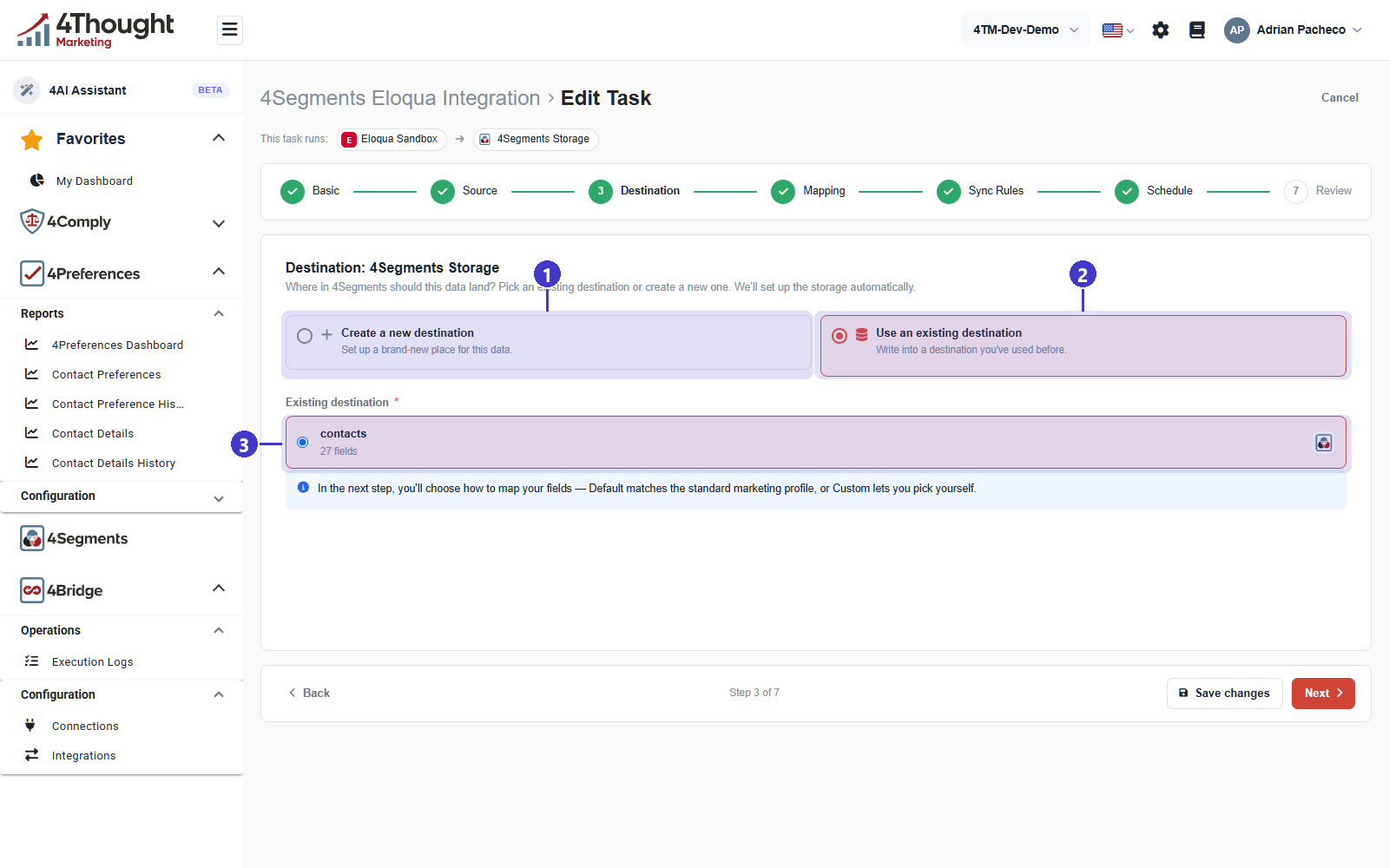
The step's own line asks where in 4Segments the data should land and says the storage will be set up automatically.
- Create a new destination, described as setting up a brand-new place for this data. 4Bridge creates a table for you.
- Use an existing destination, for writing into a table you already have.
- The list of existing tables, each with how many fields it has. The figure shows one table, contacts, with 27 fields.
Choosing Create a new destination asks for a name, pre-filled from the task name and
today's date, in the shape my_destination_20260101. The hint says it is auto-generated and
editable, and there is a Reset to put the generated name back.
Table naming rules
A name is checked before it is used, against MySQL identifier rules and against names the platform reserves.
- It must start with a lowercase letter.
- After that, lowercase letters, digits and underscores only.
- Between 3 and 63 characters.
- It cannot be one of the reserved schema names, and it cannot start with a reserved prefix.
A name that fails gets the reason back rather than a generic error, so the message tells you which rule you broke.
Designing the columns
For a new table, 4Bridge builds the column list from the source fields you pick. Each column has a name, a MySQL type, whether it accepts nulls, and whether it is part of the primary key.
At least one column has to be the primary key. The product says so and explains why: the
table supports upserts using that column, primary-key columns cannot be null so it sets
NOT NULL for you, and it is required for upsert and match operations. Email or an id is the
usual choice, and several columns can be marked to form a composite key.
That primary key is what the task's Match field points at on the Sync Rules step. See Sync rules.
The two mapping modes
Step 4 then offers the two modes described on Integrations, and for a 4Segments destination they mean something specific.
- Default, tagged RECOMMENDED, provisions a standard marketing profile of 25 fields and maps everything it can from your source automatically. On an existing table it maps to those standard fields where they exist and skips the rest.
- Custom lets you pick which source fields to bring over. For a new table the target columns are created from your choices, and the target name defaults to the snake_case form of the source field name and stays editable.
Default is the right answer if you are not sure. It is designed so that a 4Segments canvas finds the fields it expects.
When the table is actually created
The CREATE TABLE runs when you save the task, not when the task first runs. Adding
columns to a table you reused runs as ALTER TABLE ADD COLUMN, also on save.
Two consequences.
- Saving a task can change your database. That is the only place in 4Bridge where saving configuration has an effect outside 4Comply.
- A failure to create the table does not stop the task being saved. 4Bridge saves the task and reports the database error as a warning, so you can fix the design and save again rather than losing your work.
CREATE TABLE is a one-time operation performed when the task is created. Editing a task
later can add columns but will not recreate the table.
TODO(review): the warning on a failed CREATE TABLE is returned in a response header, and it
is not clear the dashboard shows it to the customer. Confirm what a customer sees when the
table could not be created, because the task will then run against a table that is not there.
Reading it from 4Segments
Once rows are in the schema, 4Segments treats it like any other datasource: browse its tables and columns, drop criteria onto a canvas, count, and export. Nothing about the canvas is 4Bridge-specific.
The two 4Segments chapters most relevant once the data is in:
- Exporting covers getting a selection out, and Destinations covers where it can go.
- Scheduled exports covers running a canvas on a recurring basis.
One difference to keep in mind if you are chaining the two. A 4Bridge task's schedule is in UTC; a 4Segments scheduled export runs on US Pacific time. Leave enough of a gap that the load has finished before the export starts, and remember that Pacific time shifts twice a year while UTC does not.
TODO(review): there is no dependency between a 4Bridge task and a 4Segments schedule, so the only way to order them is to space them out by hand. Confirm whether that is the intended answer for a customer who wants "export after the load finishes", because Depends on task solves it inside 4Bridge but not across the two products.
The API side
Four endpoints support this page, all read-only or validation-only.
| Endpoint | What it does |
|---|---|
GET /v1/4bridge/4segments/tables |
lists the tables tracked for your tenant |
GET /v1/4bridge/4segments/tables/{name} |
one table, with its columns |
POST /v1/4bridge/4segments/tables/validate-name |
checks a proposed name and returns the reason if it fails |
POST /v1/4bridge/4segments/tables/preview-ddl |
returns the CREATE TABLE statement for a proposed design without running it |
Each tracked table also records the task that created it, which is how you answer "what put this table here?".
A fifth endpoint, GET /v1/4bridge/4segments/storage-credentials, returns the schema's real
MySQL credentials. It exists so that 4Segments can register the schema as a datasource
without anybody typing a connection string, and it returns secrets in the response body. It
is not a customer integration point. Do not call it from anything a person can see.