Integrations
An integration pairs two connections so that data can move between them. It holds no field mappings, no schedule and no objects. It is the container: two systems, a name, and an on-or-off switch.
The work happens in the tasks inside it. See Tasks and execution.
Two reasons the split is worth the extra step. First, one pair of systems usually needs several jobs, and they belong together: read contacts one way, push results back the other. Second, disabling the integration stops everything in it at once, which is what you want when a system is down for maintenance.
The integration list
Integrations under Configuration lists them.
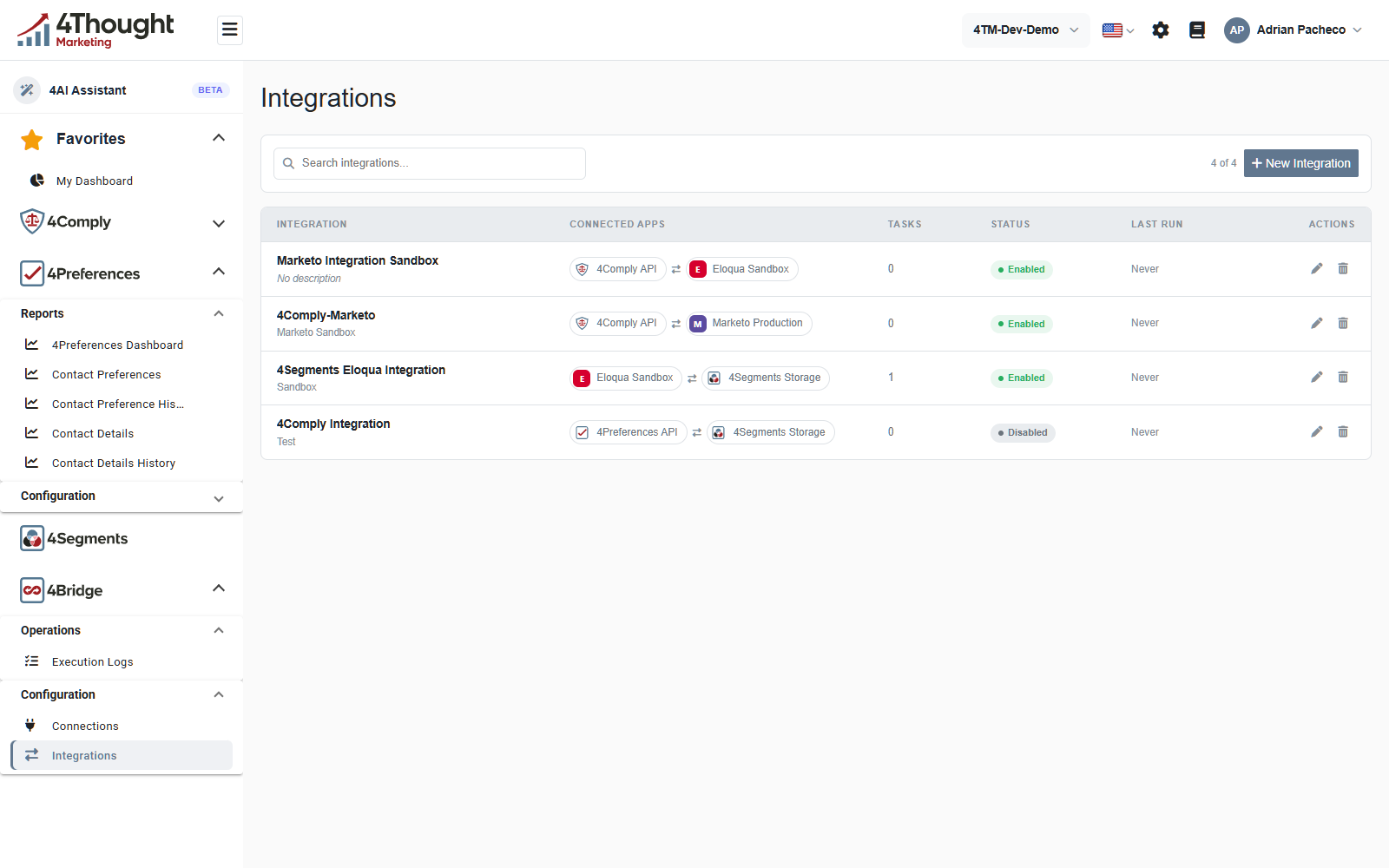
| Column | What it holds |
|---|---|
| INTEGRATION | the name, with the description underneath |
| CONNECTED APPS | the two connections, each shown with its connector icon |
| TASKS | how many tasks are configured inside it |
| STATUS | Enabled or Disabled |
| LAST RUN | when a task in this integration last ran, or Never |
| ACTIONS | a pencil to open it, a bin to delete it |
+ New Integration at the top right creates one. Search integrations... filters the list and the count beside it reads 4 of 4 until you type.
The names and descriptions in the figure are the demo tenant's, with the two external account names replaced in the chips.
Creating or editing one
Clicking an integration opens Edit Integration, which is the same form New Integration opens empty.
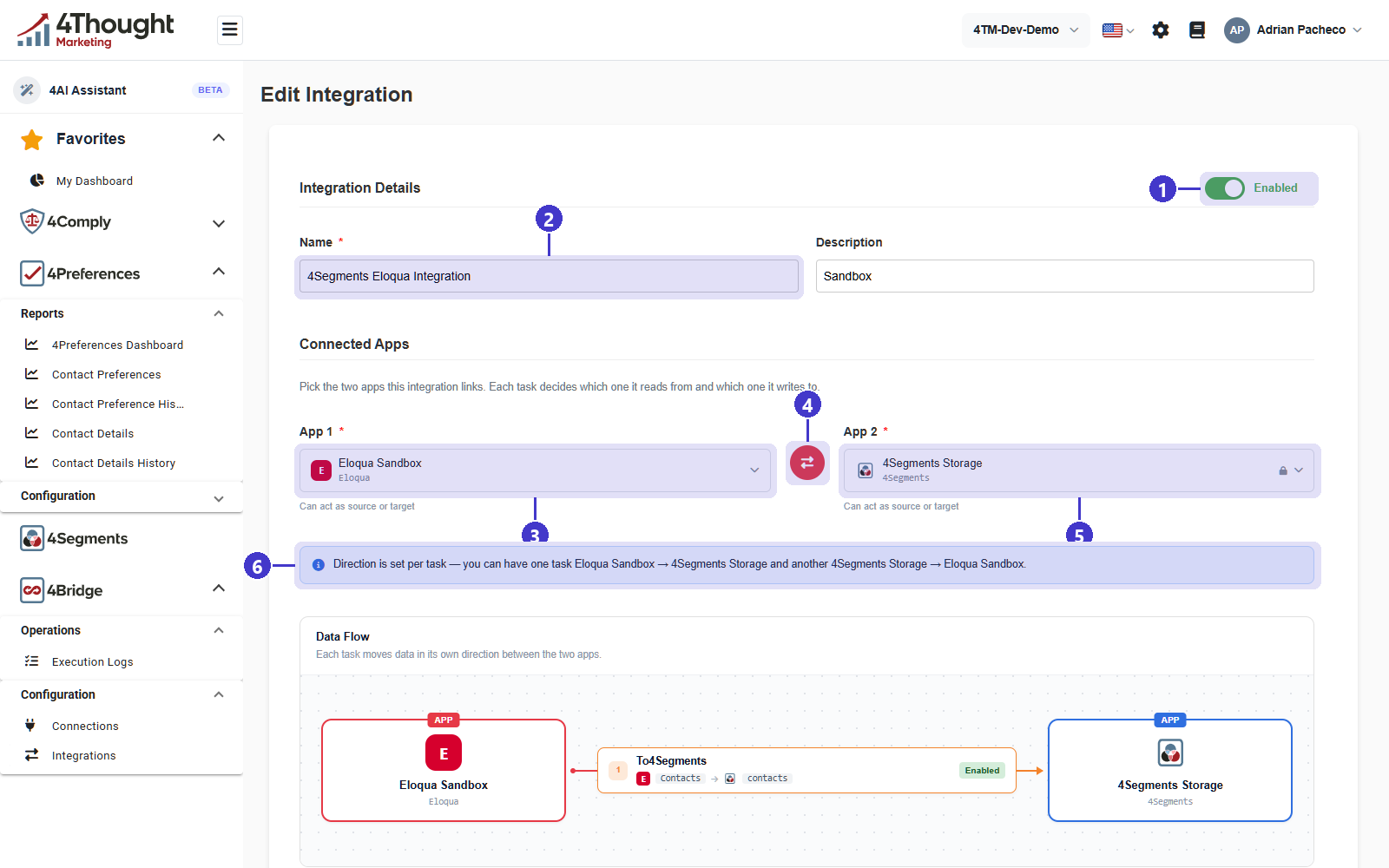
- The Enabled toggle at the top right of Integration Details. A disabled integration is saved but nothing in it runs.
- Name, required, and Description beside it. The name is what every task, log and report shows.
- App 1, the first connection.
- The swap button between the two pickers, which exchanges them.
- App 2, the second connection. A padlock on the right of a picker means that connection is system-managed.
- A note explaining that direction is chosen per task, so one task can read app 1 and write app 2 while another in the same integration goes the other way.
The Connected Apps section says the same thing in its own words: Pick the two apps this integration links. Each task decides which one it reads from and which one it writes to. Under each picker the hint reads Can act as source or target.
That is the important idea on this page. An integration is not directional. Naming it after a direction, the way the demo tenant's 4Segments Eloqua Integration does, is a habit worth avoiding: name it after the pair of systems.
TODO(review): the API stores sourceConnectionId and targetConnectionId on the integration
itself, and the task record carries no direction of its own. The version of the API published
in the reference beside these guides therefore has a directional integration, while the
dashboard offers direction per task. Confirm which is current, because an integrator reading
the reference and a customer reading this page would build different things.
The data flow diagram
Below the pickers, Data Flow draws the integration: the two apps, and every task between them as a labelled arrow. Its own line reads Each task moves data in its own direction between the two apps.
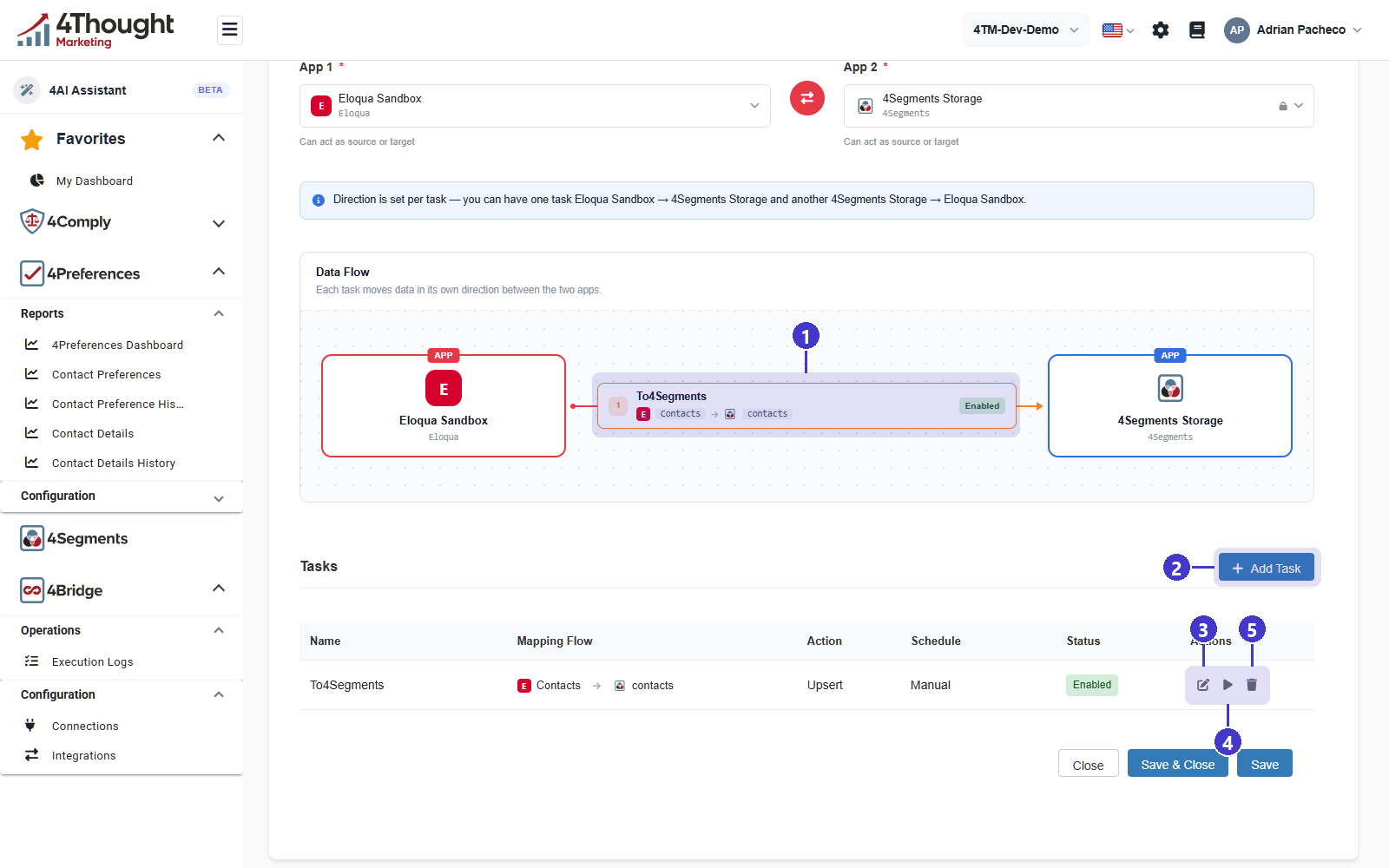
- The task in the diagram, showing its name, the source object, the target object and whether it is enabled. With no tasks the middle of the diagram reads that there are none yet and to add one below.
- + Add Task, which opens the task wizard.
- The pencil on a task row, tooltip Edit, which opens the same wizard on the saved task.
- The play icon, tooltip Run Now, which queues one run immediately.
- The bin, tooltip Delete.
The Tasks table under the diagram is the same information as a list.
| Column | What it holds |
|---|---|
| Name | the task name |
| Mapping Flow | the source object, an arrow, and the target object |
| Action | Create, Upsert, Update, Delete or Sync |
| Schedule | Manual, an interval, a cron schedule or Webhook |
| Status | Enabled or Disabled |
| Actions | the three icons above |
At the bottom of the form, Close leaves without saving, Save keeps the form open and Save & Close returns to the list.
Field mapping lives on the task
Field mapping is the part people expect to find on the integration, and it is not there. A mapping pairs one field of one object with one field of another object, so it can only exist once a task has chosen those two objects.
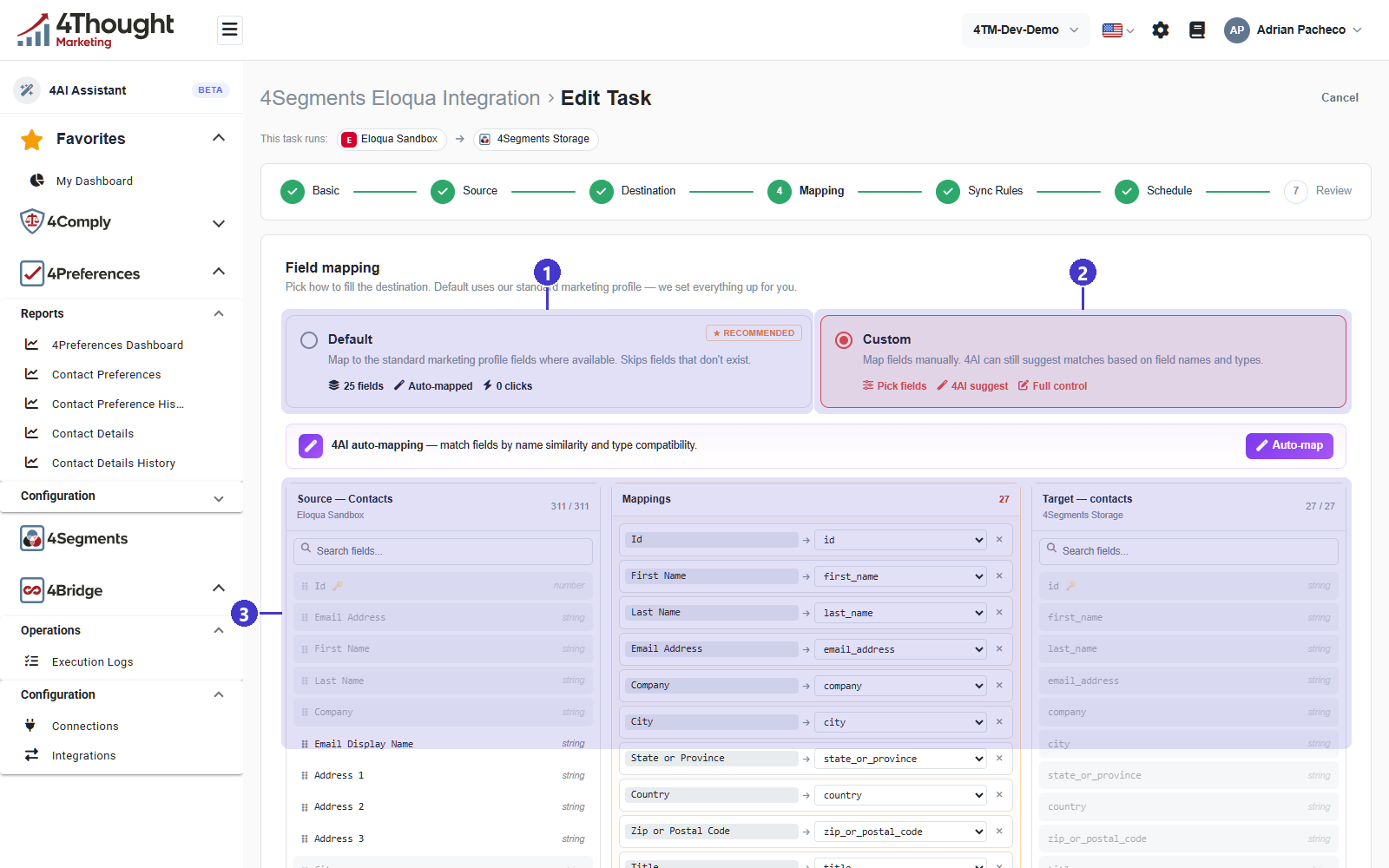
- Default, tagged RECOMMENDED. It maps to a standard marketing profile where the fields exist and skips the ones that do not. The card counts what that gives you, 25 fields and Auto-mapped in 0 clicks.
- Custom, which lets you map by hand. The card offers Pick fields, 4AI suggest and Full control.
- The three columns of the custom editor: the source object's fields on the left, the mappings in the middle, the target object's fields on the right. A field already used in a mapping is greyed out in its column, and the counters at the top of each column show how many of each are in play.
Auto-map at the top right fills the middle column by matching field names and types. The banner above it describes that as 4AI auto-mapping. Everything it suggests is editable afterwards, and the middle column is the record of what will actually be sent.
The rest of the wizard is on Tasks and execution.
Enabling, disabling and deleting
Enabled and Disabled are the only two states, and they apply to the whole integration. A disabled integration keeps its tasks and their configuration; nothing in it runs on a schedule.
Deleting is refused while the integration is still enabled. The message says so and tells you what to do: disable it first. There is a second refusal for a published integration, asking you to set it back to draft first.
TODO(review): the dashboard carries messages for both an Enabled state and a Published state, and the API stores only one flag for both. Confirm whether draft and published are a real pair of states a customer will see, or leftover wording for the same switch.