Tasks and execution
A task is one job inside an integration: read this object from one of the two connected systems, write it to an object in the other, on this schedule. It is the only record in 4Bridge that runs, and every run leaves an execution log behind.
This is the page to be on when a sync did not do what you expected.
Where tasks live
Tasks belong to an integration, so you reach them through it: Integrations, then the integration, then the Tasks table at the bottom of the form. + Add Task opens the wizard and the pencil on a row reopens it on a saved task. See Integrations.
Execution Logs under Operations is the other half, and it is tenant-wide rather than per integration.
The task wizard
Seven steps, with a stepper across the top you can click to jump back. Next moves forward, Save changes saves from any step, and Cancel in the top right leaves without saving.
| Step | What it decides |
|---|---|
| 1 Basic | the name, which way the data flows, enabled or not |
| 2 Source | which object to read |
| 3 Destination | which object to write |
| 4 Mapping | which field goes where |
| 5 Sync Rules | what to do with a record that already exists |
| 6 Schedule | when it runs |
| 7 Review | a summary before you save |
1. Basic
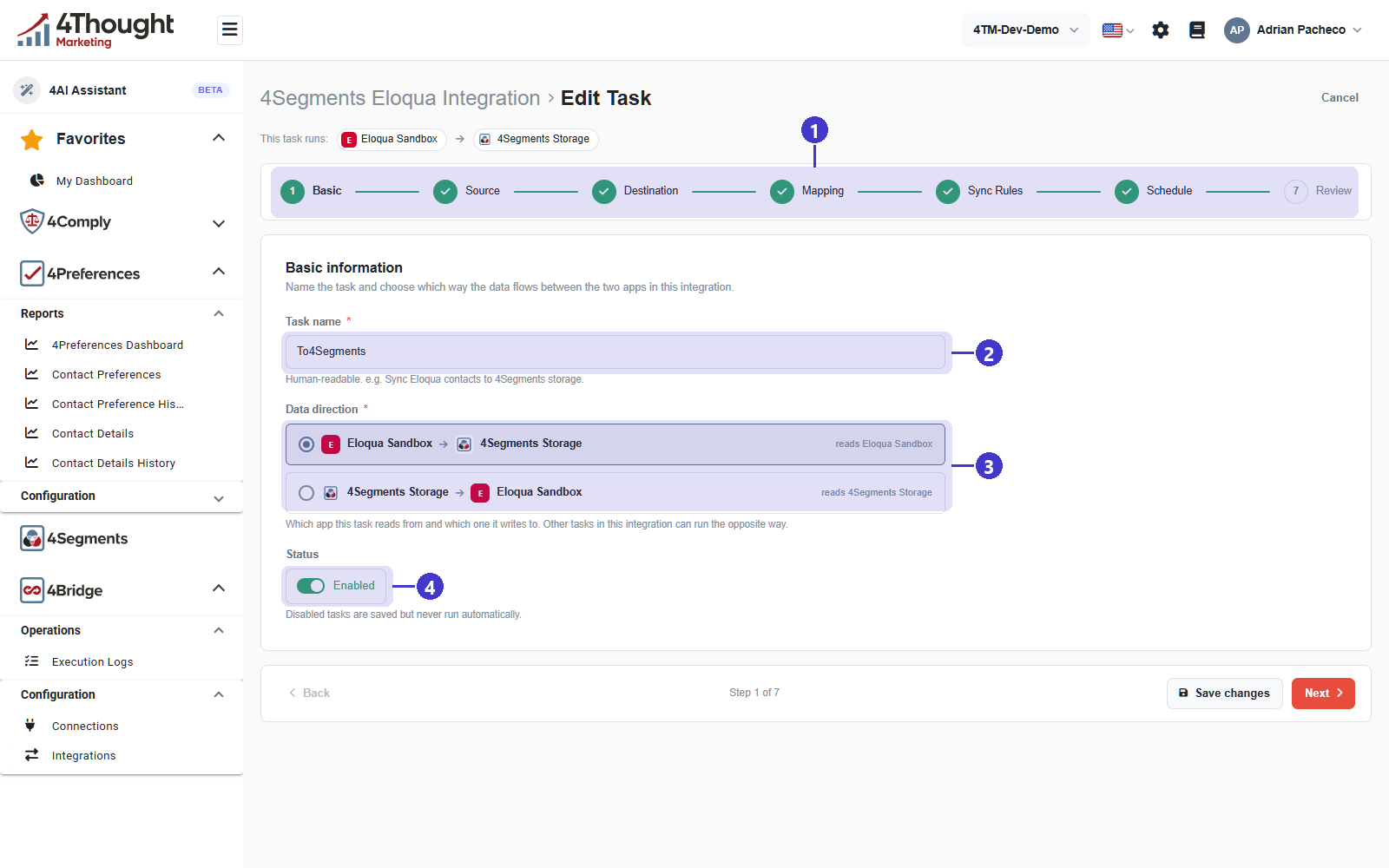
- The stepper. A green tick means the step is complete.
- Task name, required. The hint asks for something human-readable and suggests a name that says what moves where.
- Data direction, required, as two radio options: one reads the first app and writes the second, the other is the reverse. The hint under them says other tasks in the same integration can run the opposite way.
- Status, an Enabled toggle. The hint is blunt and worth quoting: Disabled tasks are saved but never run automatically.
The strip above the stepper, This task runs:, repeats the chosen direction on every step, so you can always see which system is the source.
2. Source
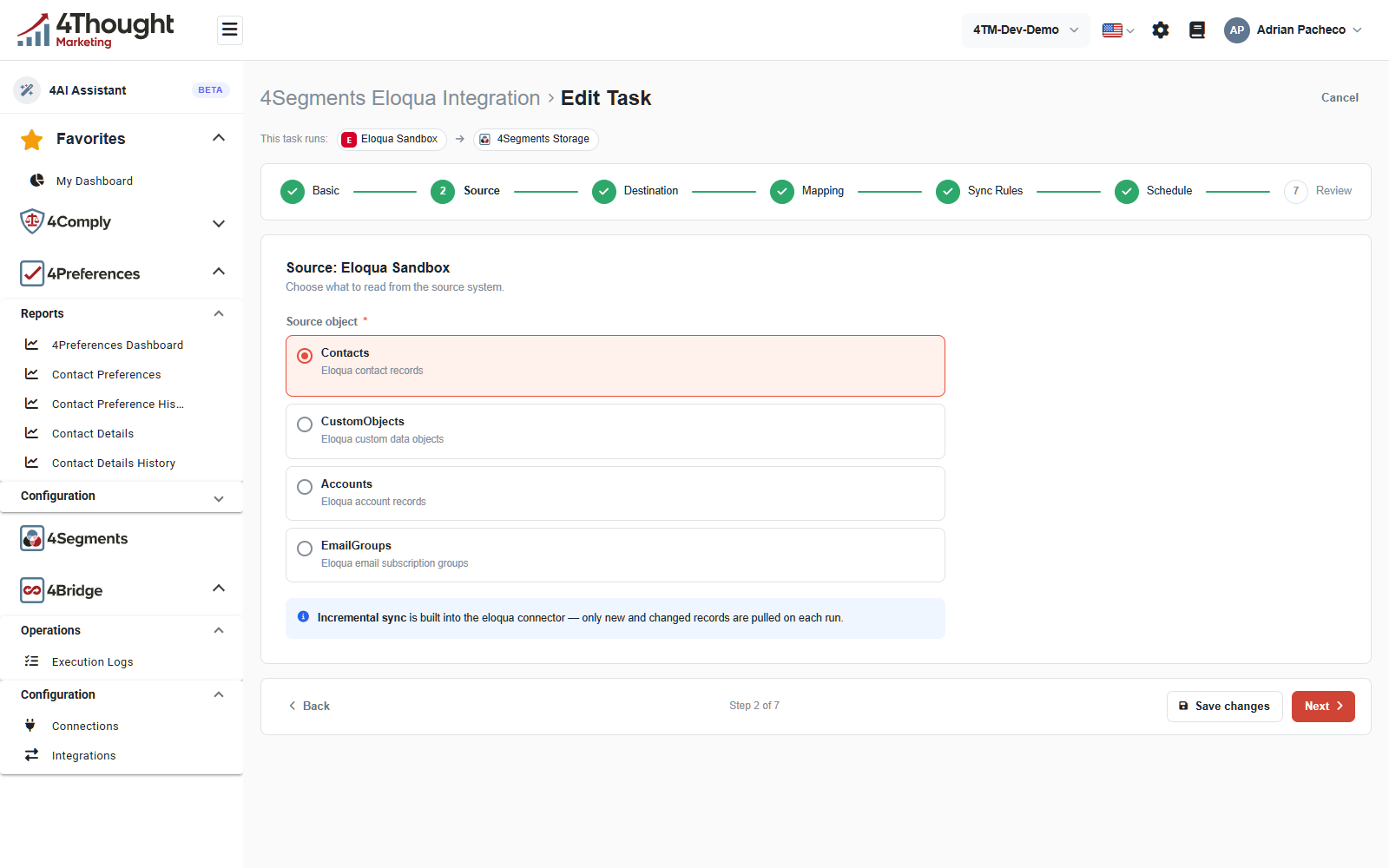
Source object lists what the connection's metadata reported. For the Eloqua connection in the figure that is Contacts, CustomObjects, Accounts and EmailGroups, each with its own one-line description. If a picker is empty, the connection has not returned metadata yet: test it and see Connector metadata.
What else this step asks depends on the connector.
- Eloqua asks nothing more. The note explains that incremental sync is built into the connector, so only new and changed records are pulled on each run.
- MySQL asks for a Read Mode: By Date (Incremental), which needs a
DATETIMEorTIMESTAMPcolumn to compare against; By filter, which needs at least one condition; or Full sync, which reads every row on every run. The product warns that full sync is for small tables and suggests under ten thousand rows. Filters are combined withANDonly, and the hint tells you to build a view in MySQL if you needORor a subquery. - Marketo can read a static list rather than an object. That mode adds an optional error list and error field for failed leads, and an option to remove each processed lead from the source list so the next run does not see it again.
3. Destination
The destination step mirrors the source step, with one exception. When the destination is 4Segments Storage it becomes a small design tool rather than a picker, because the table may not exist yet. That path is on The 4Segments bridge.
4. Mapping
Covered on Integrations, because mapping is the part people look for there.
5. Sync Rules
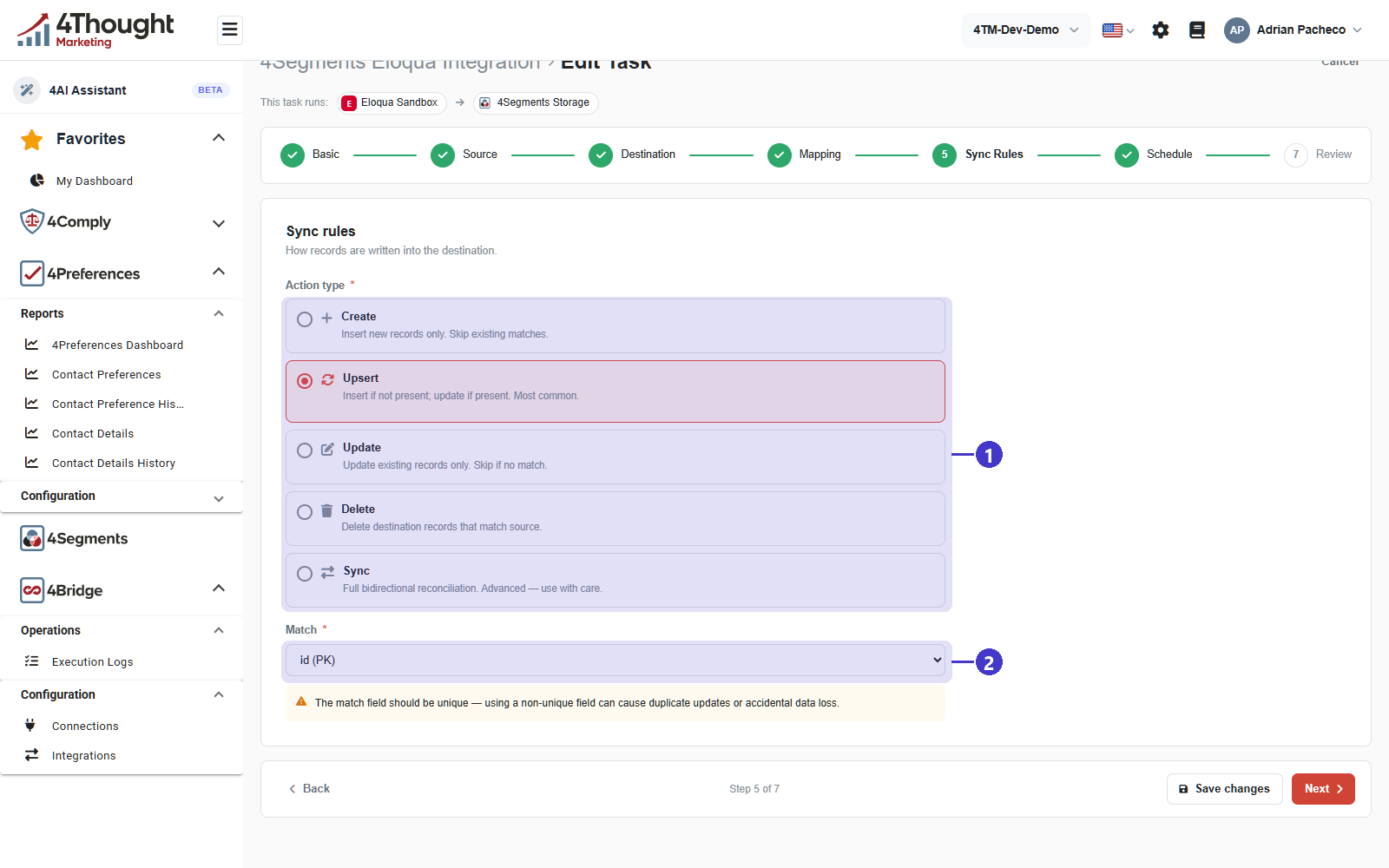
- Action type, required. This is what happens to a destination record that already matches.
| Action | The product's own description |
|---|---|
| Create | Insert new records only. Skip existing matches. |
| Upsert | Insert if not present; update if present. Most common. |
| Update | Update existing records only. Skip if no match. |
| Delete | Delete destination records that match source. |
| Sync | full bidirectional reconciliation, marked as advanced and to be used with care |
- Match, required for anything except Create. It names the destination field used to
decide whether a record already exists, and the picker lists the destination's fields with
(PK)beside a primary key. The warning under it is the one to take seriously: the match field should be unique, and a non-unique one can cause duplicate updates or accidental data loss.
Pick the primary key or a field with a unique constraint. An email address is the usual choice when there is no better key, and it is only as unique as the source system keeps it.
TODO(review): the API's own comment on the task record lists only Create and Upsert as valid actions, while the wizard offers five. Confirm that Update, Delete and Sync are implemented end to end, because Delete in particular is not something to offer if the executor ignores it.
6. Schedule
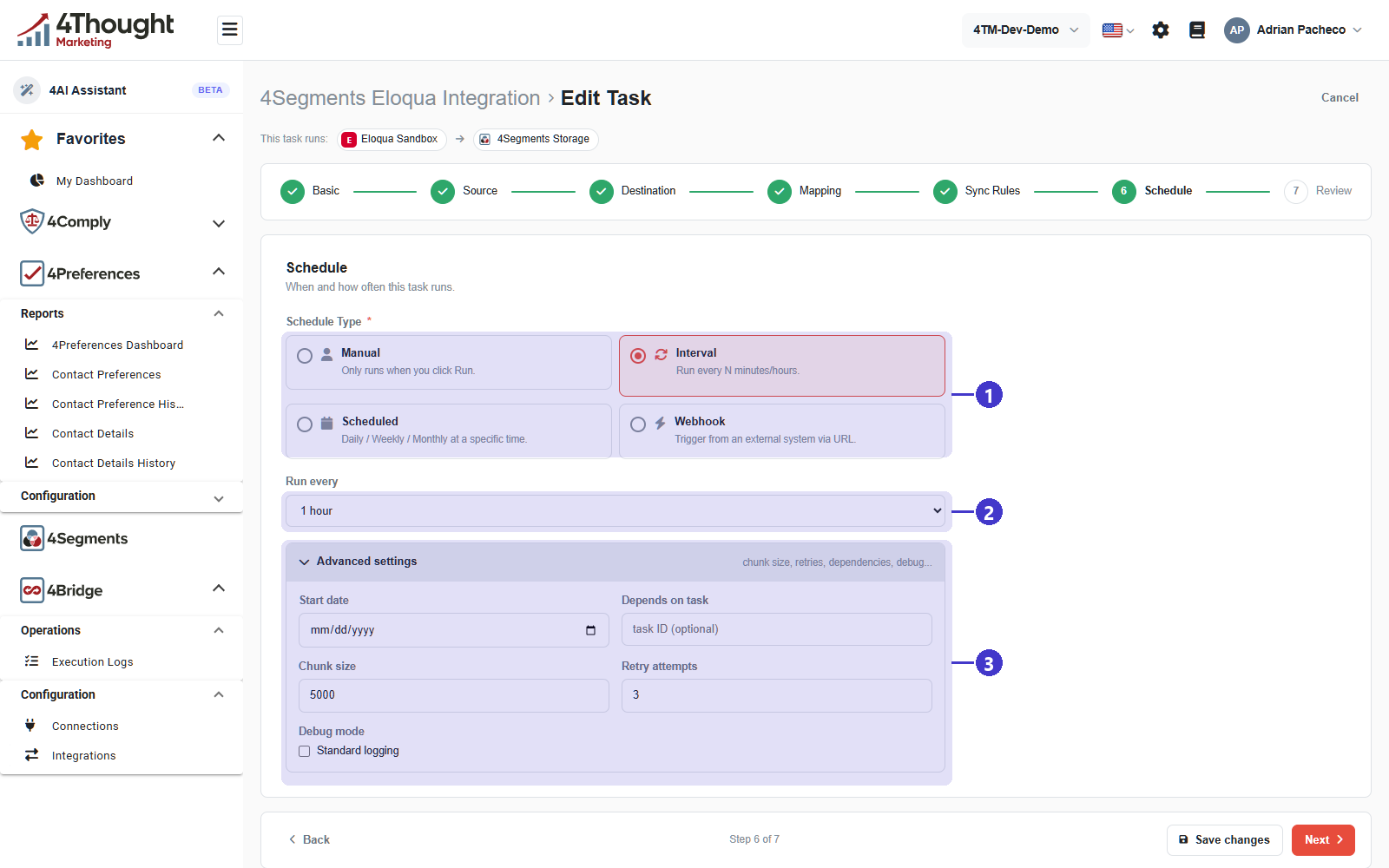
- Schedule Type, required, as four options.
| Schedule type | The product's own description |
|---|---|
| Manual | Only runs when you click Run. |
| Interval | Run every N minutes/hours. |
| Scheduled | Daily / Weekly / Monthly at a specific time. |
| Webhook | Trigger from an external system via URL. |
Run every, shown when Interval is chosen. It is a fixed list rather than a free number: 5 minutes, 30 minutes, 1 hour, 6 hours, 12 hours and 24 hours. The figure shows 1 hour.
Scheduled replaces it with Schedule details: a Frequency of Hourly, Daily, Weekly, Monthly or Custom, a time, and a preview of the cron expression it builds, such as
00 08 * * *with the plain-English reading beside it.Times are UTC. The label says so, and it is not your browser's timezone. This is a difference from 4Segments, where a scheduled export runs on US Pacific time. If you are coordinating a 4Segments export with a 4Bridge task, convert.
Webhook replaces it with a read-only Webhook URL. See Webhook triggers.
Advanced settings, a collapsed panel summarised as chunk size, retries, dependencies and debug.
| Setting | Default | What it does |
|---|---|---|
| Start date | empty | the task does not run before this date |
| Depends on task | empty | takes another task's id, and the scheduled run is skipped unless that task has run more recently than this one |
| Chunk size | 5000 |
how many records are read and written per batch |
| Retry attempts | 3 |
how many times a failing batch is retried before it is given up on |
| Debug mode | off, labelled Standard logging | keeps sample records and extra detail on the execution log |
Depends on task is how you order work. If task B must not run until task A has refreshed its data, point B at A. The hint spells out the consequence: if the dependency has not run since this task's last execution, the scheduled run is skipped rather than queued.
TODO(review): Depends on task takes a raw task id typed into a text box, and a task id is not shown anywhere in the dashboard. Confirm this is meant to be a picker.
7. Review
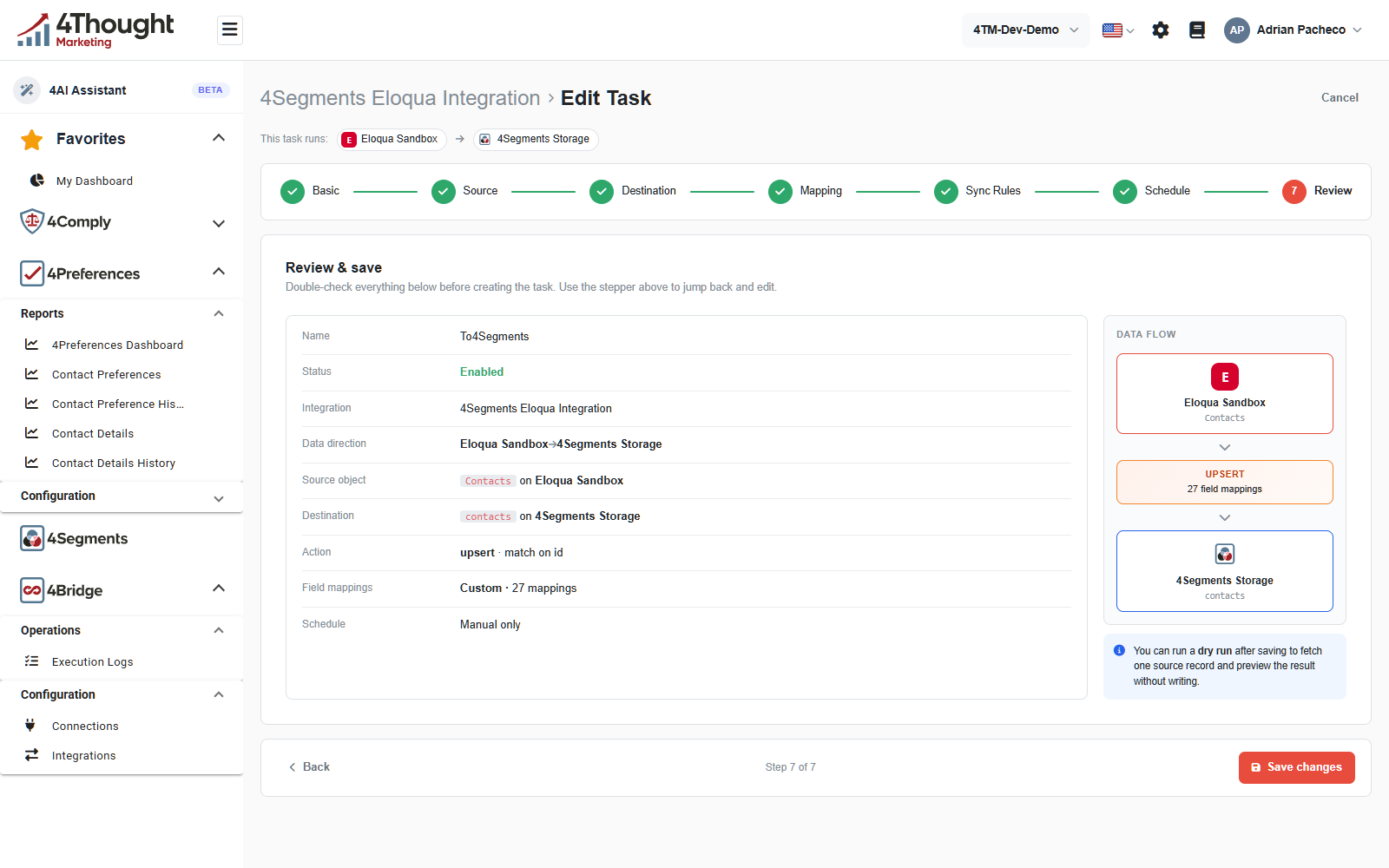
The left column repeats every decision, the right column draws the flow, and the note at the bottom right says a dry run can be started after saving to fetch one source record and preview the result without writing anything.
Save changes at the bottom right saves. Nothing has been written to either connected system at this point: saving a task only saves its configuration.
TODO(review): the review step promises a dry run after saving, and no dry-run control appears on a saved task, nor is there an endpoint for one. Confirm whether dry run shipped.
TODO(review): the heading on this step reads Review & save and the line under it says to check everything before creating the task, even when you are editing an existing one.
How a run actually happens
This is the part worth being precise about, because it explains what you will and will not see.
- Something triggers the task. Run Now in the dashboard, the schedule reaching its next slot, or an inbound webhook call.
- 4Bridge writes an execution log row with a status of
Queued, and puts an entry on an internal task queue. - A worker picks the entry up, reads from the source in chunks, applies the field mappings, writes to the destination, and updates the execution log as it goes.
The API returns as soon as step 2 is done. Run Now therefore means "queued", not "finished", and the execution id it hands back is how you follow the rest.
TODO(review): the worker in step 3 is not part of the 4Comply API codebase, and no background service in that codebase polls the task queue. In the dev tenant used for these figures no task has ever run: every integration reads Never under LAST RUN, and Execution Logs is empty. Confirm where the worker runs and in which environments it is deployed, because until it is running a task can be saved, enabled and queued, and will simply sit there. This page cannot currently tell a customer what to expect.
TODO(review): confirm what a paused worker does to queued work. There is a pause switch in the internal admin API, and the queue is durable, so the queue presumably drains when the worker resumes rather than dropping anything. That should be stated rather than assumed.
Execution logs
Execution Logs under Operations is the record of every run in the tenant. One row per run.
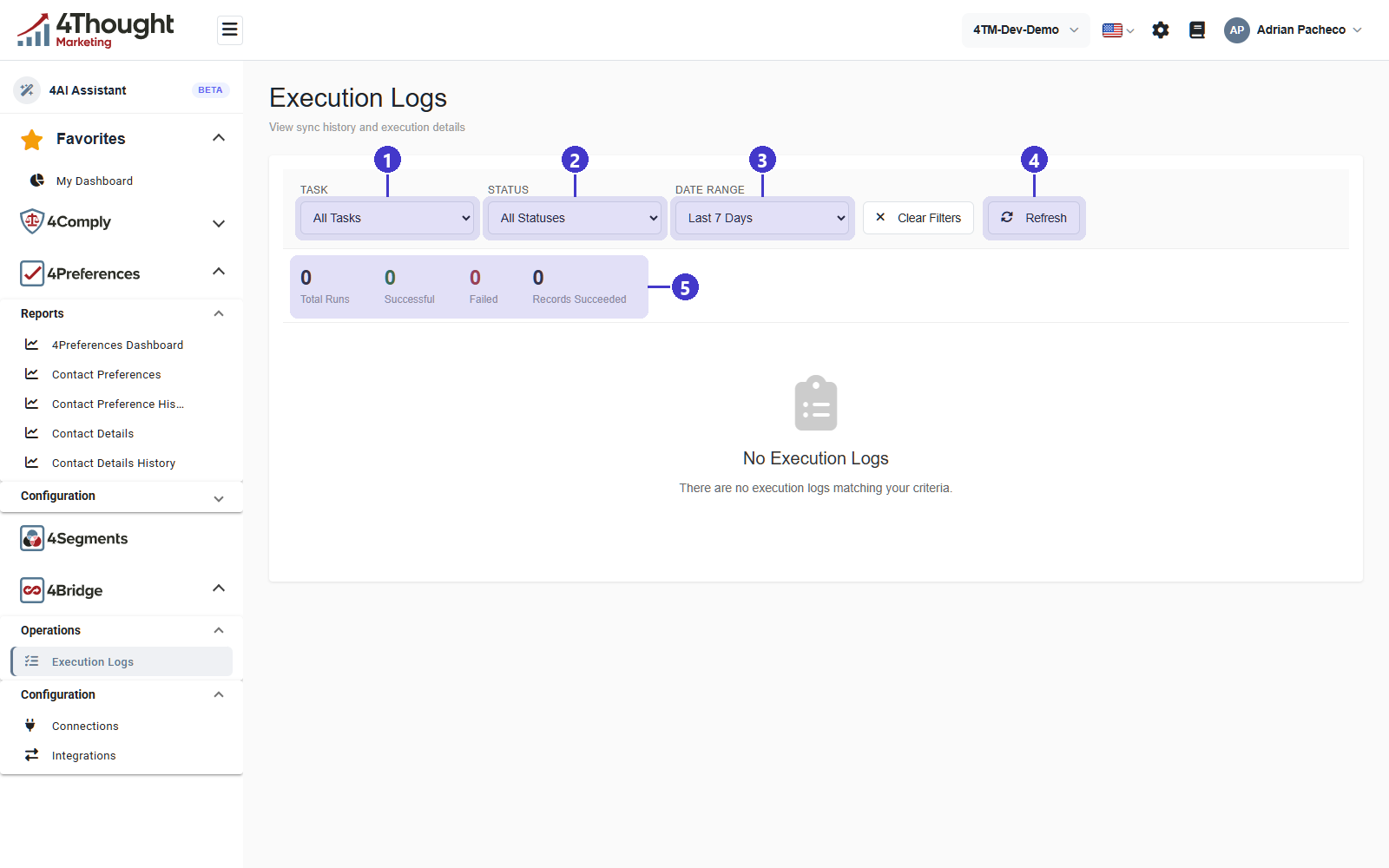
- TASK, which narrows to one task. All Tasks is the default.
- STATUS, offering All Statuses, Success, Failed, Running and Partial.
- DATE RANGE, offering Last 24 Hours, Last 7 Days, Last 30 Days and All Time. Last 7 Days is the default, which is why a run from last month can look like no run at all.
- Refresh, beside Clear Filters. A run in progress does not update by itself.
- Four counters for the current filter: Total Runs, Successful, Failed and Records Succeeded.
The demo tenant has never run a task, so the figure shows the empty state, No Execution Logs with There are no execution logs matching your criteria.
The status vocabulary
A run's status is one of five values.
| Status | What it means |
|---|---|
Queued |
the run is on the queue and has not started |
Running |
a worker has claimed it and is reading or writing |
Success |
every record was written |
PartialSuccess |
the run finished, and some records failed |
Failed |
the run did not finish |
PartialSuccess is the one that matters most. It is not an error and it is not a success: it
means the sync ran and some rows were rejected, so the destination is now partly updated. Do
not treat it as either extreme.
The STATUS filter shows PartialSuccess as Partial, and it offers no filter for
Queued. A queued run is therefore visible in the unfiltered list but not selectable on its
own.
What a log row carries
| Field | What it tells you |
|---|---|
| Triggered By | Scheduled, Manual or Webhook |
| Started and Completed | when the run began and ended. The API records both in UTC. TODO(review): confirm whether the screen converts them to the reader's timezone or shows UTC. |
| Duration | the difference between the two |
| Chunks | how many batches in total, how many completed, how many failed |
| Records Processed and Records Succeeded and Records Failed | the record counts |
| Error Message | the run-level failure, if the whole run failed |
| Execution Steps | the phases of the run, each with its own status, duration and counts |
The steps are the named phases of a run: initialise, connect to source, connect to destination, read records, prepare the write phase, write records. Reading them top to bottom tells you where a failure happened, which is usually more useful than the error message.
With Debug mode on, the log also keeps a sample of the first few source records and the first few records as written, so you can see what the mapping actually produced.
Failed records
A run that reports failures also keeps a per-record list: the chunk it was in, the source record id, the destination record id where there is one, an Error Code and an Error Message. Only failing records are listed, so an empty list on a successful run is expected rather than missing data.
TODO(review): the API defines this per-record list and nothing in the codebase writes to it,
so a PartialSuccess run currently gives counts but no list of which records failed.
Confirm whether the worker writes it, and whether every record or only failures is recorded.
TODO(review): the error codes are stored as free text with no documented set of values. Confirm whether there is a fixed list a customer can act on, or whether the code is whatever the destination system returned.
Records that keep failing
Records that fail every retry are moved aside for investigation rather than retried forever.
Each one keeps its payload, its error code and message, the number of retries, and a status
of Pending, Resolved or Ignored.
TODO(review): nothing in the dashboard shows this list, and no API endpoint returns it. Confirm how a customer is meant to see and clear records that have exhausted their retries, because at the moment a permanently failing record is invisible.
Notifications
A tenant-wide Notification Settings screen exists at /bridge-notifications, offering
email recipients, toggles to notify on sync success, sync failure and connection error, and a
daily digest.
TODO(review): the screen calls GET /v1/4bridge/notifications, which the API does not serve,
so it returns 404 and the page shows an error notice with default toggle values. Saving
would post to the same missing path. Confirm whether 4Bridge notifications ship before this
section describes them as a feature, and where the notification email is sent from.