Connections
A connection is one configured link to one system: what kind of system it is, where it lives, and the credentials to get in. Nothing in 4Bridge moves data until at least two connections exist, so this is the first thing you build and the page worth reading carefully.
Three words are easy to confuse and mean different things. Get them straight first.
| Term | What it is | Who creates it |
|---|---|---|
| Connector type | the kind of system 4Bridge knows how to talk to, such as Oracle Eloqua | 4thought Marketing |
| Connection | one system of that kind, with its own address and credentials | you |
| Connector metadata | the list of objects and fields 4Bridge read back from that connection | 4Bridge, automatically |
Put another way: the connector type is the socket, the connection is the plug you wire up, and the metadata is what 4Bridge learned after plugging it in.
Connector types
A connector type defines what a connection to that kind of system needs. It carries the display name, the category, which authentication methods it supports, and the exact list of fields the connection form should ask for. That is why the form changes shape when you pick a different type: it is drawn from the type's definition rather than hard-coded.
You cannot create a connector type. Adding one is 4thought Marketing work, because it means writing the code that reads from and writes to that system.
Three connector types are offered when you create a connection.
| Connector type | What it connects to |
|---|---|
| Adobe Marketo | a Marketo subscription, through its REST API |
| Oracle Eloqua | an Eloqua instance |
| MySQL Database | a MySQL or MariaDB database, described on the card as Read from and write to MySQL or MariaDB databases. |
Three more exist but are never offered here, because the platform creates and owns them. See System-managed connections.
TODO(review): the dashboard also ships display names for Salesforce, HubSpot, Microsoft Dynamics and a generic Custom API, and the API's own comments name Salesforce, CSV and S3. None of them appear in the picker and none has code behind it. Confirm which connector types are actually on the roadmap so this table can say what is coming rather than only what is here.
The connection list
Connections under Configuration shows every connection in the tenant as a card.
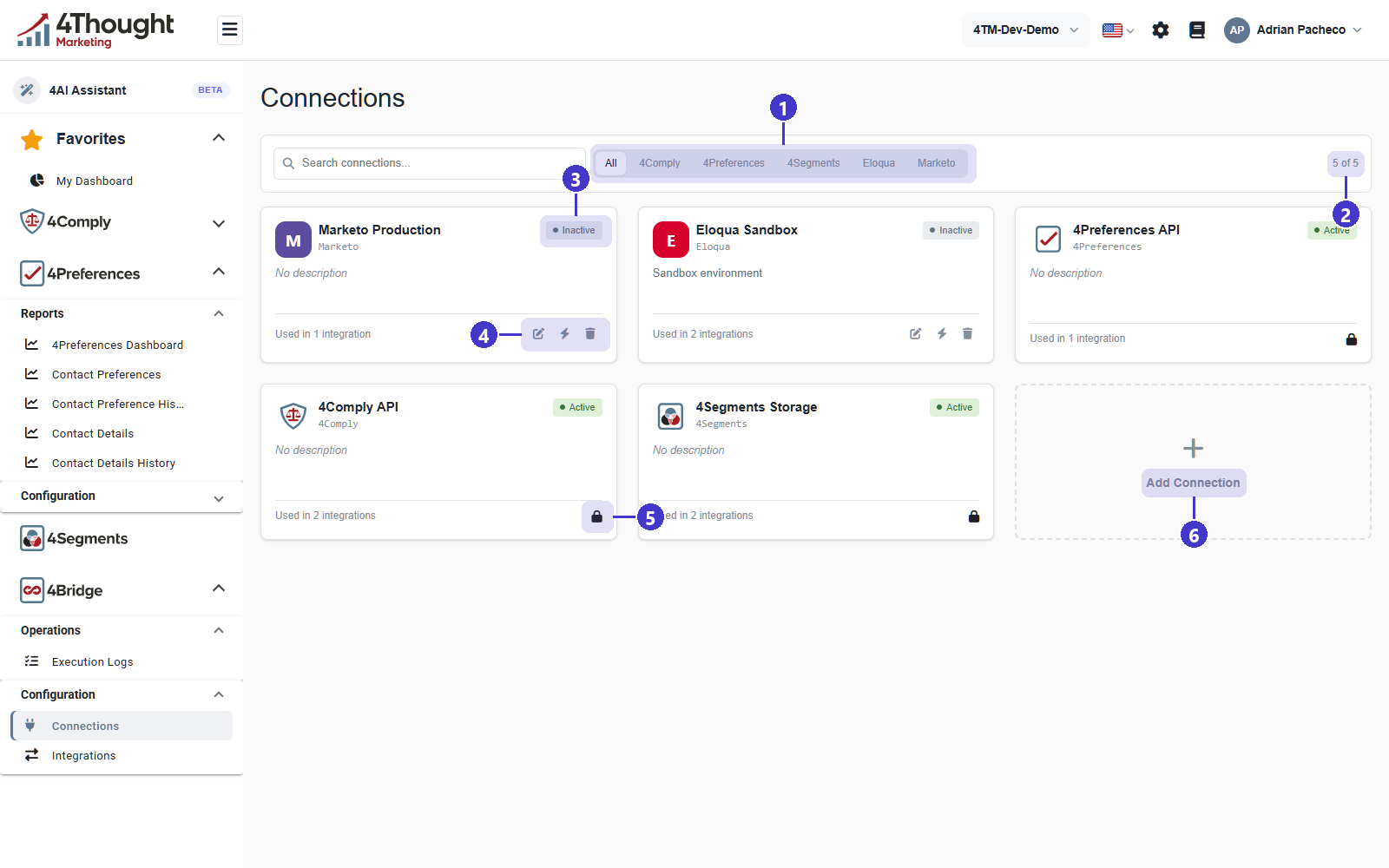
- The filter row. All is selected by default and each other button narrows the grid to one connector type. The buttons are the types actually present in the tenant, so this row is also the quickest answer to "what are we connected to?".
- The result count, reading 5 of 5 in the figure. Typing in Search connections... changes the first number.
- The status badge on each card. See Status.
- Three icons on a connection you own: a pencil to edit, a lightning bolt whose tooltip is Test connection, and a bin to delete.
- A padlock instead of those icons on a system-managed connection. Its tooltip explains that the platform manages the credentials and that the connection cannot be edited or deleted.
- The Add Connection tile, which starts the wizard.
Each card also shows the connector type under the name, the description if there is one, and how many integrations use the connection. The count is worth a glance before you delete anything.
The five connections in the figure are the demo tenant's. The two external account names in it were replaced before the shot, because they name 4thought Marketing's own Marketo and Eloqua accounts.
Creating a connection
Add Connection opens a two-step wizard.
Step 1, choose the connector type
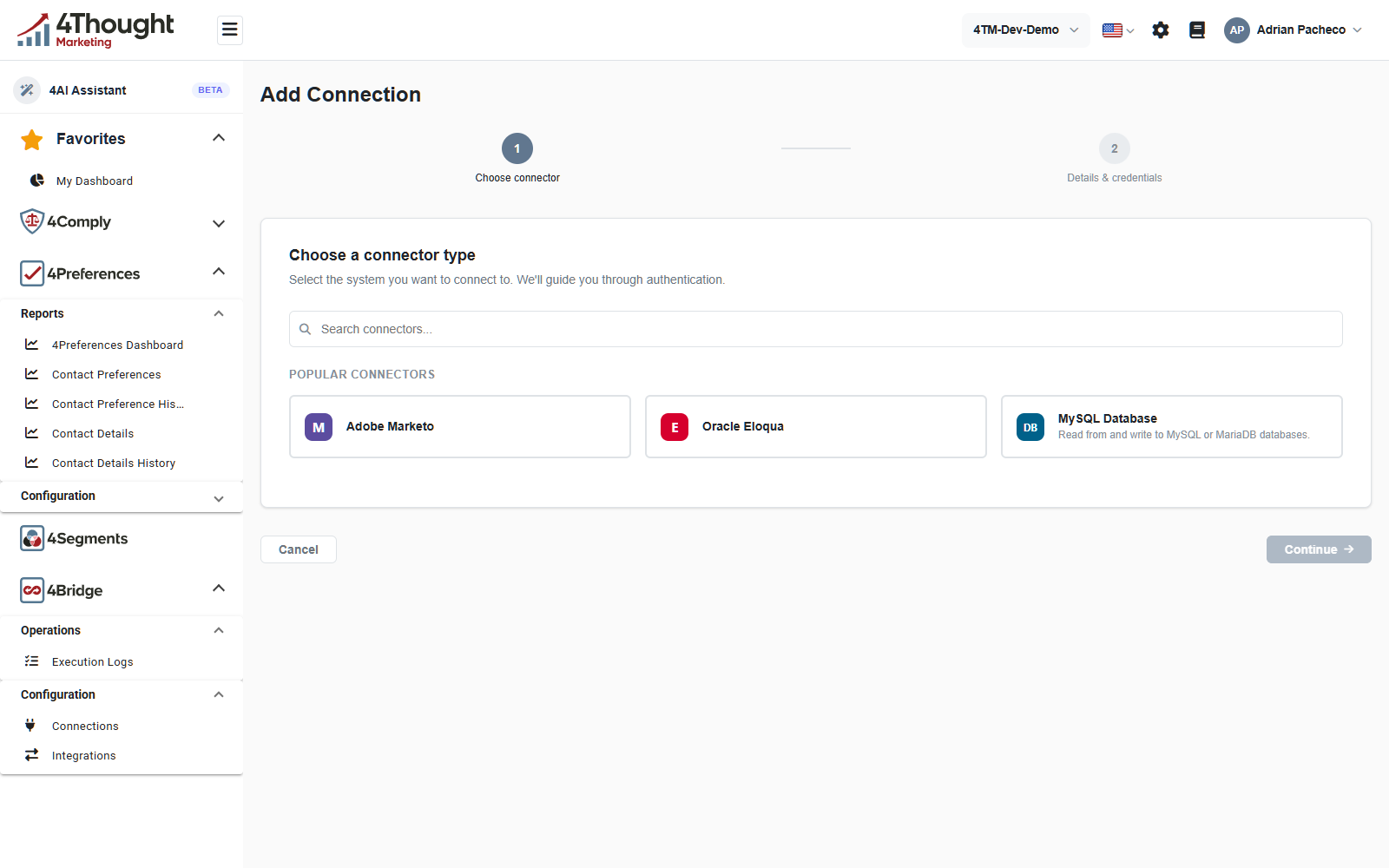
The heading is Choose a connector type and the line under it reads Select the system you want to connect to. We'll guide you through authentication. Pick a card, then Continue. Continue stays greyed out until you pick one.
Step 2, details and credentials
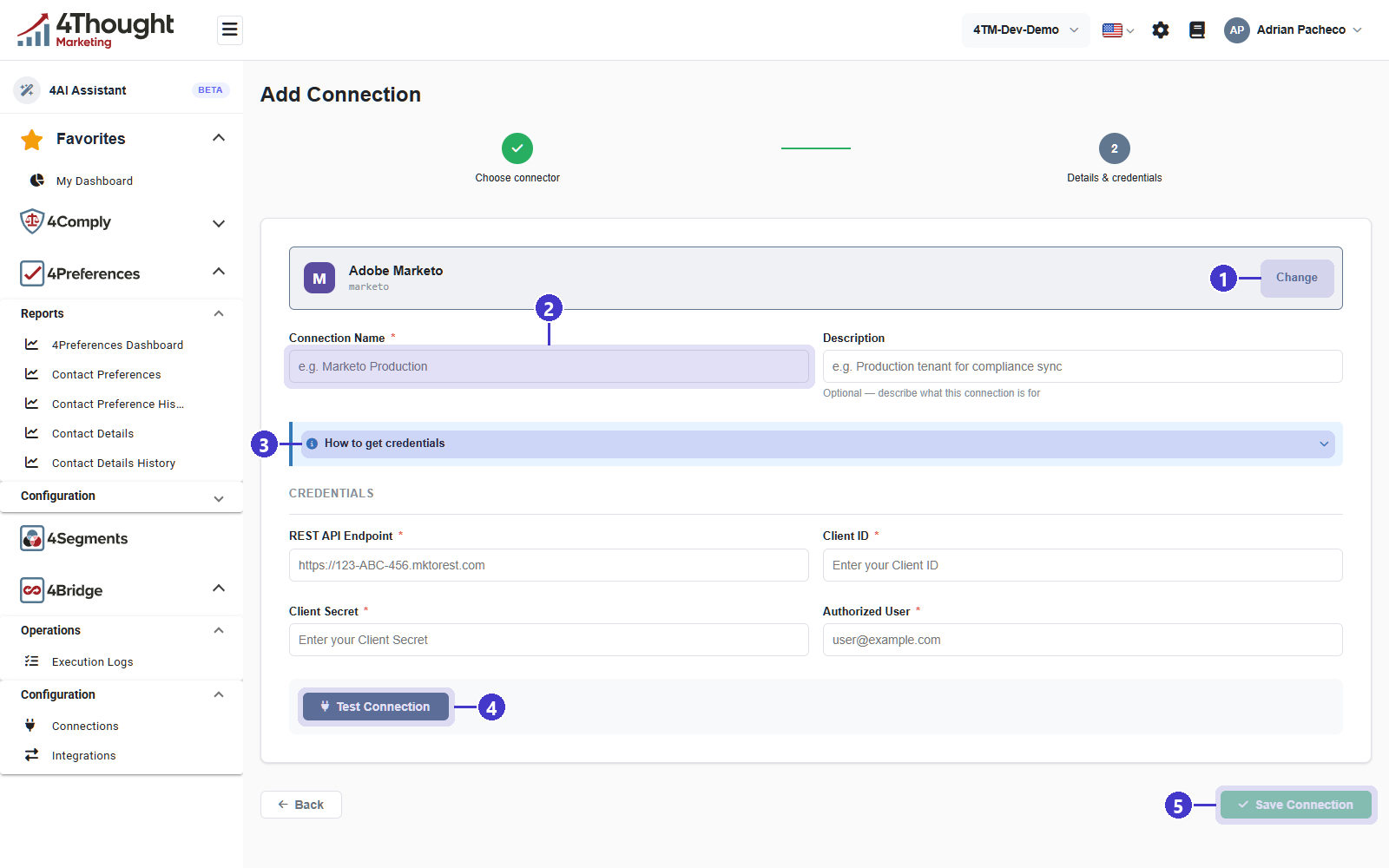
- The chosen connector type is shown in a banner at the top, with Change to go back to step one.
- Connection Name, required. Its placeholder suggests
e.g. Marketo Production. Use a name that says which system and which environment, because this is the name every integration, task and log will show. Description beside it is optional. - How to get credentials, a collapsed panel of instructions for this connector type. Open it before you go hunting in the other system's admin screens.
- Test Connection. 4Bridge authenticates against the system and, when it can, reads back its list of objects.
- Save Connection, greyed out until the test succeeds. The tooltip says so: run the test first, and Save becomes available once it passes.
A failed test blocks the save. That is deliberate, and it is why a saved connection is usually a working one. Fix the credentials and test again.
The credential fields themselves come from the connector type. Two examples:
| Connector type | Fields it asks for |
|---|---|
| Adobe Marketo | REST API Endpoint, Client ID, Client Secret, Authorized User |
| MySQL Database | Host, Port, Database, SSL Mode, Username, Password |
SSL Mode on a MySQL connection offers five settings, from None (unencrypted) through Preferred, Required and VerifyCA to VerifyFull, which encrypts and verifies both the certificate authority and the hostname. Each option spells out what it does on the line beside it. Choose the strictest one your database supports.
TODO(review): the Marketo and Eloqua forms ask for a client secret in a plain text input. Confirm whether the field should be masked, and whether the browser is expected to keep it out of autofill.
Status
Every connection carries a status, and it is set by testing rather than by you.
| Status | What it means |
|---|---|
active |
the last test succeeded |
inactive |
no test has succeeded yet, or the connection has been switched off |
error |
the last test failed |
pending_test |
the connection is saved and waiting for its first test |
The connection also keeps the time of the last test and the message the test returned. The message is the useful half: it is what the other system said, not what 4Bridge guessed.
TODO(review): nothing appears to re-test a connection on a schedule, so an active
connection whose password was rotated last week still reads active until someone tests it
or a task fails. Confirm whether periodic re-testing is planned, because otherwise the status
means "worked when last checked" and this page should say that.
Credentials and secrets
A connection splits what it stores in two.
- Config is the non-sensitive part: a hostname, a port, a database name, an API version. It is returned in full whenever a connection is read.
- Secrets are the sensitive part: passwords, client secrets, API keys. They are encrypted before they are stored.
When you edit a saved connection the form tells you the current values are loaded and that an eye icon reveals them, so an administrator can check a credential rather than re-entering it blind.
TODO(review): reading one connection through the API returns the decrypted secret values in
the response body, which is how the edit form fills itself in. The product overview in
4Core states the opposite, that secrets are never returned in a read. Confirm which
behaviour is intended before this page describes it, and whether the reveal needs to be a
separate, separately-permissioned call the way 4Preferences handles a webhook signing secret.
System-managed connections
Three connector types are never offered in the wizard because the platform creates the connection for you when the matching module is switched on.
| Connection | Created when | What it is for |
|---|---|---|
| 4Comply API | always | reading and writing consent records, permissions and contacts in your own tenant |
| 4Preferences API | 4Preferences is active | reading and writing preference data |
| 4Segments Storage | 4Segments is active | writing contact data into your private 4Segments database |
They are marked with a padlock in the list and cannot be edited or deleted. Attempting either
through the API is refused with a system_managed error. Their credentials are resolved from
your tenant's own API token at run time, which the connector type's description spells out:
token rotations apply automatically, with no manual update.
4Segments Storage is different again, because it is a database the platform provisions for you. See The 4Segments bridge.
Connector metadata
Once a connection tests successfully, 4Bridge asks the other system what it holds: which objects exist, and for each object which fields, their types, whether they are required and whether they are read-only. That answer is connector metadata, and it is what fills the pickers when you build a task.
Metadata is cached per connection and per object so that building a task does not hammer the other system's API. The cache entry has an expiry, twenty-four hours by default, after which the next read fetches fresh metadata.
You do not normally manage the cache. Where it matters is when you have just added a field in the other system and 4Bridge does not offer it yet: refresh the metadata for that object and it appears.
TODO(review): a Refresh Metadata button exists in the field-mapping code path and the API has an endpoint behind it, but the current build shows no such button on the mapping step. Confirm where a customer is meant to trigger a refresh.
TODO(review): the standalone Connector Metadata screen calls
GET /v1/4bridge/connector-metadata with no connection id, which the API does not serve, so
it always reads No connector metadata available. Confirm whether that screen is meant to
list cached metadata across connections.
Deleting a connection
Deleting is blocked for system-managed connections. For everything else the bin icon removes the connection, and the card's own Used in N integrations line is the warning you get first.
TODO(review): confirm what happens to an integration whose connection is deleted. The integration keeps the id, so it presumably fails at run time rather than being blocked or cleaned up. That is worth stating plainly one way or the other.