Preference pages
A Preference Page is the thing your contact actually sees: a page with the questions on it, a submit button, and your styling around it. You build it in the dashboard, then either embed it in your own site or link to it.
This guide covers building one, publishing it, restricting who may show it, and translating it. What arrives in the database when a contact submits it is Contact preferences.
Before you start you need at least one core preference or core contact to put on the page, and one core contact marked as the email identifier. See The preference catalog.
The list
Preference Pages is the first item under Configuration.
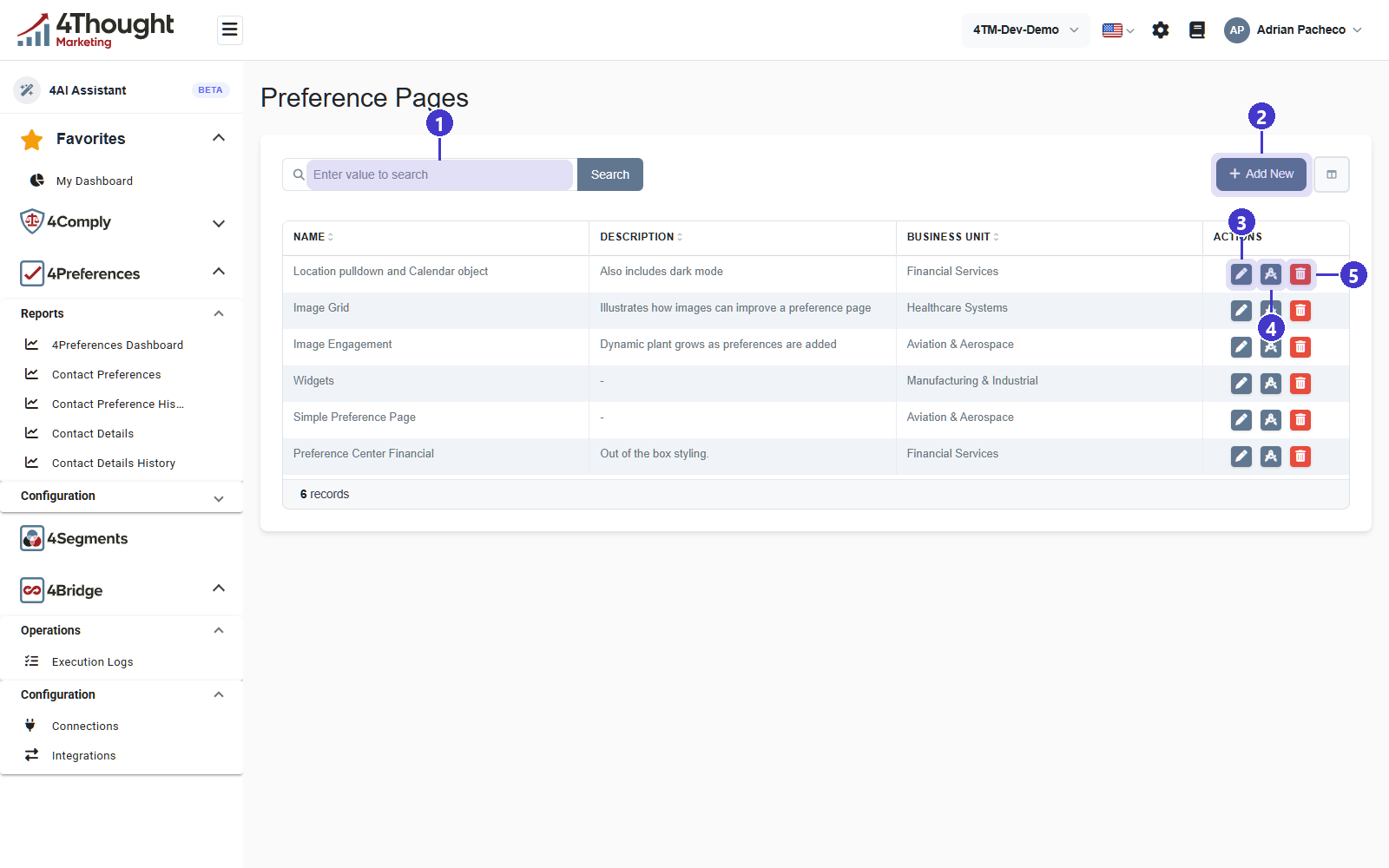
- The search box, which searches the page name.
- + Add New, which opens the page builder.
- The pencil, tooltip Edit, which reopens the builder on an existing page.
- The drafting-compass icon, tooltip Page Render Options, which is how you publish. See Publishing it.
- The red bin, tooltip Delete, which asks for confirmation first.
The columns are Name, Description, Business Unit and Actions. The demo tenant holds 6 records.
Page details
+ Add New opens Add Preference Page. The top half is the page's own settings.
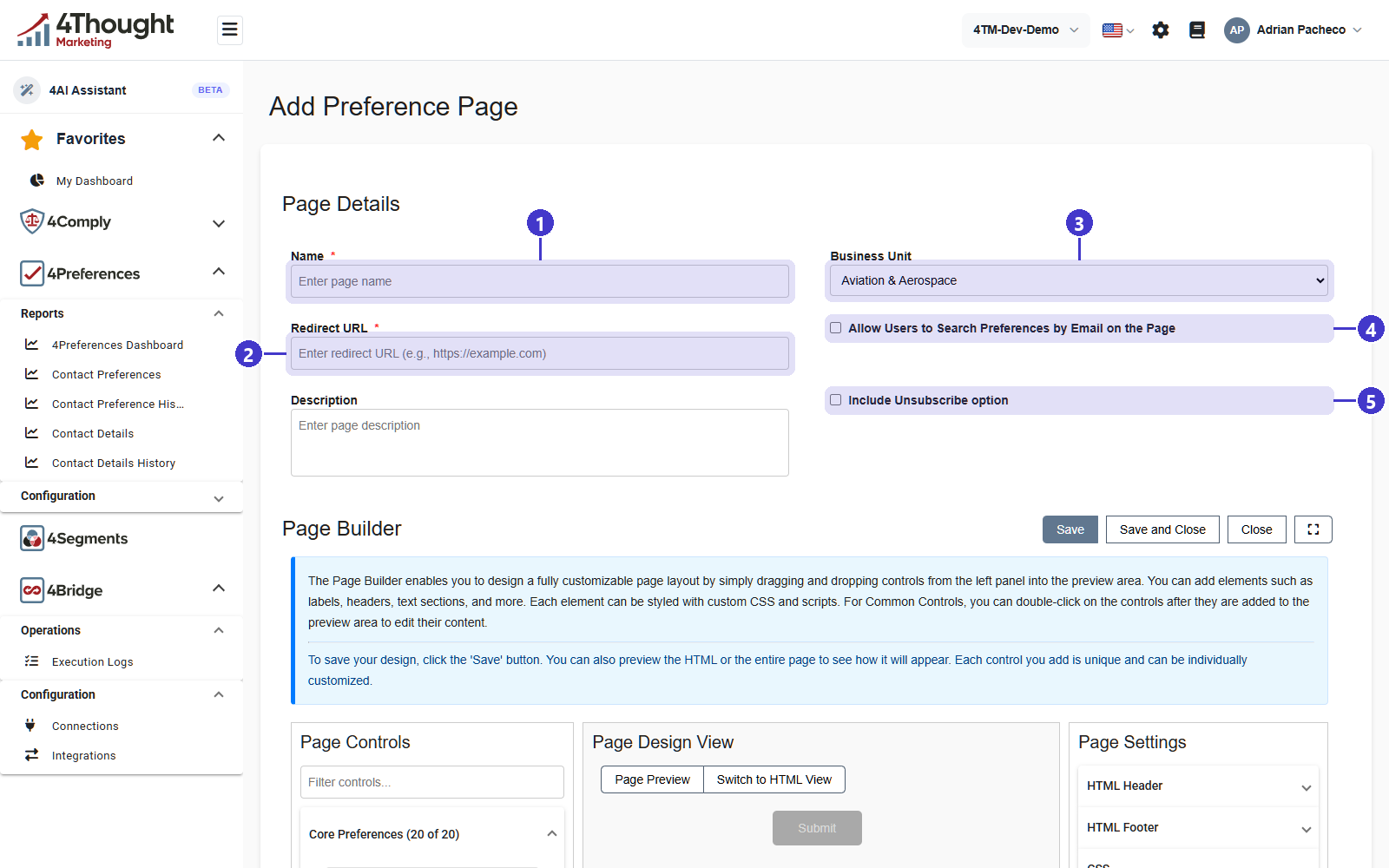
- Name, required. It is the internal name and it appears in every report.
- Redirect URL, required, shown with the example
https://example.com. This is where the contact's browser goes after they submit, so it is your thank-you page. It is required because the submission always ends in a redirect: there is no built-in confirmation screen. - Business Unit, which decides which core preferences and core contacts the builder offers you. It defaults to the first unit in the tenant, so check it before you start dragging controls in.
- Allow Users to Search Preferences by Email on the Page adds a box where the contact types their email address to load what they have already chosen.
- Include Unsubscribe option adds an opt-out-of-everything control.
TODO(review): confirm what Include Unsubscribe option does when a contact uses it.
The ContactGlobalUnsubscribe webhook event exists and is raised from 4Comply's permission
code, so the guess is that it writes a global opt-out rather than clearing each preference,
but that should be stated rather than guessed.
TODO(review): Allow Users to Search Preferences by Email on the Page means anyone who types an email address into a public page can see that person's preferences. Confirm whether there is any verification step, and if not, whether the feature should carry a warning here.
The page builder
Below the details is Page Builder, whose own instructions read The Page Builder enables you to design a fully customizable page layout by simply dragging and dropping controls from the left panel into the preview area.
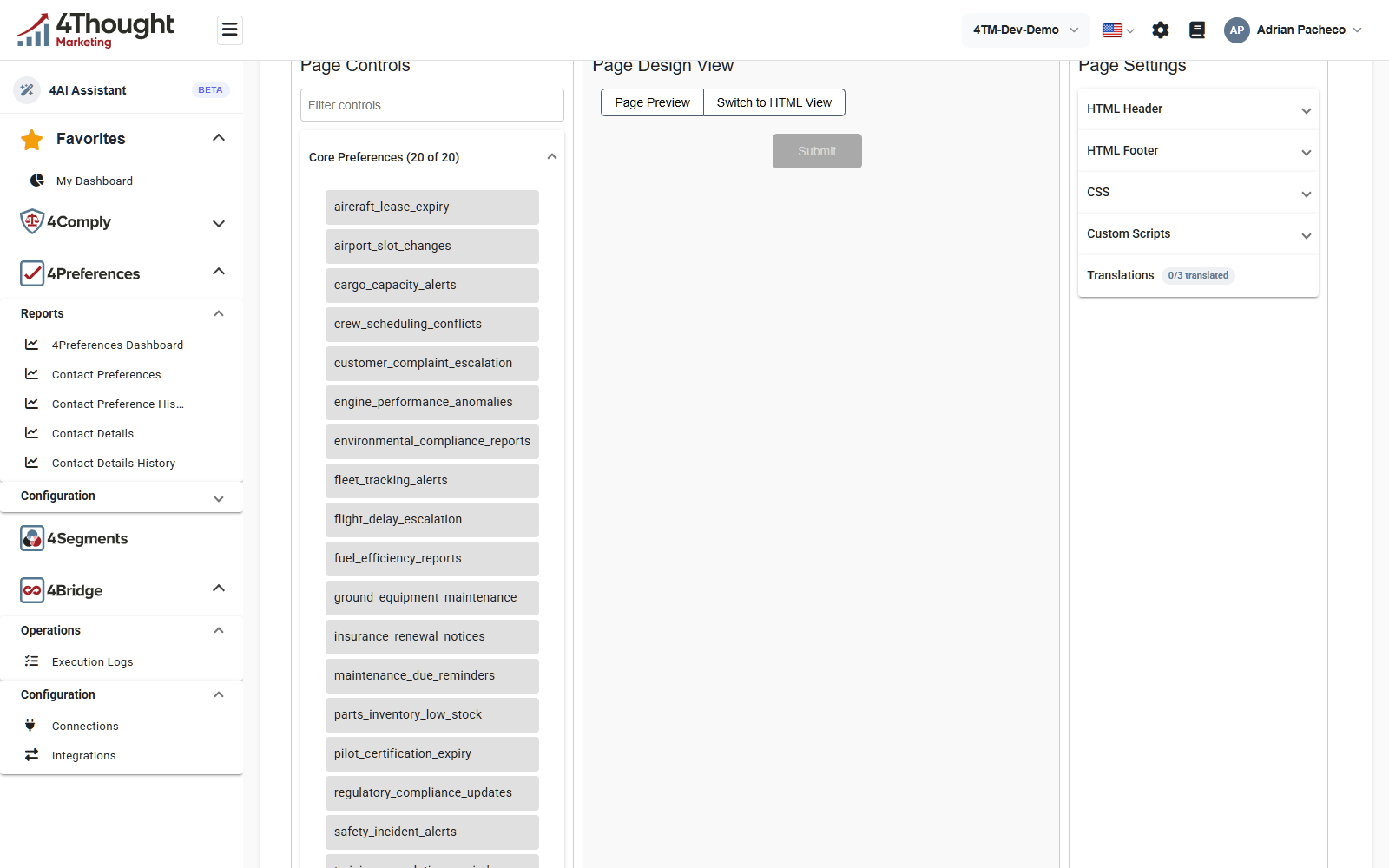
Three panels, left to right.
- Page Controls is what you can add, in three collapsible groups: Core Preferences, then Core Contacts and Common Controls below it. Each group header carries a count, and the counts are scoped to the page's business unit, which is why the figure reads Core Preferences (20 of 20) in a tenant that holds 44 core preferences in total. Common Controls are the layout pieces: labels, headers, text sections and the like. A filter box narrows the lists.
- Page Design View is the page itself. Page Preview shows it as the contact will see it and Switch to HTML View shows the markup. Double-clicking a common control after you have added it edits its content.
- Page Settings holds HTML Header, HTML Footer, CSS, Custom Scripts and Translations. The first four are how you make the page look like the rest of your site. Translations shows how far along the page's own wording is, reading 0/3 translated in the figure.
Save keeps the design and stays on the page. Save and Close returns to the list. Close leaves without saving. The icon to the right of Close expands the builder to the full window.
Behind the scenes the layout is stored as a Preference Form, which is versioned, and the
page points at it. There is no Forms screen in the dashboard: the form is created and
updated for you when you save the page. The API exposes forms separately at
/v1/preferenceforms if you need to read one.
TODO(review): the form record carries both version and activeVersion, which implies a
page can have a draft layout and a live one. Nothing in the builder offers that choice.
Confirm whether form versioning is used, and if so how an administrator switches versions.
Publishing it
There is no publish button. A saved page is immediately readable at its public URL, and the Page Render Options icon on the list gives you three ways to use it.
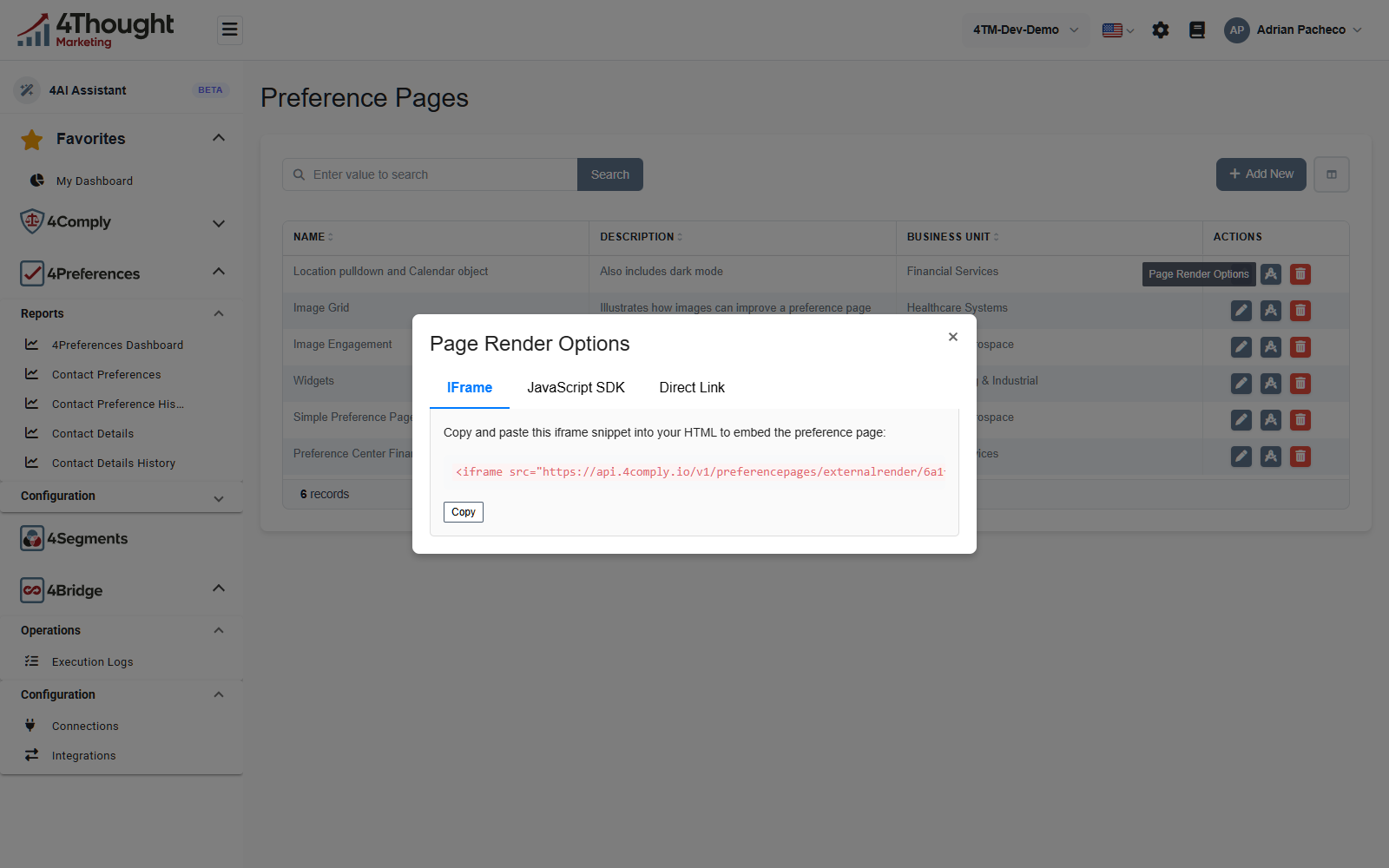
| Tab | What it gives you | Use it when |
|---|---|---|
| IFrame | a plain <iframe> pointing at the page's public URL |
you want the page inside one of your own pages and a fixed height is fine |
| JavaScript SDK | a <div> plus a script that creates the iframe and resizes it |
the page's height changes, for example when a contact expands a section |
| Direct Link | the URL on its own | you are linking from an email or a button |
All three point at the same endpoint,
GET /v1/preferencepages/externalrender/{tenantId}/{pageId}, which renders the page's HTML.
The URL in the figure is illustrative: the tenant identifier and the API host in it have
been replaced with same-shaped stand-ins.
The Copy button under each snippet copies it. The dialog closes with the x in its corner.
The public endpoints
Three 4Preferences endpoints take no credentials at all, because a contact filling in a preference page has none.
| Endpoint | What it does |
|---|---|
GET /v1/preferencepages/externalrender/{tenantId}/{pageId} |
renders the page |
POST /v1/contactpreferences/{pageId} |
receives the submitted form |
GET /v1/preferencepages/preferences/{email} |
returns what one contact has chosen |
The first is gated by the whitelist below. The other two are not.
TODO(review): POST /v1/contactpreferences/{pageId} and
GET /v1/preferencepages/preferences/{email} carry no authorisation attribute and are not
whitelist-checked, so anyone who knows a page id can post to it and anyone who knows an
email address can read that contact's preferences. Confirm whether that is intended before
this page describes it as a feature rather than a gap.
The whitelist
Preference Whitelist decides which callers may render a preference page, and which may run a preference agent. It is a list of hostnames, IP addresses and IP ranges.
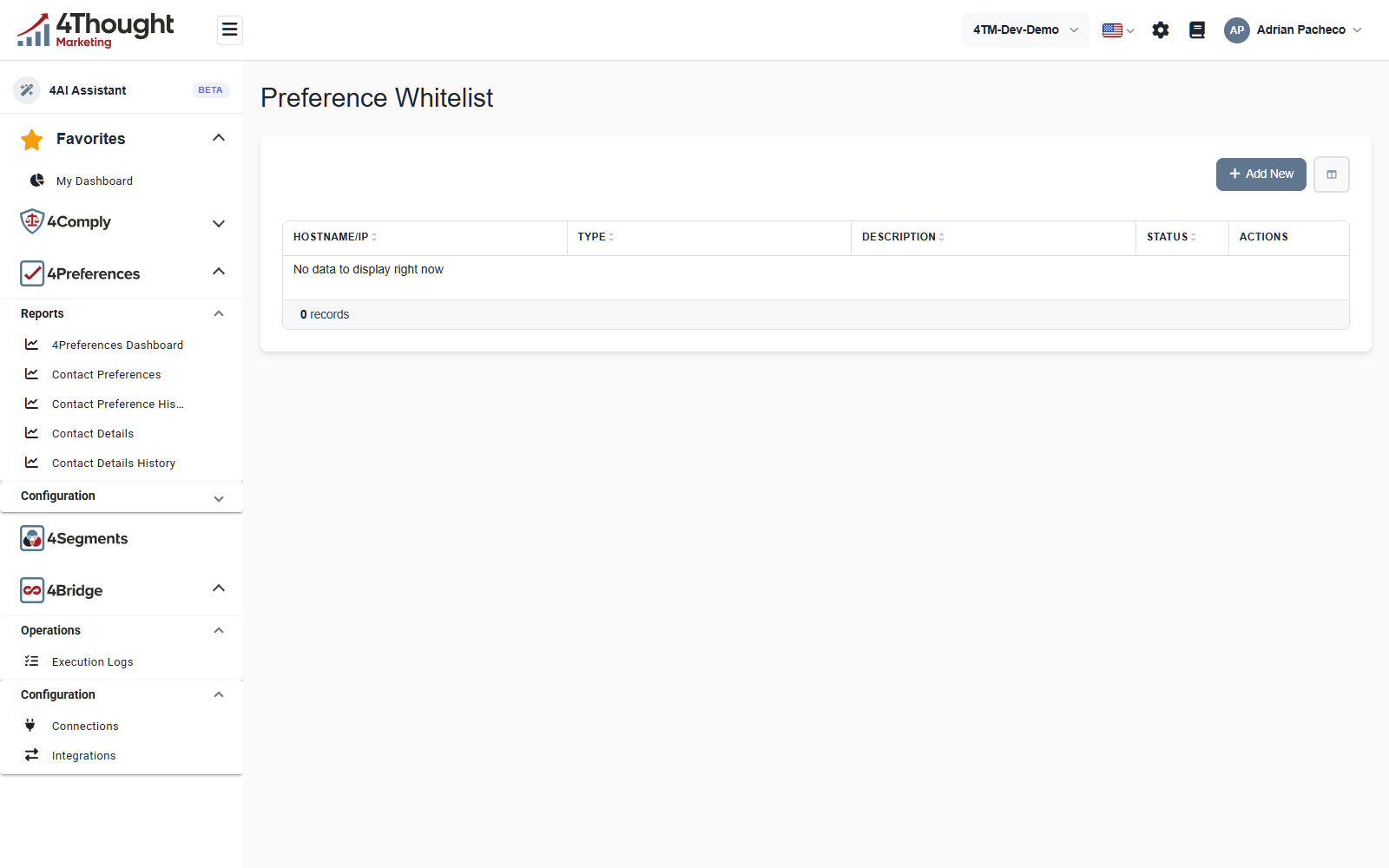
An empty whitelist means open access. That is the state in the figure, 0 records, and it is also the state a new tenant starts in: every request to the public render endpoint is allowed. Add a single entry and the rule flips, so from then on a request is allowed only if at least one Enabled entry matches it.
You type one value per entry and the product works out the type from its shape.
| What you type | Type it becomes | Matched against |
|---|---|---|
203.0.113.10 |
IpAddress |
the caller's IP address |
203.0.113.0/24 |
IpRange |
the caller's IP address, inside that CIDR range |
www.example.com |
Hostname |
the Origin header, or the host of Origin or Referer |
*.example.com |
Hostname |
the same, with any single leading label |
Anything that is neither a valid IP address, a valid CIDR range nor a valid hostname is
rejected when you save it. GET /v1/preferencewhitelists/validate/{value} runs the same
check without saving.
Two things are worth knowing before you switch it on.
- An entry whose Status is not Enabled is skipped entirely, so a disabled entry does not block anything and does not allow anything.
- Browsers do not send an
Originheader on a plain navigation or on an iframe's initial GET, which is exactly how a preference page is loaded. 4Preferences works around this by also matching the host ofOriginandReferer, but a contact whose browser sends neither will not match a hostname entry. If you use the Direct Link option, IP entries are the reliable kind and hostname entries are not.
TODO(review): given the point above, confirm the recommended whitelist setup for each of the three publishing options, and whether a hostname whitelist is expected to work at all with Direct Link.
Translations
Translations under Configuration is one board for every piece of customer-facing wording in 4Preferences: every preference page, core preference and core contact.
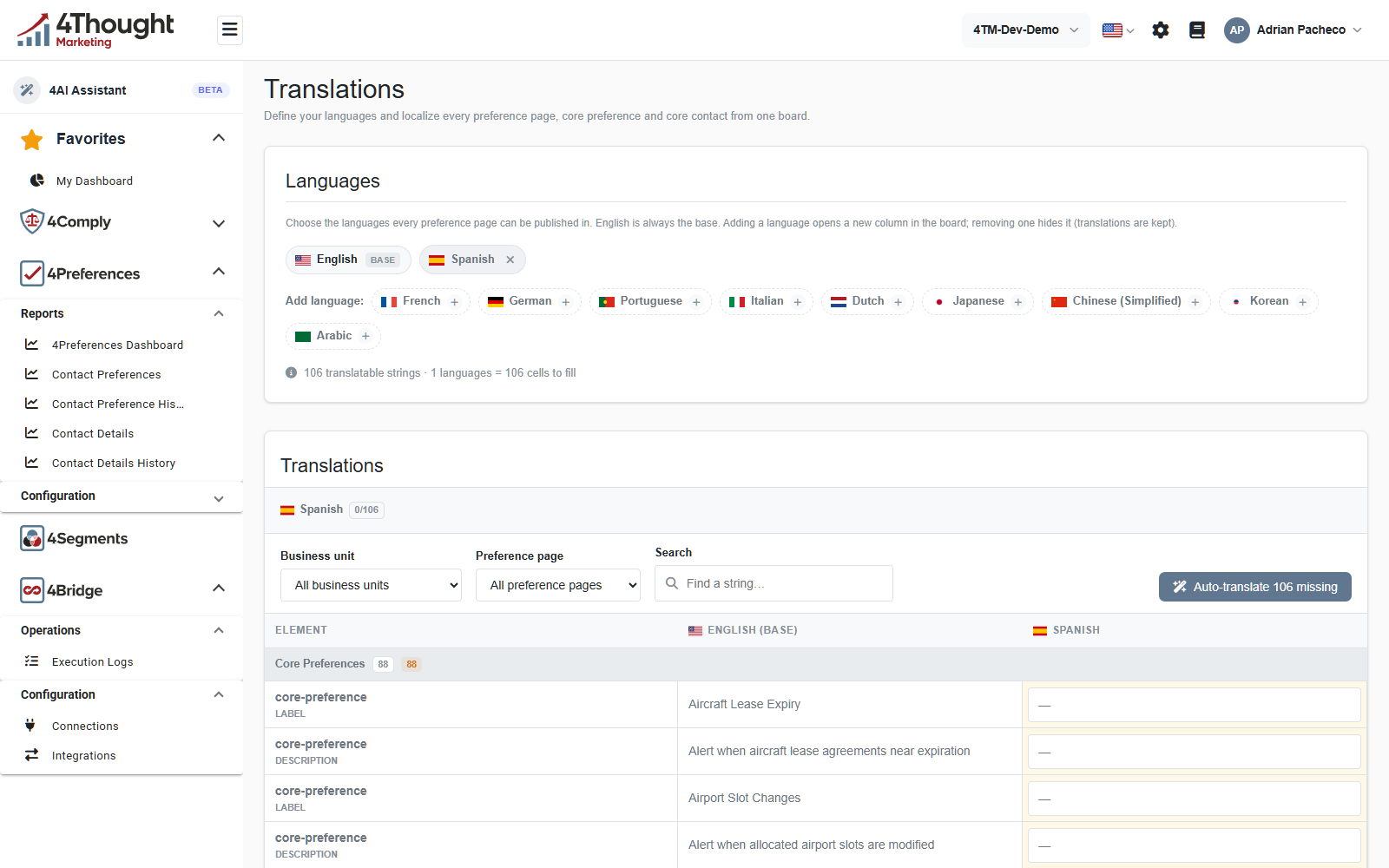
The Languages panel at the top is where you choose which languages exist. Its own line explains the rules: Choose the languages every preference page can be published in. English is always the base. Adding a language opens a new column in the board; removing one hides it (translations are kept). Nine languages are offered beyond English and Spanish: French, German, Portuguese, Italian, Dutch, Japanese, Chinese (Simplified), Korean and Arabic.
Under the language chips is a count of the work. In the figure it reads 106 translatable strings · 1 languages = 106 cells to fill.
The Translations board below is a grid: one row per translatable string, one column per
language, English on the left as the base. Business unit and Preference page narrow
it, and Search finds a string by its English text. Rows are grouped by what they belong
to, and the figure shows the Core Preferences group with a count of 88, each row
labelled core-preference and either LABEL or DESCRIPTION.
Auto-translate 106 missing fills every empty cell in the current language with a machine translation. It writes, so treat it as a first draft to review rather than a finish line.
TODO(review): confirm what Auto-translate uses and whether its output is marked as machine-generated anywhere, so a reviewer can tell which cells a person has checked.
A page also picks its own default language, and carries its own fixed UI strings (the search box, the submit button, the confirmation messages) separately from the preference wording.
TODO(review): confirm how a contact ends up on the Spanish version of a page. Is it the
page's own default language, a query parameter, the browser's Accept-Language, or a
separate page per language?