Settings
In this section you can verify the Company Name you've used to create the 4Comply instance, as well as add a logo image and an email domain. The logo will be used in the emails and forms that will be sent to the Digital Citizens. Make sure that the logo is no larger than 200px wide.
Another important section here is where the Client ID and the Secret Key are located. These are extremely important when creating and performing API calls: they are need for them to work. Also, you have the option to refresh the Secret Key in case you feel that it has been misplaced or compromised.
Email domain
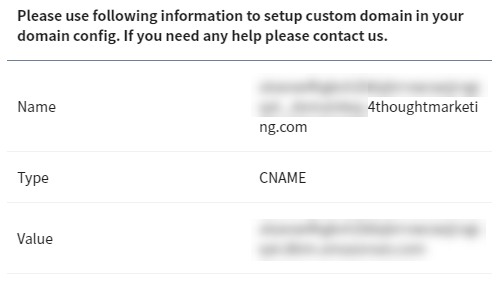
4Comply also has the option to send emails using your own domain. To accomplish it, you need to add your email domain in the requested section, and then you will need the help of a developer or System Administrator to add a CNAME record to your domain configuration.

Once you enter your company's domain, an information section would will appear below the Secret Key with the information needed to create the CNAME record. Once you add it to your Domain, the emails sent by 4Comply will use your email domain.
Company Logo
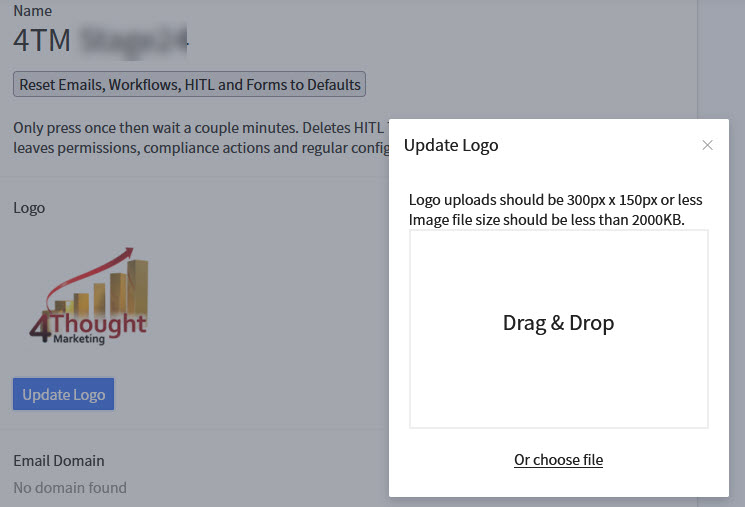
You should upload your company logo which will show on all email templates. Logo uploads should be 300px x 150px or less. Image file size should be less than 2000KB.
You are able to upload or edit your company logo on the Settings page, which can be found by clicking on the gear icon in the upper right corner of any page of 4Comply.

On the Settings page, simply click on Update Logo to get the dialog box to perform the upload.
Favicon and Company Name Alias
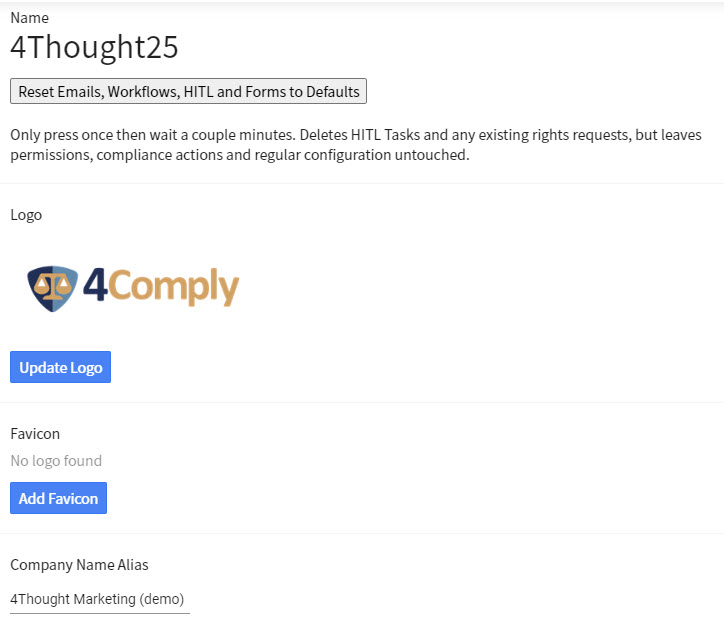
You can add a favicon or a company name alias for use with email templates and forms. The alias can be a name different than the instance name you chose when you created your 4Comply system.
- To ad a Favicon, click on Add Favicon, and select your favicon file.
- For the Company Name Alias, go to the Company Alias Name field, enter your company name the way you'd like it to appear on emails, forms, and landing pages, and then click SAVE.
Custom Fields
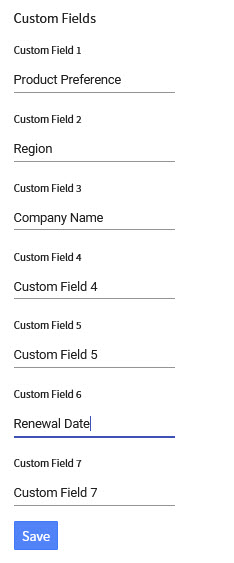
Besides the standard fields that come with 4Comply, you can add up to 5 custom text fields and 2 custom date fields. To name these fields, simply click in the appropriate label field and add your custom field label.