Rights Dashboard
The Rights Dashboard allows you quickly scan all Right Requests in the system. By default, it will show all the regulations. Select a specific regulation to drill down further.
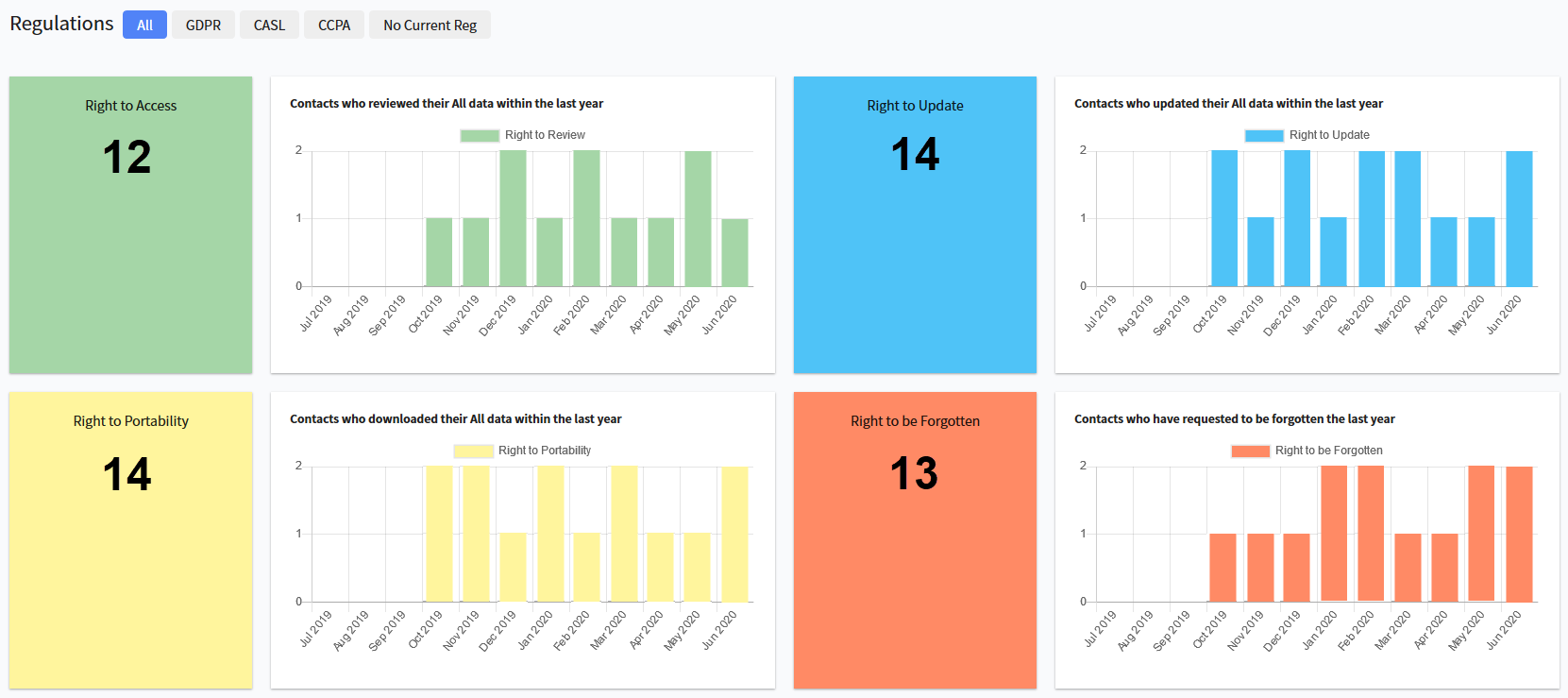
If you want to check only the right requests coming only from Digital Citizens of a specific regulation (GDPR, CASL, CCPA, No Regulation), then you can select the specific button at the top of the graph area, and the records for that specific regulation will be displayed.

Rights Request
Use the Rights Request option to view a list of all requests from Digital Citizens and their status. Use the search function to drill down to a specific contact.
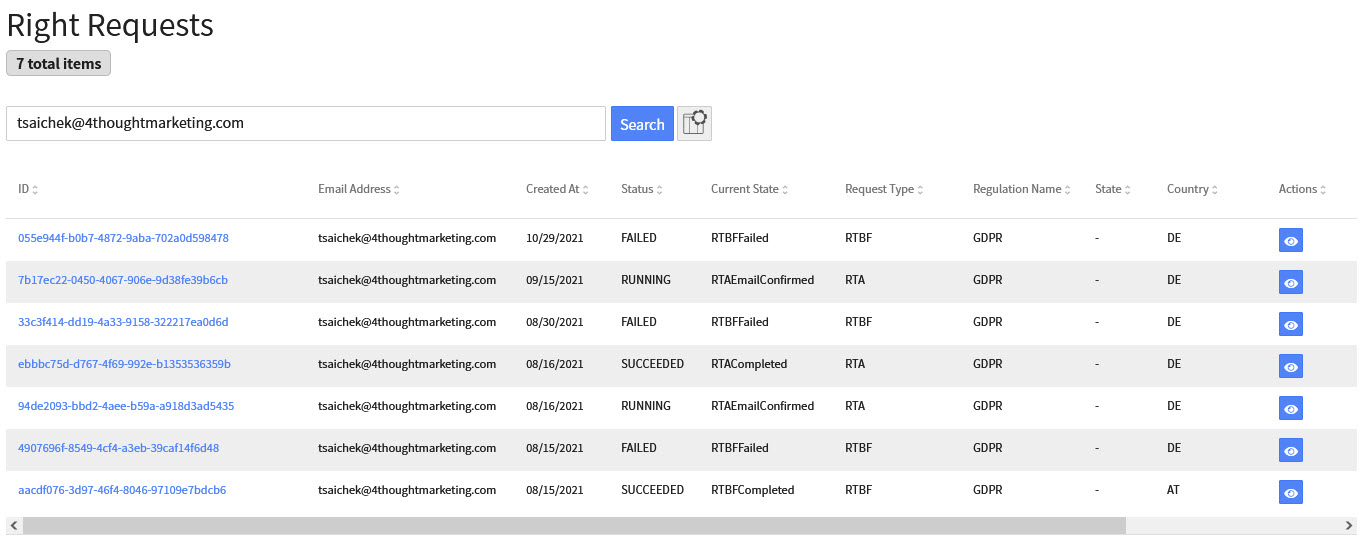
For every request, it displays the request date, the status, type, regulation, among other fields.
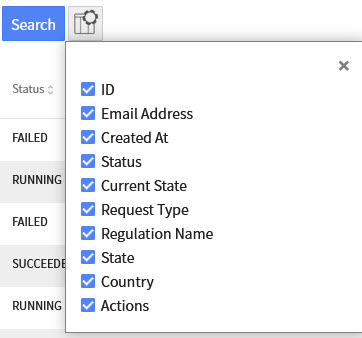
You can click the gear icon to select which columns you'd like visible
There are 4 types of Right Requests in 4Comply:
- Right to Access: the Digital Citizen has the right to ask for the personal data your company has on him/her
- Right to be Forgotten: the Digital Citizen has the right to be removed from your company's databases
- Right to Portability: the Digital Citizen has the right to ask for the personal data your company has on him/her to be delivered in a portable way. 4Comply sends the JSON files with the personal information in a compressed zip file.
- Right to Update: the Digital Citizen has the right to update the personal data your company has on him/her
For rights requests found within 4Comply, you can also manually upload data to it in case you don’t have a webhook set up to process that request.
Rights Flows
The last option of this section is for reviewing the workflows that are in place when a right request is made. This is a graphic view of the flow with step names, types, and the option to disable the steps according to your needs.
The default workflows available in the system, as per the specifications for each of the regulations, are: RTA, RTBF, RTP, and RTU for GDPR and other regulations based on GDPR; no rights flows for CASL; and RTA and RTBF for CCPA.
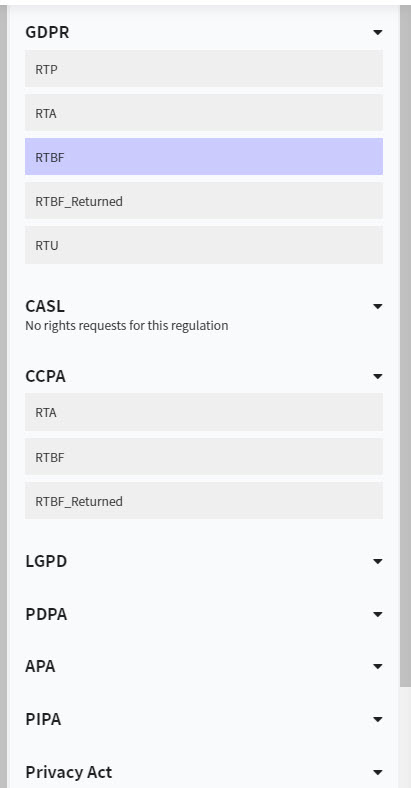
You can add customized workflows for any regulation. For more details, refer to Adding a new Regulation in the developer documentation.
Workflows are a list of steps that represent all the work required by the system to process a request. The type of steps include:
- Automatic Step: this step will automatically occur in 4Comply, and move to the next step
- Regular Step: This step can be triggered from forms, email links, or any custom code you write
- HITL Step: This step creates a HITL task. If blocking, it waits for the HITL task to be completed before proceeding
- Webhook Step: this step will automatically send a webhook to your system based on the configuration
- Indeterminate: This step can be triggered many times, but the workflow will not continue until you or your system specifies it
- Fulfillment (future): This step will automatically create a fulfillment action for your right request, packaging and sending the relevant data to the Digital Citizen
- Choice (future): this is an automatic step that will route the request to a success or failure step
If you switch the toggle button of the Step, it will change to a Disabled status and is skipped in the flow for all future requests. You can personalized the flow to meet your needs. For example: If you don't want to send an identity confirmation email to the Digital Citizen, disable those steps and the flow will skipped them and continue the rest of the steps.
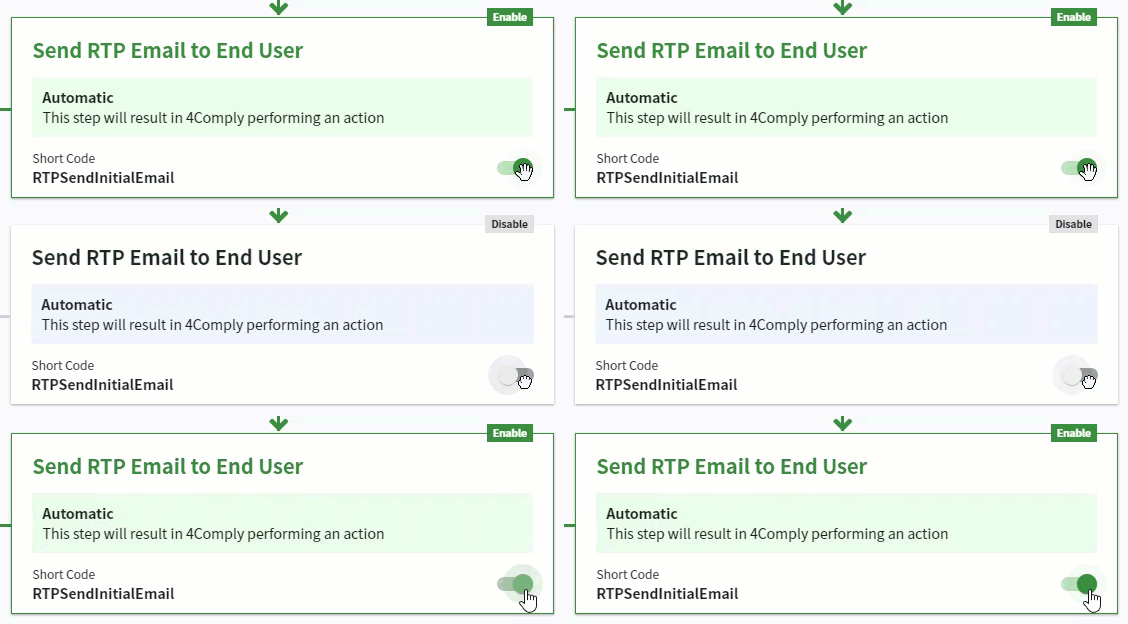
Of course, you can configure each flow how you required, but there are a few steps that you cannot disable. At the end of the flow, the steps that define if a request was successful or if it failed at some point. 4Comply need these steps to set the status of each request and let the system know when the request was completed.